
 To Next Page
A
Amanda OlsonJul 30, 2025
How to fix GE Digital Camera that does not turn on?
- YyavilaJul 30, 2025
If your GE Digital Camera isn't turning on, the battery might be depleted. Try recharging it. Also, make sure the battery is correctly installed.

How to fix GE Digital Camera that does not turn on?
If your GE Digital Camera isn't turning on, the battery might be depleted. Try recharging it. Also, make sure the battery is correctly installed.
Why images will not print from GE Digital Camera?
If images from your GE Digital Camera won't print, first check the connection between the camera and the printer. Ensure you're using a PictBridge compatible printer. Also, make sure the printer has paper and ink, and that there is no paper jammed inside.
What to do if images and video files cannot be saved on GE Digital Camera?
If your GE Digital Camera isn't saving images or videos, it might be because your SD memory card is full. Try using another memory card or deleting files you don't need. Also, check if the memory card is locked; if it is, unlock it.
What to do if GE Digital Camera cannot write to the memory card?
If your GE Digital Camera can't write to the memory card, first check if the SD memory card has been locked. If so, release the write lock or try a different card. The camera may experience trouble recording HD movies to SD cards with a rating lower than Class 4. Use an SD card with write Class higher than 4 to improve performance.
Why does my GE Digital Camera turn off suddenly?
If your GE Digital Camera turns off suddenly, it's likely that the batteries have been depleted. Recharge the battery to solve this issue.
Why is saving data to memory card slow on GE Digital Camera?
If saving data to the memory card on your GE Digital Camera is slow, it might be due to using a memory card below Class 4. Using an SD card with write Class higher than 4 to improve performance.
Details regulatory compliance, contact information, and company details.
Introduces the manual, explains symbols, and provides usage context.
Provides guidelines for safe camera operation, handling, and storage to prevent damage.
Outlines precautions for handling, charging, and using the camera's battery safely.
Details safe practices for inserting, using, and storing memory cards to prevent data loss.
Covers miscellaneous safety measures including LCD screen care and travel precautions.
Lists all items that should be included in the camera package.
Step-by-step guide on inserting batteries and an SD/SDHC card.
Instructions for turning on the camera and setting language, date, and time.
Instructions on how to securely attach the camera strap.
How to take photos using the default automatic mode for simple operation.
Covers switching between display views and checking the battery level.
Instructions on how to capture video footage with the camera.
Explains various shooting modes and how to use the optical zoom feature.
Guide to operating the camera's flash and selecting different focus modes.
Instructions for using the self-timer and capturing rapid sequences of photos.
Selecting pre-defined scene modes and stitching panoramic images.
Enabling date stamps and controlling exposure using AE/Manual modes.
Selecting focus and exposure areas for better image control.
How to review photos/videos, use playback controls, and display on a TV.
Methods for deleting files, using the home icon, and managing media.
Magnifying images during review and displaying photos/videos in a slideshow.
Assigning names to faces and adding keywords for media organization.
Designating photos and videos as favorites for quick access.
Steps for transferring photos and videos to a computer using a USB cable.
Guide to accessing and modifying various camera operational parameters through the menu.
Detailed technical specifications of the camera.
Explains common messages and their solutions.
Common problems and their resolutions.
 General
| Brand | GE |
|---|---|
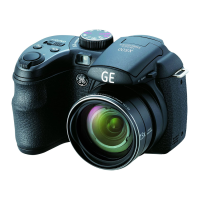
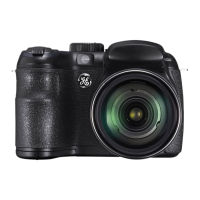
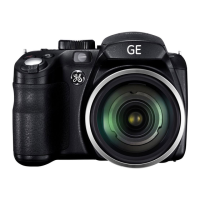
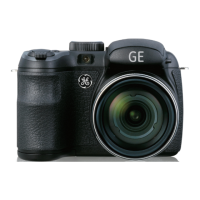
| Model | X2600 Power PRO Series |
| Category | Digital Camera |
| Language | English |