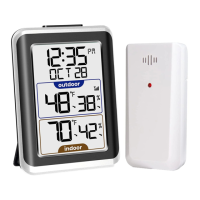
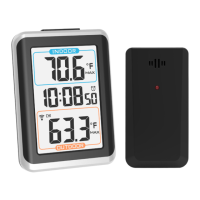
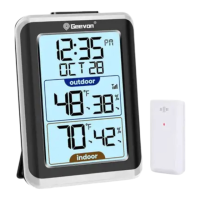
1. Temperature accuracy:
-40°F ~ -4°F: ± 7.2°F(-40°C ~ -20°C: ± 4°C)
-4°F ~ 32°F: ±3.6°F(-20°C ~ 0°C: ± 2°C)
32°F ~ 122°F: ±1.8°F(0°C ~ +50°C: ±1°C)
Note: when the temperature in -50°C ~ -40°C and 50°C ~ -70°C
range, the temperature is only for reference.
2. Humidity accuracy: +/- 5 % RH (@25°C , 30%RH to 50%RH); +/-
10 % RH (@25°C , 20%RH to 29%RH, 51%RH
to 95%RH)
Temperature alert set:
1. In standard mode, press “ ” to check the alert setting value, the
order is: HI AL→ LO AL→ current temperature and humidity
2. In checking mode, press and hold “ ” to enter alert setting of the
channel where the arrow is located. In setting mode, press and
hold “ ” button to turn on or turn off alert function of the channel
where the arrow is located.
3. Press “ ” to set and order is: Highest temperature→Lowest
temperature →Highest humidity → Lowest humidity→ exit.
4. In set, press “CH/▲” to go ahead by once. Hold “CH/▲” to go
ahead at 8 steps per second.
5. In set, press “MEM/▼/ C/F” to back by once. Hold “MEM/▼/C/F ”
to go back at 8 steps per second.
6. Press or no handling in 10s will exit.
Temperature alert:
1. Alert icon will flash when alert, alarm time is 2 minutes.
2. In alert status
3. Alarm sound:
0-10S:BI once/second
10-20S: BI twice/second
20-30S: BI three times/second
After 30S continuous BI four times sound until the alarm finish.
4. Alarm stop conditions:
a. Press any button to stop alarm sound but temperature and alert
icon will continuously flash.
b. When temperature go back into alert range.
c. Press “ ” to enter alert mode, press and hold “ ” to enter alert
setting of the channel where the arrow is located. In setting mode,
press and hold “ ” button to turn off alert function of the channel
where the arrow is located.
Setting the Temperature Units:
To switch the temperature measurement between °C and °F,
press and hold the “MEM/▼/C/F ” button which is also the C/F
option button. You can switch between Celsius and Fahrenheit at
any time (except when setting other setting options).
Checking the MAX/MIN temperature and humidity:
a. Press the “MEM/▼/ C/F” button to check MAX/MIN
temperature and humidity of the channel where the arrow is
located.
b. Press and hold the “MEM/▼/C/F ” button to clear the record
of MAX/MIN temperature and humidity when display shows
MAX or MIN temperature and humidity.
Setting the Channel:
Setting the channel connection between the display unit and
outdoor sensor:
a. Synchronizing 3 channel remote data on the same screen
at the same time. When the arrow icon is in the indoor area,
press and hold the “CH/▲” button to clear all channel data
and re-search RF, press and hold again to turn off search RF;
When the arrow icon is on any outdoor channel, press and
hold the “CH/▲” button to clear this channel data and
re-search RF, press and hold again to turn off search RF.
b. To change the channel option on the outdoor sensor open
the battery compartment cover, on the upper left side is a button.
c. ALWAYS MAKE SURE THE CHANNEL CHOSEN ON THE
DISPLAY UNIT MATCHES THE CHANNEL OPTION
CHOSEN ON THE OUTDOOR SENSOR.
Comfortable level:
COM: the temperature is between (68°F and 82.4°F) , the humidity
is between 40% and 70%.
WET: the humidity higher than 70%
DRY: the humidity lower than 40%
Not display: the temperature is not between( 68°F and 82.4°F),
the humidity is between 40% and 70%
Backlight
Touch the Brightness button to turn on the backlight . The backlight
always on when connect with USB line .When work with batteries,
touch the button to turn on the backlight for 10 seconds.
Low Battery Indicator:
If the low battery indicator is displayed on the LCD for either the
outdoor sensor or the display unit, immediately change the
batteries to prevent disruptions in communications of the devices.
Placement of the Device:
Proper placement of both the display unit and the outdoor sensor
are critical to the accuracy and performance of this product.
DISPLAY UNIT PLACEMENT:
Place the display unit in a dry area free of dirt and dust.
Display unit stands up right for tabletop/countertop use.
Important Placement Guidelines:
a. To ensure accurate temperature measurement, place units out of
direct sunlight and away from any heat sources or vents.
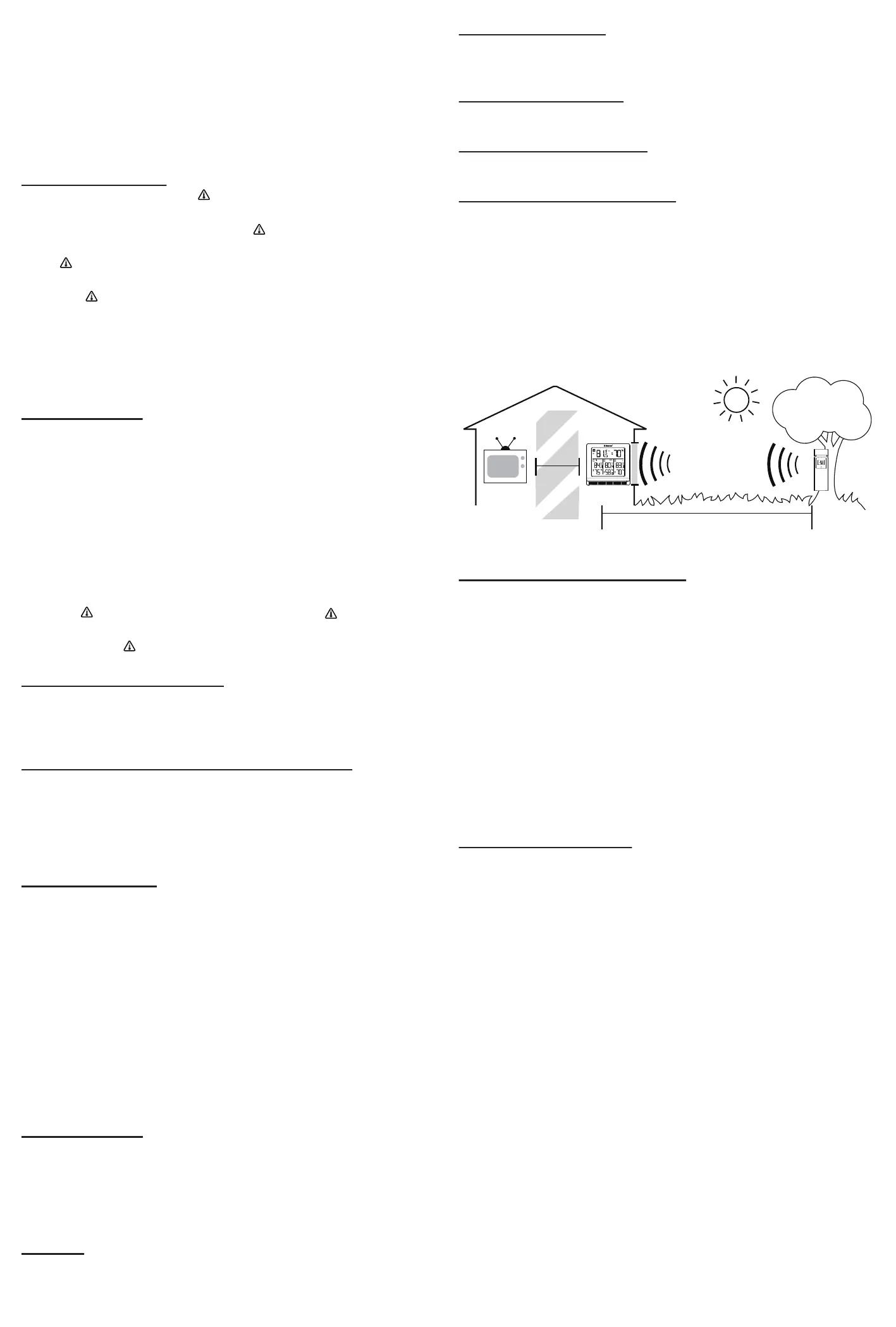
b. Display unit and outdoor sensor must be within 200ft (60m) of
each other.
c. To maximize wireless range, place units away from large metallic
items, thick walls, metal surfaces, or other objects that may limit
wireless communication.
d. To prevent wireless interference, place both units at least 3ft (1 m)
away from electronic devices (TV, computer, microwave, radio, etc.
OUTDOOR SENSOR PLACEMENT:
a. The sensor must be placed outside to observe outdoor
conditions. It is water resistant and designed for general
outdoor use, however, to prevent damage place the sensor in
an area which is protected from the direct weather elements
and direct sunshine. The best location is 4 to 8 feet above the
ground with permanent shade and plenty of fresh air to
circulate around the sensor.
b. Display unit and outdoor sensor must be within 100 feet of
each other.
c. In order to maximize the wireless range, place units away
from large metallic items, thick walls, metal surfaces or other
objects that may limit wireless communications.
d. To prevent wireless interferences, place both units at least
3 feet away from electronic devices (EX: TV, computer,
microwave etc.)
Outdoor Sensor Function:
a. Once the display unit has been set up and the channel
synchronized with the outdoor sensor, the display unit will
begin the registration process. It can take up to 3 minutes to
complete the registration, where the display unit will search
for an RF (Radio Frequency) signal from the outdoor sensor.
The outdoor sensor signal strength will show the connection
strength to the outdoor sensor. If there are no bars or if bars
are not showing at its maximum strength (4 bars) try placing
the outdoor sensor or display unit elsewhere for better
connection. The temperature and humidity data is updated
every minute if a change is detected.
b. If the RF Signal was lost and not reconnected, the outdoor
temperature and humidity level will begin to flash after 1 hour
of lost connection. If no connection was found after 2 hours
only a dotted line ‘ - -. - ’ will be displayed in place of the
temperature and humidity level.
c. To manually restart the RF registration, press and hold the
“CH” button for 3 seconds. The display unit will now search
for the RF signal for the next 3 minutes.
Technical Support
If your Geevon product does not operate properly,
please contact the seller on your order page or
shoot an email to : support@geevon.com.
TV
(200 feet maximum)
(60 meters)
(0.9 m)
3 feet
AT
LEAST
APART



 To Previous Page
 Loading...