GENEREX SYSTEMS Computervertriebsgesellschaft mbH - www.generex.de - 19
GENEREX Systems Inc. - www.generex.us
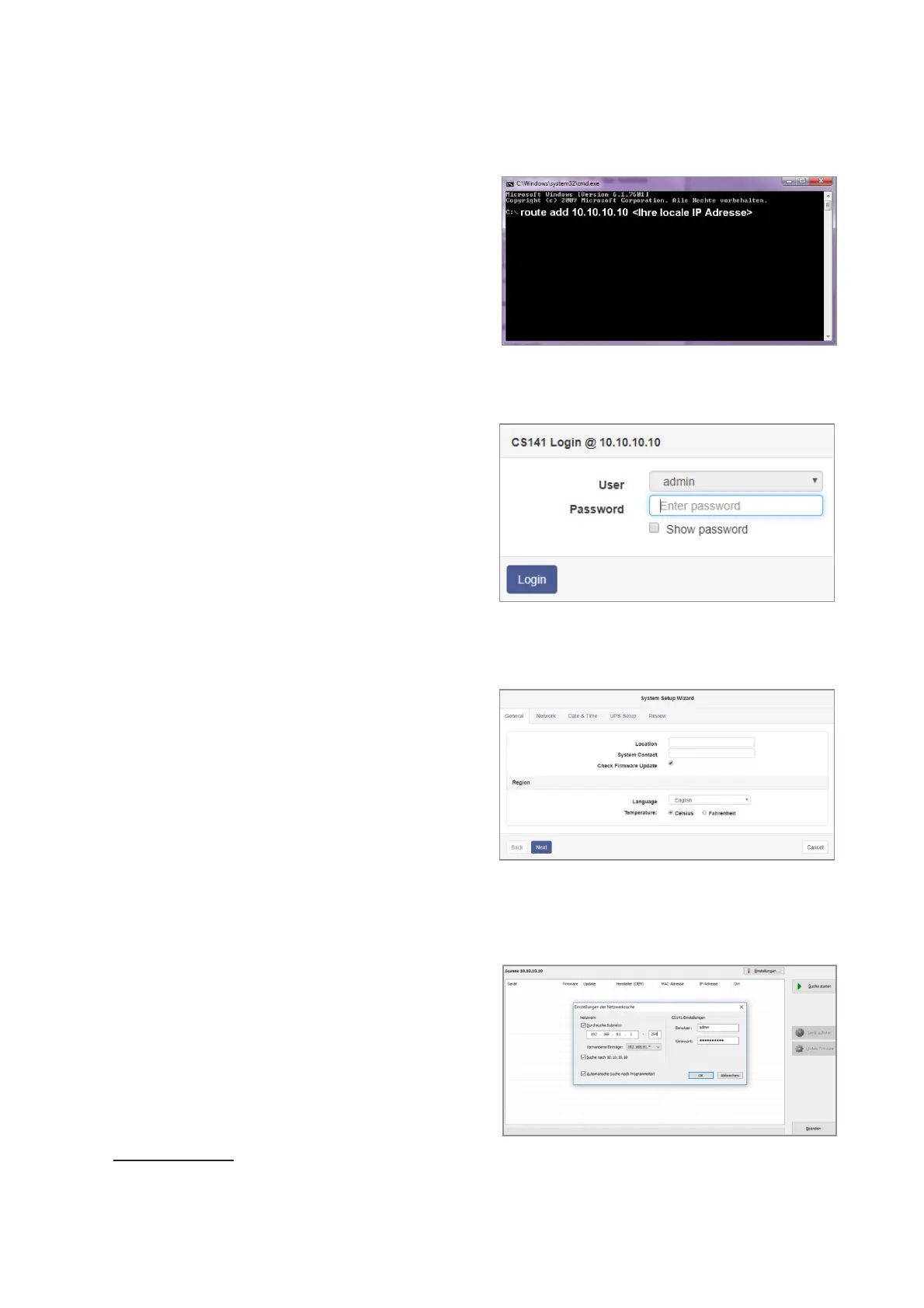
Add a route to your local
computer
1. Run the windows build-in command prompt with
the option „run as administrator“ via the windows
context menu.
2. Enter the following command:
route add 10.10.10.10 <local IP address>
(Example: “route add 10.10.10.10 192.168.1.54”)
3. Windows will give the feedback „OK“
2.3 Access the Webmanager
via HTTP/HTTPS
1. Open a common web browser.
2. Enter „https://10.10.10.10“
3. Enter the default access data:
Name: admin
Password: cs141-snmp
2.4 Run the Setup Wizard
On very first login, the Webmanager will start a tool
that will help you with the basic configuration:
"System Setup Wizard".
The Setup Wizard will guide you through the most
important configuration steps
Note:
In case of the wizard will not start automatically, you
may launch it by clicking:
- „System“
- „Wizard“
2.5 If you use the DHCP mode
The GENEREX Netfinder is a small freeware tool
that can help you in case of using DHCP and you
need to know the IP address of your Webmanager.
The Netfinder will search for all Webmanager de-
vices inside your network and display them accord-
ingly.
Download this little helper directly from our webside:
www.generex.de
2.2 Using the setup wizard for the
BACS Webmanager basic settings



 To Next Page