Portable Archive Player User Guide | Playing files in Portable Archive Player
genetec.com | Security Center 5.1 | Archive Player User Guide 5.1 11
EN.500.008-V5.1.C3(1)
About the Timeline
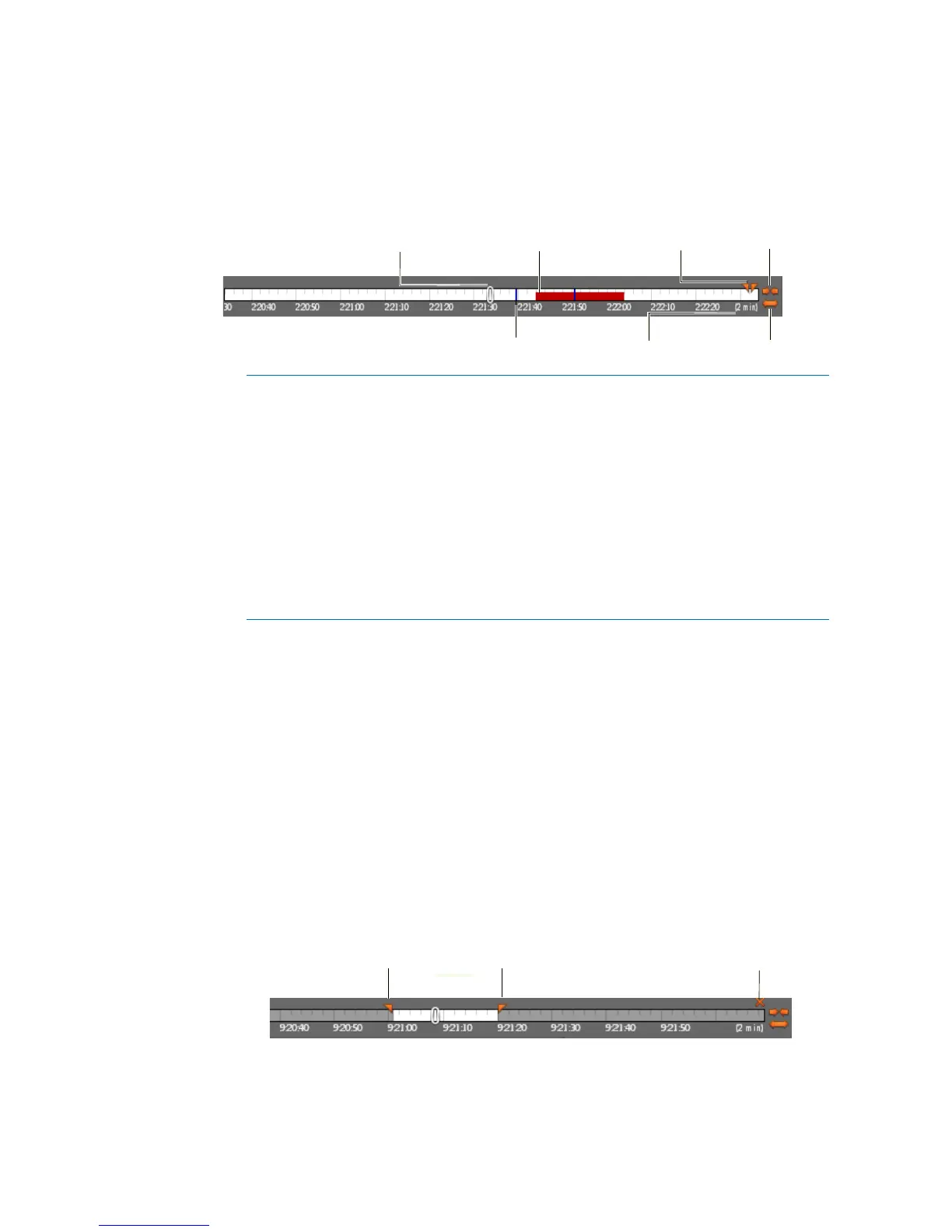
The timeline looks like a time ruler and is a graphical representation of the selected
playback sequence.
Add time range markers
The time range markers are the two orange triangles that appear at the top right corner on
the timeline when the mouse cursor hovers over the timeline.
You can use these markers to delimit a specific range in the timeline, either to zoom in to it
or to setup a playback loop.
NOTE When markers are not in use they do not appear on the timeline. You have hover your
mouse over the timeline to make them appear.
To set up a time range:
1 In the Playback pane, select the video clip you want to mark.
2 Hover your mouse over the timeline and drag the markers to the desired start and end
positions.
A Playback cursor Indicates the point of playback on the timeline.
B Motion bar Indicates the presence and level of motion.
C Time range markers Marks a specific range of interest.
D Zoom in Zoom in on a portion of the timeline. You can also use
Shift + slash (/) to zoom in.
E Bookmark Indicates a user-added bookmark in the clip
F Duration Indicates the duration of the timeline
G Zoom out Zoom out on a portion of the timeline. You can also
use Shift + asterisk (*) to zoom out.
Reset markersTime range markers



 To Next Page