Chapter IV. The TWAIN Interface
you to instantly judge the affects of almost any setting
you change.
The Scan Area Border, designated by the dotted
box in the Prescan Area can be resized and moved.
This is very important for keeping the image size (in
terms of computer memory) as small as possible. To
do this, first prescan the document or image you wish
to scan by loading it in the scanner and clicking on the
Prescan Button. After it appears in the Prescan Area,
resize and move the dotted box so it fits snugly around
the edges of the prescanned image.
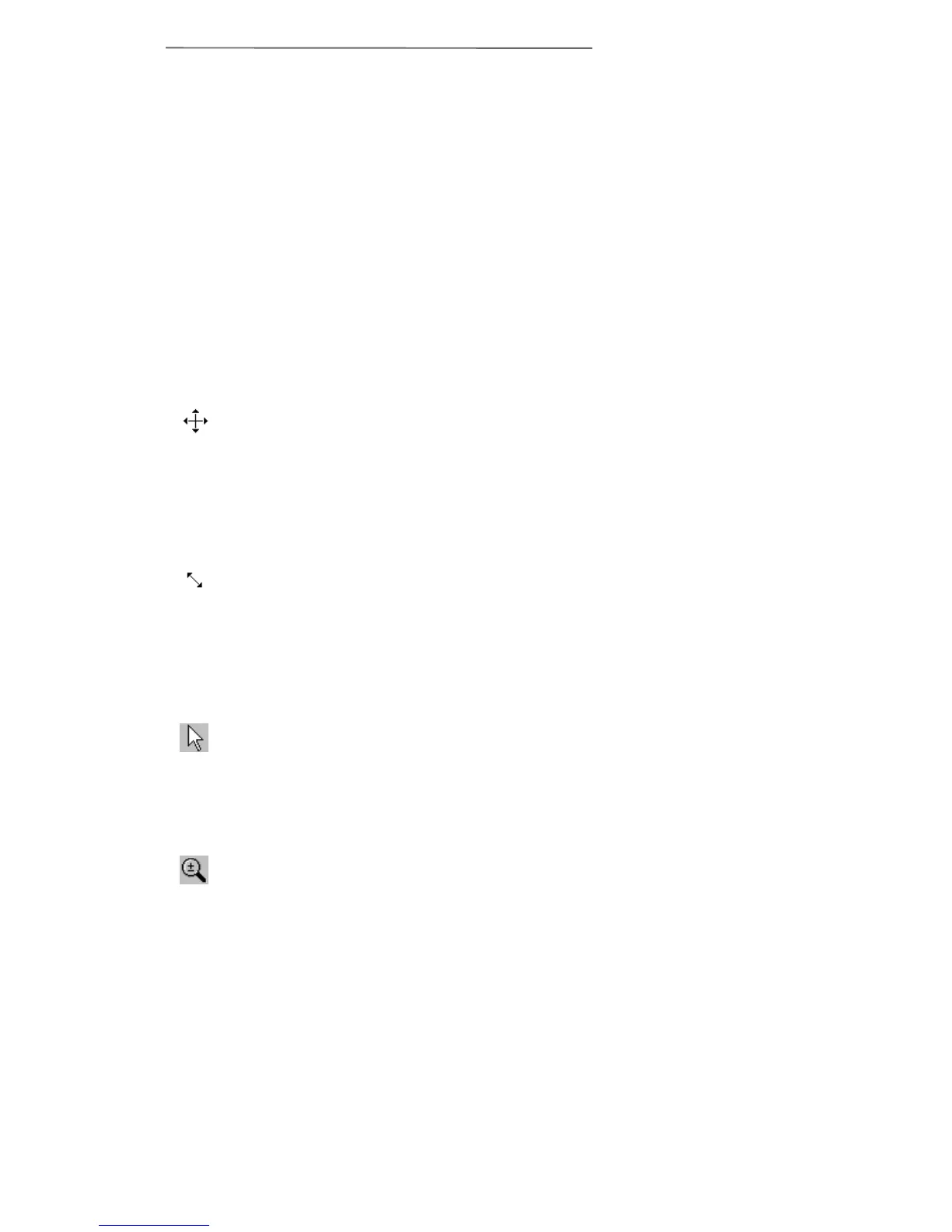
Move Cursor Placing the mouse pointer
INSIDE the Scan Area Border box will
change the cursor as shown to the left and
allows you to move the entire frame by
dragging the mouse.
Resize Cursor Placing the mouse pointer at
the EDGE of any side of the margin will
change the cursor as shown to the left and
allows you to reduce or expand the frame
around the image.
Pointer Changes the cursor from
magnifying glass to pointer. The pointer
must be used to adjust the Scan Area Border
or change settings.
Magnifying Glass Clicking on the
magnifying glass button changes the cursor
to a magnifying glass and lets you easily
zoom in and out of the prescanned image in
the Prescan Area.
Simply click on the magnifying glass button
at the upper right of the TWAIN window,
place the magnifying glass over the portion
of the picture you wish to have a close-up



 To Next Page