Chapter IV. The TWAIN Interface
Cancel Clicking on the Cancel button saves
your current settings and closes the
TWAIN window
Help Clicking on this button runs the on-
line help program
Status Bar
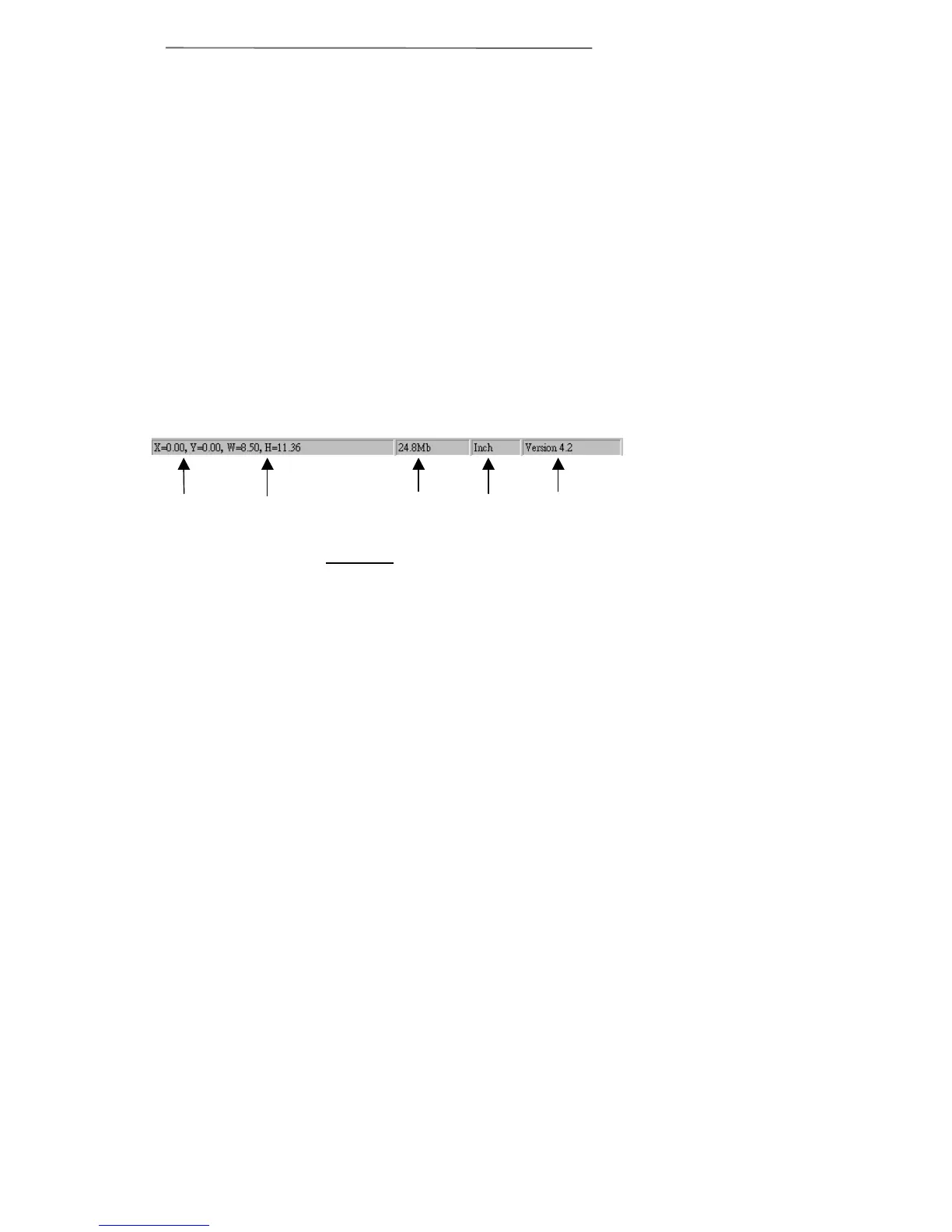
The status bar (Figure 10) contains important
information about the settings in the TWAIN
window.
Scan Area Coordinates shows the position of the
top-left corner of the Scan Area Border. The x,y
coordinates listed here are the actual place on the
scanner glass where the scanner will begin scanning.
This is useful for precise scanning of smaller images.
Scan Area Dimension shows the exact width and
height of the Scan Area Border. This is useful for
precise scanning of smaller images. For example, if
the width value equals 4.95 when scanning 3x5 in.
photos, you know that you are cutting off part of the
image.
Image Size is probably the most important value
in the status bar. This box displays the amount of
memory your image will use. The larger the image
size, the longer it takes to actually scan the image, the
more computer memory it uses, the more drive space it
uses and the longer it takes to manipulate the image in
your graphics program. The image size is not affected
by the contents of an image.
Scan Area
Coordinates
Scan Area
Dimensions
Image Size Units
Version
Figure 10. Status Bar



 To Next Page