4 5
Charging the battery
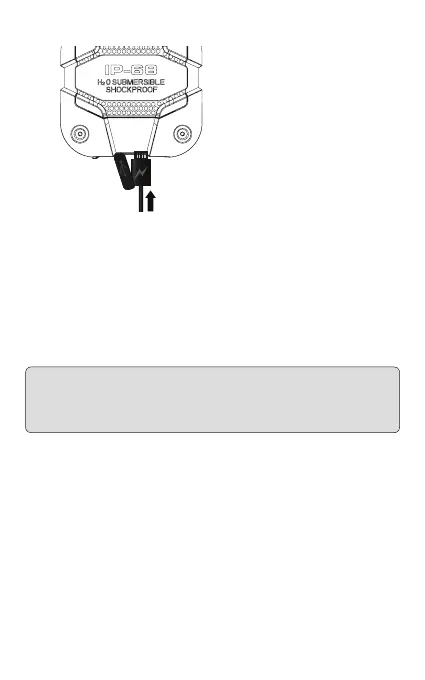
To charge the battery, you can
connect the phone to the power
supply through the power adapter, as
shown in the following gure. After
your phone is charged, close the
USB cover tightly in order to ensure
that your device is always waterproof
and dust-proof�
The battery indicator will ash
when in charge mode� If the device
is switched off during charging, a
charging icon will appear on the
screen, indicating that the battery
is being charged� If the battery is
completely dead, it may take a few minutes before the charging icon is displayed�
When the battery is fully charged, the icon displays a full battery and stops scrolling�
If your device is powered down, an icon indicating that the battery is fully charged
will appear on the screen� Normally, the charging process takes two-and-a-half
hours� During the process, your battery, device, and the charger may grow warm�
This is normal�
When charging is nished, disconnect the AC socket from the charger and your
phone�
WARNING: Place your phone in a ventilated area with a temperature ranging from
-10°C to +55°C� Only use the provided charger� Using unauthorized chargers may
be harmful to your device and will violate the phone’s warranty� It is recommended
to charge the phone for 8 hours before initial use�
Switching the device on/off
Press and hold the Power / Menu Exit key to power the device on/off� After
powering on, the device will automatically test whether the SIM card is inserted
properly� If there is no SIM card, the device will prompt you to “Insert SIM”� Then,
the screen will display the following messages in turn: Input Password – if the
password of the phone has been set� Input PIN – if the password of the SIM card
has been set� Search – the phone starts searching until a proper network is found
and connected�
Unlocking the SIM card
By setting a PIN (personal identication number) code for the SIM card, you can
protect your SIM card from illegal use� If this function is activated and the PIN
protection code is set, the phone requires the PIN code every time you power on


 To Next Page