EasyManua.ls Logo

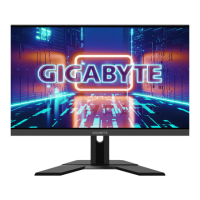
Gigabyte M27Q - User Manual

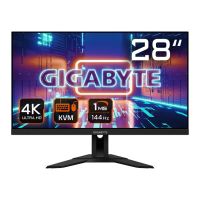
Gigabyte M27Q
46 pages
Print Icon
To Next Page IconTo Next Page
Loading...

Questions and Answers

  • S
    Sierra ArmstrongJul 30, 2025
    How to troubleshoot a Gigabyte Monitor that won't turn on?
    • P
      Paula MackJul 30, 2025
      If your Gigabyte monitor isn't powering on, ensure the power cable is securely connected to both the monitor and the power source. Also, inspect the cable and plug for any signs of damage. Finally, verify that the monitor's power switch is in the 'on' position.
  • C
    christy24Aug 6, 2025
    Why is there no sound coming from my Gigabyte Monitor?
    • S
      Stephanie CunninghamAug 6, 2025
      If you're experiencing sound issues with your Gigabyte monitor, start by ensuring the headphone cable is properly connected. Then, adjust the volume level on the monitor. Lastly, check your computer's sound settings to ensure they are properly configured.
  • T
    travisadamsAug 13, 2025
    What to do if my Gigabyte M27Q Monitor has no image?
    • D
      Dale HughesAug 13, 2025
      If your Gigabyte monitor displays no image, first, check that the monitor and computer are correctly connected and both are powered on. Next, ensure you've selected the correct input source on the monitor. Finally, try adjusting the Brightness and Contrast settings to see if the image appears.
  • K
    Kelly HernandezAug 21, 2025
    How to fix distorted colors on Gigabyte M27Q?
    • J
      Jessica AvilaAug 21, 2025
      If the colors on your Gigabyte monitor appear distorted, first, make sure the input signal cable is properly connected. If the issue persists, configure the image related settings on your monitor.

Summary

SAFETY INFORMATION

Regulatory Notices

Covers FCC, Canadian, and EU compliance statements for safety.

Safety Precautions

INTRODUCTION

Unpacking

Instructions on how to safely unpack the monitor from its packaging.

Package Contents

Product Overview

Front View

Identifies and describes the front-facing components of the monitor.

Rear View

Identifies and describes the rear-facing ports and controls.

GETTING STARTED

Installing the Monitor Base

Step-by-step guide on how to assemble and attach the monitor base.

Adjusting the Viewing Angle

Adjusting the Tilt Angle

Instructions for tilting the monitor screen forward or backward.

Adjusting the Screen Height

Guide on how to raise or lower the monitor screen for comfortable viewing.

Installing a Wall-Mount Bracket (Optional)

Making Connections

USING THE DEVICE

Turning the Power On;Off

Steps to power the monitor on and off, including power saving mode.

User Comfort Recommendations

Selecting the Input Source

OPERATIONS

Quick Menu

Accessing and using the monitor's quick access menu functions.

Function Key Guide

KVM

Guide to using the KVM switch function for multi-device control.

Game Assist

Game Info

Configuring game-related settings like timers, counters, and refresh rates.

Configure the Device Settings

Gaming

Adjusting specific settings optimized for gaming performance.

Picture

Display

PIP;PBP

System

Audio

Configuring audio settings, including volume and mute functions.

OSD Settings

Customizing the on-screen display menu appearance and behavior.

Language

Save Settings

Reset All

APPENDICES

Specifications

Technical specifications and details of the monitor.

Supported Timing List

Troubleshooting

Basic Care

Notes on USB Charging

GIGABYTE Service Information

Gigabyte M27Q Specifications

General IconGeneral
Panel typeSS-IPS
Color depth8 bit
Color gamut92 %
Pixel pitch0.2331 x 0.2331 mm
Screen shapeFlat
Response time0.5 ms
Display diagonal27 \
Anti-glare screenAlways gives an optimal view, even in direct sunlight.
Display technologyLED
Native aspect ratio16:9
Maximum refresh rate170 Hz
Viewable size, vertical335.663 mm
sRGB coverage (typical)140 %
Contrast ratio (dynamic)100000000:1
Contrast ratio (typical)1000:1
Display number of colors16.7 million colors
Viewable size, horizontal596.736 mm
Display brightness (typical)350 cd/m²
High Dynamic Range (HDR) supportedYes
High Dynamic Range (HDR) technologyDisplayHDR 400
USB hub version3.2 Gen 1 (3.1 Gen 1)
Headphone outputs1
DisplayPort version1.2
USB upstream port typeUSB Type-B
Input current3.42 A
AC input voltage100 - 240 V
Energy efficiency scaleA to G
Power consumption (max)58 W
Power consumption (off)0.3 W
Power consumption (standby)0.5 W
Power consumption (typical)- W
Operating temperature (T-T)0 - 40 °C
Package depth200 mm
Package width720 mm
Package height470 mm
Package weight7790 g
Tilt angle range-5 - 20 °
Height adjustment130 mm
Cable lock slot typeKensington
Panel mounting interface100 x 100 mm
Cables includedAC, DisplayPort, HDMI, USB
Feet colorBlack
Market positioningGaming
AMD FreeSync typeFreeSync Premium
Harmonized System (HS) code85285210
Weight and Dimensions IconWeight and Dimensions
Depth (with stand)202.97 mm
Width (with stand)615.11 mm
Height (with stand)533.55 mm
Weight (with stand)5500 g
Depth (without stand)42.22 mm
Height (without stand)367.35 mm

Related product manuals