EasyManua.ls Logo

Gigabyte AORUS CO49DQ - User Manual

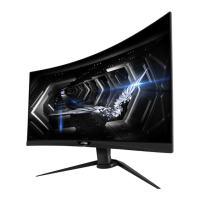
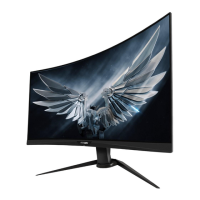
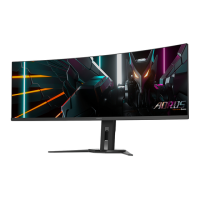
Gigabyte AORUS CO49DQ
29 pages
Print Icon
To Next Page IconTo Next Page
Loading...
GAMING MONITOR
USER GUIDE
AORUS CO49DQ

Questions and Answers

  • J
    Jeffrey FisherJul 30, 2025
    How to fix Gigabyte Monitor when it has no power?
    • M
      Matthew SmithJul 30, 2025
      If your Gigabyte Monitor has no power, ensure the power cable is securely connected to both the power source and the monitor. Also, inspect the cable and plug for any signs of damage. Lastly, verify that the monitor is switched on.
  • M
    Mark WaltersAug 7, 2025
    What to do if there is no sound or low volume on Gigabyte AORUS CO49DQ?
    • R
      Rachel HernandezAug 7, 2025
      If you're experiencing no sound or low volume on your Gigabyte Monitor, check that the headphone cable is properly connected. Then, adjust the volume level on the monitor. Finally, check and adjust your computer's sound settings.
  • D
    Darlene MillerAug 13, 2025
    What to do if no image appears on Gigabyte Monitor?
    • W
      Wanda SandersAug 14, 2025
      If no image appears on your Gigabyte Monitor, verify that the monitor and computer are properly connected and both are powered on. Also, make sure that you have selected the correct input source.
  • C
    Christopher MackAug 22, 2025
    How to fix Gigabyte AORUS CO49DQ Monitor image when it doesn't fill the entire screen?
    • A
      Alfred PetersonAug 22, 2025
      To resolve the image not filling the entire screen on your Gigabyte Monitor, try different Display Mode (aspect ratio) settings.

Summary

Using the Device

Power On;Off

Instructions on how to power the monitor on and off using the control button.

Operations

Input Selection

Select the desired input source using the control button.

Quick Menu Access

Instructions for accessing the monitor's quick menu via the control button.

Function Key Guide

OLED Care

Provides settings for optimal OLED protection, including usage time, pixel cleaning, and static control.

Game Assist

Offers features to enhance gaming experience, such as crosshairs, gaming timers, and display alignment.

Gaming Settings

Gaming Black Equalizer

Adjusts dark area visibility for enhanced gaming visuals.

AMD FreeSync Premium Pro

Eliminates screen lag and tearing during gaming when enabled.

Picture Settings

Display Settings

PIP;PBP Settings

System Settings

Reset All Settings

Appendices

Specifications

Details the technical specifications of the monitor, including panel size, resolution, and connectivity options.

Troubleshooting Guide

Safety Information

Safety Precautions

Detailed safety guidelines including proper handling, ventilation, and electrical safety measures.

Stability Hazard Precautions

Warnings and precautions related to product stability to prevent falling and potential injury.

Gigabyte AORUS CO49DQ Specifications

General IconGeneral
Aspect Ratio32:9
Response Time0.03ms (GTG)
Curvature1800R
Display Colors1.07 billion
Adaptive SyncAMD FreeSync Premium Pro
Stand AdjustmentsHeight, Tilt, Swivel
VESA MountYes (100 x 100 mm)
Screen Size49 inches
Refresh Rate144Hz
Brightness1000 nits (peak)
ConnectivityDisplayPort 1.4, HDMI 2.1
Built-in SpeakersYes
Color Gamut99% DCI-P3
Resolution5120 x 1440 (DQHD)
Ports2x HDMI 2.1, 1x DisplayPort 1.4, 1x USB-C, 1x 3.5mm audio jack

Related product manuals