EasyManua.ls Logo

Gigabyte AORUS AD27QD-EK - User Manual

Gigabyte AORUS AD27QD-EK
24 pages
Print Icon
To Next Page IconTo Next Page
Loading...
OSD Sidekick
GAMING MONITOR

Questions and Answers

Overview

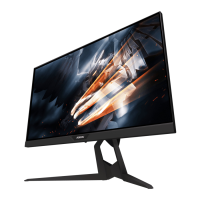
This document describes the AORUS AD27QD Gaming Monitor and its accompanying OSD Sidekick software, which allows for advanced configuration of the monitor's settings directly from a computer.

Function Description:

The AORUS AD27QD is a gaming monitor designed to provide a customizable and enhanced gaming experience. Its OSD Sidekick software serves as a graphical user interface (GUI) for managing various display, system, and game-assist settings without needing to interact directly with the monitor's physical OSD (On-Screen Display) menu. This integration allows for quick and precise adjustments, including picture modes, game assist features, hotkeys, and even LED lighting patterns. The software also facilitates firmware and software updates, ensuring the monitor remains up-to-date with the latest features and performance enhancements.

Important Technical Specifications (implied by features):

  • Display: LCD monitor (specific panel type and resolution not detailed in the provided pages, but implied to be a high-performance gaming display given the "Gaming Monitor" designation and features like Refresh Rate display, FreeSync, and Aim Stabilizer).
  • Connectivity: Requires a USB (A-Male to B-Male) cable connection between the monitor and the computer for OSD Sidekick functionality. Also requires either an HDMI or DisplayPort cable connection for video input.
  • Audio: Supports Active Noise-Cancelling (ANC) for headphones/microphones, indicating integrated audio processing capabilities.
  • Software Compatibility: OSD Sidekick is a Windows-based application (installation process shown for Windows).
  • Firmware: The monitor's firmware can be updated manually or automatically via the OSD Sidekick software.
  • LED Lighting: Features RGB FUSION software integration for customizable LED patterns.

Usage Features:

Software Installation and Launch:

  • Preparation: Before installation, users must connect a USB (A-Male to B-Male) cable from the monitor to the computer, connect a video cable (HDMI or DisplayPort), plug in power cables for both devices, and turn them on.
  • Installation: The software is installed via a setup wizard (setup.exe) from a supplied CD or downloaded source. Users follow on-screen prompts, clicking "Next" and "Install" to complete the process.
  • Launch: After installation, a shortcut icon for "OSD Sidekick" appears on the desktop. Double-clicking this icon launches the software.
  • Uninstallation: The software can be uninstalled through the Windows "Programs and Features" control panel. Users locate "OSDSidekick" and select "Uninstall."

Configuring Settings via OSD Sidekick:

The OSD Sidekick software provides a comprehensive interface divided into several main sections: DISPLAY SETTINGS, HOTKEYS, GENERAL SETTING, ANC, and ABOUT.

  • DISPLAY SETTINGS:

    • Picture Mode Profiles: Offers 10 preset Picture Mode profiles (e.g., Aorus, FPS, RTS/RPG, Movie, Reader, Standard) that cannot be deleted but can be customized.
      • Adding Profiles: Users can add new profiles by configuring desired Gaming & Picture settings and then selecting "Add Profile."
      • Import/Export Profiles: Profiles can be imported from or exported to specified folders (defaulting to the OSDSidekick installation path).
      • Renaming/Deleting Profiles: Existing profiles can be renamed or deleted (customized profiles only; preset profiles cannot be deleted).
      • Resetting Profiles: Preset Picture Mode profiles can be reset to their default settings.
      • Application Linking: A unique feature allows users to link a specific Picture Mode profile to an application (*.exe). When that application is opened, the display settings automatically switch to the linked profile.
    • Crosshair Cursor:
      • Customization: Users can activate a custom crosshair by setting "CROSSHAIR" to ON. They can then select a grid, choose a color and line thickness, and draw a new crosshair cursor.
      • Save/Export/Import: Custom crosshairs can be saved, exported to a file, or imported from a file.
    • PIP/PBP Settings (Picture-in-Picture/Picture-by-Picture):
      • Activation: Set "PIP/PBP" to ON to activate the function.
      • Modes: Choose between PBP (two sources side-by-side) or PIP (main source full screen, second source in a sub-window).
      • Source Selection: Select the main source for PIP/PBP.
      • PIP Size/Location: For PIP, adjust the sub-window size (Large, Medium, Small) and location (Left-Top, Right-Top, Left-Bottom, Right-Bottom).
      • Display/Audio Switch: Buttons to switch the main and sub-sources for both display and audio, regardless of the screen layout.
    • Dashboard Information:
      • Activation: Set "DASHBOARD" to ON to display real-time system information.
      • Location: Choose the on-screen location (Up or Down). The actual side (left/right) depends on the Game Assist location.
      • Settings: Select which information to display (e.g., CPU frequency, CPU temperature, GPU fan speed, Mouse DPI). Unchecking an option hides it.
    • Game Assist Settings:
      • Refresh Rate: Display the current refresh rate (ON/OFF).
      • Gaming Timer: Enable a gaming timer (ON/OFF), choosing between COUNT UP or COUNT DOWN. For COUNT DOWN, users can set the time.
      • Gaming Counter: Display a gaming counter (ON/OFF).
      • Location: Set the on-screen location for the gaming counter (Left Top, Left Center, Left Bottom, Right Top, Right Center, Right Bottom).
  • HOT KEYS:

    • Management: Users can assign keyboard shortcuts (hotkeys) to frequently used functions.
    • Assignment: Select a function from the left panel, choose one or more modifier keys (Alt, Shift, Ctrl), enter a symbol, and click "ADD."
    • Editing: To edit a hotkey, select the function, assign new modifier keys and a symbol, then click "ADD." If a hotkey is already assigned, the function appears grayed out; it must be deleted first before reassigning.
    • Deletion: Select the hotkey on the right panel and click the trash can icon to delete it.
  • GENERAL SETTING:

    • Display & System Settings: Configures general display and system-related settings (specific options not fully detailed but implied to include input selection, OSD transparency, OSD display time, LED indicator settings).
    • Hot Keys for Control Button (Quick Switch): Allows users to change the preset function assigned to the monitor's physical "Control" button. Users select a key position and choose from available options (e.g., Volume, Aim Stabilizer, Black Equalize, Low Blue Light, Input, Contrast, Brightness, Picture Mode).
    • RGB Controller (LED Pattern Configuration):
      • Access: Clicking "SETTING" under RGB CONTROLLER opens the RGB FUSION software.
      • Customization: Users can select desired LED colors, adjust speed, and brightness settings for the monitor's LED lighting.
  • ANC (Active Noise-Cancelling):

    • Function: Reduces unwanted ambient sounds when using headphones or microphones.
    • Activation: Set "Active Noise-Cancelling" to ON.
    • Noise-Cancelling Level: Select the desired level (Very High, High (Default), Medium, Low, Very Low).
    • Microphone Position: Set the microphone position (MIC 1 (Default), MIC 2, MIC 3) based on its actual placement for optimal sound quality.
  • ABOUT:

    • Version Information: Displays the current software and firmware versions.
    • Updates: Provides options for updating the software and firmware.

Maintenance Features:

  • Software Updates:
    • Automatic Update: Users can click "LIVE UPDATE" to check for and automatically install new software versions. The "Auto Update" setting can be toggled ON/OFF to enable or disable automatic checks and notifications upon app launch. Requires an internet connection.
  • Firmware Updates:
    • Manual Update: Users can download the latest firmware from the GIGABYTE website. Then, using the OSD Sidekick, they browse for the downloaded firmware file (*.bin) and click "UPDATE."
    • Important Note: During firmware updates, it is crucial not to turn off the monitor, as interruptions can cause device malfunction. Manual firmware updates do not require an internet connection, only the initial download.

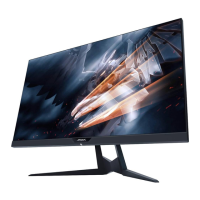
Gigabyte AORUS AD27QD-EK Specifications

General IconGeneral
BrandGigabyte
ModelAORUS AD27QD-EK
CategoryMonitor
LanguageEnglish

Related product manuals