EasyManua.ls Logo

Gigabyte Aorus KD25F - User Manual

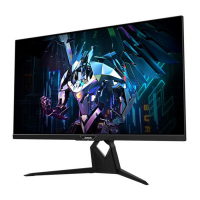
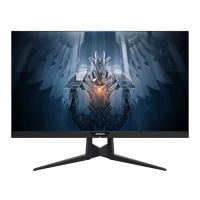
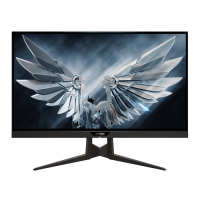
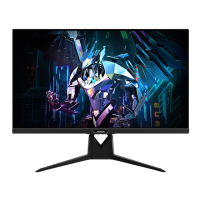
Gigabyte Aorus KD25F
44 pages
Print Icon
To Next Page IconTo Next Page
Loading...
AORUS KD25F
TACTICAL
USER GUIDE

Questions and Answers

  • R
    Rebecca WellsAug 10, 2025
    What to do if my Gigabyte Aorus KD25F has no power?
    • B
      bwardAug 10, 2025
      If your Gigabyte monitor isn't powering on, ensure the power cable is securely connected to both the monitor and the power source. Inspect the cable and plug for any signs of damage. Also, verify that the monitor is switched on.
  • M
    Michael KlineAug 16, 2025
    Why is there no sound on my Gigabyte Monitor, or the volume is low?
    • X
      xwhiteAug 16, 2025
      If you're experiencing sound issues with your Gigabyte monitor, first ensure the headphone cable is properly connected. Then, adjust the volume level. Check the Audio Source setting; if it's set to USB Codec, ensure the USB cable is properly connected to both the monitor and your computer. Finally, adjust your computer's sound settings.
  • P
    Patrick BurnsAug 22, 2025
    What to do if there is no image on my Gigabyte Aorus KD25F?
    • C
      Christopher MartinezAug 22, 2025
      If your Gigabyte monitor displays no image, verify that the monitor and computer are correctly connected and both are powered on. Also, ensure that you've selected the correct input source.
  • J
    julie41Aug 28, 2025
    What to do if colors are distorted on Gigabyte Aorus KD25F?
    • C
      Christopher RichardsonAug 29, 2025
      If the colors on your Gigabyte monitor appear distorted, make sure the input signal cable is properly connected. You can also configure the image related settings.
  • K
    karinafloresSep 2, 2025
    How to fix image not filling the entire screen on Gigabyte Aorus KD25F Monitor?
    • J
      James DixonSep 3, 2025
      If the image on your Gigabyte monitor doesn't fill the entire screen, try different Display Mode (aspect ratio) settings.

Gigabyte Aorus KD25F Specifications

General IconGeneral
Screen Size24.5 inches
Refresh Rate240 Hz
Response Time0.5ms (MPRT)
Panel TypeTN
Brightness400 cd/m²
Contrast Ratio1000:1
Adaptive SyncAMD FreeSync Premium
Aspect Ratio16:9
Viewing Angle170°(H)/160°(V)
VESA Mount100x100mm
Resolution1920 x 1080 (Full HD)
Ports1x DisplayPort 1.2, 2x HDMI 2.0, 2x USB 3.0

Related product manuals