EasyManua.ls Logo

Gigabyte AORUS FO48U - User Manual

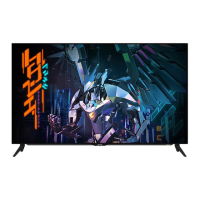
Gigabyte AORUS FO48U
50 pages
Print Icon
To Next Page IconTo Next Page
Loading...
TACTICAL
GAMING MONITOR
USER GUIDE

Questions and Answers

  • C
    Christopher DownsJul 29, 2025
    How to troubleshoot a Gigabyte Monitor that won't turn on?
    • D
      denisebrownJul 29, 2025
      If your Gigabyte monitor isn't powering on, ensure the power cable is securely connected to both the monitor and the power source. Also, inspect the cable and plug for any signs of damage. Finally, verify that the monitor's power switch is in the 'on' position.
  • S
    Stephen StoneAug 4, 2025
    Why is there no sound coming from my Gigabyte AORUS FO48U Monitor?
    • Q
      qpowersAug 4, 2025
      If you're experiencing sound issues with your Gigabyte monitor, start by ensuring the headphone cable is properly connected. Then, adjust the volume level on the monitor. Lastly, check your computer's sound settings to ensure they are properly configured.
  • T
    Toni WeissAug 10, 2025
    What to do if my Gigabyte AORUS FO48U has no image?
    • A
      Ashley CurryAug 10, 2025
      If your Gigabyte monitor displays no image, first, check that the monitor and computer are correctly connected and both are powered on. Next, ensure you've selected the correct input source on the monitor. Finally, try adjusting the Brightness and Contrast settings to see if the image appears.
  • N
    Nicholas PriceAug 16, 2025
    How to fix distorted colors on Gigabyte AORUS FO48U Monitor?
    • J
      James GibsonAug 16, 2025
      If the colors on your Gigabyte monitor appear distorted, first, make sure the input signal cable is properly connected. If the issue persists, configure the image related settings on your monitor.
  • A
    Andrew RobinsonAug 22, 2025
    How to adjust the screen size on Gigabyte Monitor?
    • S
      Stephanie HendersonAug 22, 2025
      If the image on your Gigabyte monitor doesn't fill the entire screen, try different Display Mode (aspect ratio) settings.

Summary

Product Overview

Front View

Describes the user interface elements and controls visible from the front of the monitor.

Getting Started

Installing the Monitor Base

Step-by-step instructions for attaching the monitor stand to the display.

Using the Device

Turning the Power On;Off

Instructions on how to power the monitor on and off using the control button or remote.

ASS (AORUS Smart System) of Image Sticking Prevention

APCS (AORUS Prevention Compensation System)

Reduces image retention by automatically activating compensation after monitor is switched off.

AOCS (AORUS Organic Compensation System)

Reduces image retention by automatically activating compensation after 1500 hours of use.

Operations

Quick Menu

Accesses frequently used functions like Black Equalizer, Picture Mode, and Volume.

Hot Key

Assigns specific functions to the control button for quick access.

Function Key Guide

Dashboard

Displays system data such as CPU/GPU temperature and fan speed on the screen.

Game Assist

Provides in-game enhancements like FPS counter, crosshair, and display alignment.

Configure the Device Settings

Gaming

Adjusts game-related settings like resolution, overdrive, and refresh rate.

Appendices

Specifications

Provides detailed technical specifications of the monitor, including panel size, resolution, and ports.

Safety Information

Regulatory Notices

Contains FCC compliance statements and other regional regulatory information.

Gigabyte AORUS FO48U Specifications

General IconGeneral
Panel type-
Color depth10 bit
Color gamut98 %
Pixel pitch0.274 x 0.274 mm
Aspect ratio16:9, 21:9, 32:9
Screen shapeFlat
Display diagonal47.53 \
Display technologyOLED
Native aspect ratio16:9
Maximum refresh rate120 Hz
Viewable size, vertical591.84 mm
sRGB coverage (typical)130 %
Contrast ratio (typical)135000:1
Display number of colors1.07 billion colors
Viewable size, horizontal1052.16 mm
Display brightness (typical)900 cd/m²
Supported graphics resolutions640 x 480 (VGA), 720 x 480, 720 x 576, 800 x 600 (SVGA), 1024 x 768 (XGA), 1280 x 720 (HD 720), 1920 x 1080 (HD 1080), 2560 x 1440, 3440 x 1440, 3840 x 2160
High Dynamic Range (HDR) supportedYes
High Dynamic Range (HDR) technologyHigh Dynamic Range 10 (HDR10), Hybrid Log-Gamma (HLG)
AMD FreeSync typeFreeSync Premium
USB hub version3.2 Gen 1 (3.1 Gen 1)
DisplayPort version1.4
USB upstream port typeUSB Type-B
RMS rated power50 W
Number of speakers3
LED indicatorsPower
Cable lock slot typeKensington
Panel mounting interface300 x 300 mm
AC input voltage100 - 240 V
Energy efficiency scaleA to G
Power consumption (max)325 W
Power consumption (typical)- W
Power consumption (PowerSave)0.5 W
Cables includedAC, DisplayPort, HDMI, USB
Package depth160 mm
Package width1180 mm
Package height760 mm
Package weight20800 g
Operating temperature (T-T)0 - 40 °C
Product colorBlack
Market positioningGaming
Weight and Dimensions IconWeight and Dimensions
Depth (with stand)251.1 mm
Width (with stand)1068.5 mm
Height (with stand)675.1 mm
Weight (with stand)15000 g
Depth (without stand)43.1 mm
Height (without stand)611.8 mm
Weight (without stand)14700 g

Related product manuals