EasyManua.ls Logo

Gigabyte AORUS FO32U2P - User Manual

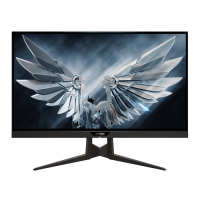
Gigabyte AORUS FO32U2P
32 pages
Print Icon
To Next Page IconTo Next Page
Loading...
GAMING MONITOR
USER GUIDE
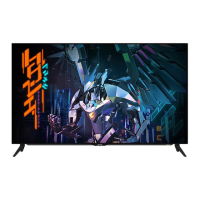
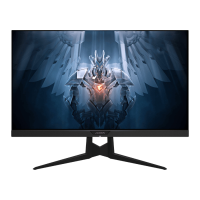
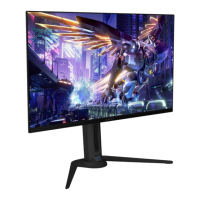
AORUS FO32U2P / AORUS FO32U2 / AORUS FO27Q3
AORUS FO32U / AORUS FO27Q2

Questions and Answers

  • C
    Carl GallegosJul 29, 2025
    How to troubleshoot a Gigabyte Monitor with no power?
    • N
      Natalie BeckJul 30, 2025
      If your Gigabyte Monitor isn't turning on, ensure the power cable is securely connected to both the power source and the monitor itself. Also, inspect the power cable and plug for any signs of damage. Finally, verify that the monitor is switched on.
  • A
    Alexander ClementsAug 4, 2025
    Why is there no sound coming from my Gigabyte AORUS FO32U2P Monitor?
    • N
      Nichole WilliamsAug 5, 2025
      If you're experiencing no sound or low volume on your Gigabyte Monitor, check that the headphone cable is properly connected. You may also need to adjust the volume level on the monitor itself, and check your computer's sound settings.
  • F
    Frank JonesAug 10, 2025
    What to do if my Gigabyte AORUS FO32U2P Monitor has no image?
    • M
      Maria AndersonAug 10, 2025
      If no image is showing on your Gigabyte Monitor, first ensure that the monitor and your computer are correctly connected and that both are powered on. Also, verify that you've selected the correct input source on your monitor.
  • S
    Shaun MccoyAug 17, 2025
    Why are the colors distorted on my Gigabyte AORUS FO32U2P?
    • T
      Thomas SloanAug 17, 2025
      If the colors appear distorted on your Gigabyte Monitor, begin by ensuring the input signal cable is securely connected. If the issue persists, configure the image-related settings.
  • M
    Michael MendozaAug 22, 2025
    How to fix a Gigabyte AORUS FO32U2P image that doesn't fill the screen?
    • S
      Sara VegaAug 22, 2025
      If the image on your Gigabyte Monitor doesn't fill the entire screen, try adjusting the Display Mode (aspect ratio) settings.

Summary

Using the Device

Turning Power On;Off

Step-by-step guide for powering the monitor on and off.

Operations

Selecting Input Source

Instructions on how to choose the video input signal.

Function Key Guide

Navigating Main Menu Functions

Explains how to use the control button to access and navigate various monitor functions.

OLED Care

OLED Care Settings and Functions

Describes features for screen maintenance and preventing image retention on OLED panels.

Game Assist Features

Game Assist Functions

Explains features for enhancing the gaming experience, like crosshairs and refresh rate.

Device Settings

Gaming Settings

Configuration options for game-related display settings like Black Equalizer.

Troubleshooting

Safety Information

Safety Precautions

Essential safety guidelines to follow when using the monitor.

Stability Hazard Precautions

Warnings and advice to prevent injury from product tipping or falling.

Gigabyte AORUS FO32U2P Specifications

General IconGeneral
Screen Size32 inches
Refresh Rate144 Hz
Aspect Ratio16:9
Resolution3840 x 2160
Response Time1 ms
Brightness1000 nits (peak)
Color Gamut99% DCI-P3
ConnectivityHDMI, DisplayPort, USB
VESA MountYes, 100x100mm
Adaptive SyncAMD FreeSync Premium Pro

Related product manuals