 Need help?
Do you have a question about the Gigabyte M32QC and is the answer not in the manual?
Step-by-step guide for safely removing the monitor from its packaging.
List of all items included in the monitor packaging.
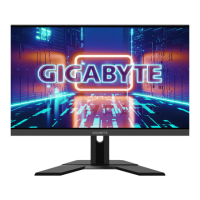
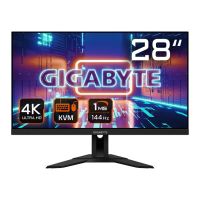
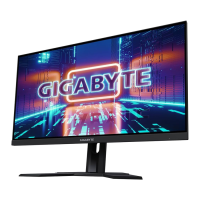
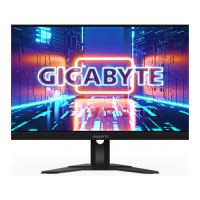
Identifies front panel components, including the power LED.
Identifies rear panel ports and buttons, including control and KVM buttons.
Instructions for attaching the monitor stand base.
Guide for tilting the screen and adjusting its vertical position.
Instructions for attaching a VESA compatible wall mount.
Procedure for turning the monitor on and off using the control button.
Tips for comfortable viewing, including distance, lighting, and eye strain.
How to choose the active input signal via the menu.
Accessing and using hotkey functions like Black Equalizer.
Choosing preset display modes like Standard, FPS, Movie.
Adjusting the monitor's audio volume level.
Navigating the menu to select the input source.
Using the KVM switch to control multiple devices with one set of peripherals.
Enabling or disabling the KVM button feature.
Restoring KVM settings to their factory default configuration.
Configuring FPS-related game settings like timer and counter.
Selecting and customizing on-screen crosshair types for gaming.
Adjusting zoomed screen size, ratio, position, and frame color.
Restoring Game Assist settings to their default values.
Setting up system information to display on the dashboard.
Specifying the display position for dashboard information.
Enabling alignment lines for multi-monitor setup assistance.
Adjusting game-specific settings like resolution and refresh rate.
Sharpening low-resolution images for improved clarity.
Selecting aspect ratios to fit screen content properly.
Improving response time to reduce lag and screen tearing.
Enabling adaptive sync to prevent screen tearing during gaming.
Choosing pre-configured display settings for various uses.
Customizing brightness, contrast, color, sharpness, and gamma.
Selecting color temperature or customizing RGB levels for display.
Reducing blue light emission for eye comfort.
Adjusting black levels for optimal image contrast.
Restoring all picture settings to their factory default values.
Selecting the active input signal for the monitor.
Enabling higher refresh rates, potentially causing flicker.
Setting the RGB color range for optimal display output.
Enlarging image to hide screen edges, mainly for HDMI input.
Turning off the Picture-in-Picture or Picture-by-Picture modes.
Configuring PIP display settings like size and source.
Configuring PBP display settings like size and source.
Adjusting volume and mute settings for the monitor's audio output.
Configuring OSD display time, transparency, and lock function.
Detailed specifications of the monitor, including dimensions and ports.
FCC compliance statements for the United States, including Class B limits.
Compliance statements for Canada, including ICES-003.
CE compliance for EU directives like EMC, Low Voltage, and RoHS.
Information on WEEE directive for proper disposal of electronic equipment.
Explanation of the WEEE symbol and guidance on product recycling.
Safety and compliance statements for Japan, including VCCI.
Guidelines for responsible disposal of electronic products in China.

 To Next Page
 General