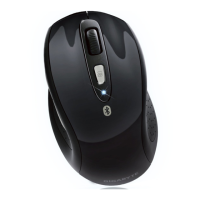
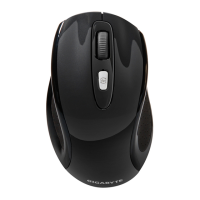
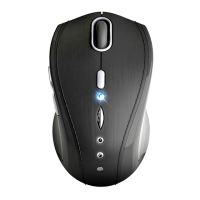
The GIGABYTE GM-M7800 is an elegant and vogue wireless laser mouse designed for users seeking a blend of luxury, performance, and comfort. This device operates on a 2.4GHz wireless frequency, offering a robust and reliable connection with advanced features for enhanced productivity.
Function Description
The GM-M7800 serves as a primary input device for computers, providing precise cursor control and navigation. Its core function is to translate physical movements of the mouse into digital cursor movements on a screen, allowing users to interact with graphical user interfaces. The wireless design eliminates cable clutter, offering greater freedom of movement and a cleaner workspace. The mouse features a dual-way transmission technology, enabling auto-communication between the mouse and its receiver for seamless connectivity. It supports both vertical and horizontal scrolling, enhancing navigation through documents and web pages. The adjustable DPI settings allow users to customize cursor sensitivity to suit different tasks and preferences.
Important Technical Specifications
- Wireless Technology: 2.4GHz RF (Radio Frequency)
- Sensor Type: Laser
- Effective Working Distance: Up to 10 meters (33 feet)
- DPI Settings: Adjustable between 800 and 1600 DPI (Dots Per Inch)
- Receiver Type: USB Nano transceiver
- Power Source: 2 x AAA batteries
- Scrolling: 4-Directional Scrolling (Vertical and Horizontal)
- Buttons:
- Left Click
- Right Click
- Wheel Button (also functions as a middle click)
- DPI Button
- Back Button (Internet Forward & Backward)
- Forward Button (Internet Forward & Backward)
- Power On/Off Switch (on the bottom of the mouse)
- Receiver Release Button (on the receiver)
- ID Reset Button (on the receiver)
- Indicators:
- Low Power Indicator (LED on the scroll wheel bar)
- DPI Change Indicator (LED on the scroll wheel bar flashes upon DPI switch)
- Compliance: IEC 60825-1, Class I laser product; FCC and CE rules compliant.
Usage Features
The GM-M7800 is designed for ease of use and enhanced user experience, incorporating several key features:
- Plug and Play (Auto-Link): The mouse and receiver automatically link upon power-on, eliminating the need for manual channel ID setup. Users simply turn on the mouse and connect the receiver to a USB port, and the device is ready for use.
- Manual Link Mode: In cases of communication issues, a manual linking process is available. Users can execute an ID connection software (available on an included diskette or downloadable from the vendor's website) and press the ID reset button on the receiver to re-establish a connection.
- High Tracking Speed and Sensitivity: Utilizing state-of-the-art laser technology, the mouse offers exceptional tracking performance, even on challenging surfaces like polished or wood-grain finishes. This ensures precise and responsive cursor control.
- Adjustable DPI: The dedicated DPI button allows users to switch between 800 and 1600 DPI settings on the fly. This flexibility is beneficial for tasks requiring different levels of precision, such as graphic design (lower DPI) or fast-paced browsing (higher DPI).
- 4-Directional Scrolling: Beyond standard vertical scrolling, the mouse supports horizontal scrolling by holding the wheel to the left or right. This feature is particularly useful for navigating wide spreadsheets or panoramic images without resorting to scroll bars. For optimal functionality of 4-way scrolling, especially in applications like Microsoft Word, Excel, and PowerPoint on Windows Vista, the optional driver should be installed.
- Internet Forward & Backward Buttons: Conveniently located, these buttons allow for quick navigation through web pages, enhancing browsing efficiency.
- Power Saving Management: The mouse incorporates a robust power-saving mechanism. It enters a sleeping mode after a period of inactivity, requiring a click of any button to wake it up. A power on/off switch is also provided on the bottom of the mouse for extended battery conservation during long periods of non-usage.
- Ergonomic Design: The mouse boasts a stylish and modern shape, designed to provide a comfortable grip for prolonged use, reducing hand fatigue.
- USB Nano Transceiver: The compact size of the receiver minimizes its protrusion from the USB port, making it ideal for laptops and reducing the risk of accidental damage.
Maintenance Features
Proper maintenance ensures the longevity and optimal performance of the GM-M7800. Key maintenance aspects include:
- Battery Replacement: The mouse is powered by two AAA batteries. A red LED on the scroll wheel bar serves as a low power indicator, signaling when batteries need to be replaced. Users should replace both batteries simultaneously to ensure consistent performance.
- Battery Use Reminders:
- Remove worn-out batteries immediately and dispose of them properly.
- Keep all batteries (used or new) out of reach of children.
- Regularly check batteries and replace them if the mouse is not used for a long time.
- Never dispose of batteries in fire, as they can explode.
- Always replace all batteries at the same time; mixing old and new batteries or different types (e.g., alkaline with zinc carbon) can reduce performance and cause leakage or rupture.
- Do not mix different types of batteries (e.g., NiMH, NiCd, alkaline) in the mouse.
- Remove batteries from the device if it will not be used for an extended period.
- Replace batteries when performance substantially decreases.
- Troubleshooting: The manual provides guidance for common issues:
- Connectivity Issues: Ensure the receiver is correctly connected to a USB port. Position the receiver away from other electrical devices (computer, monitor, external drives) to minimize interference. Re-establish communication using the manual link mode if needed.
- Cursor Movement Issues: If the cursor movement experiences a second delay during operation, it indicates the mouse and receiver are automatically sourcing and transferring to another free channel due to interference. This is normal behavior.
- System Conflicts: If system devices conflict with the mouse, users may need to check and adjust IRQ/address settings.
- Surface Compatibility: Avoid using the mouse on glossy or reflective surfaces, as these can interfere with laser tracking.
- Driver Installation: While the mouse is plug-and-play for basic functionality, installing the optional driver (from the included CD or vendor's website) is recommended to enable advanced features like 4-way scrolling, especially in specific applications. Before installing, it's advised to uninstall any existing mouse drivers to prevent conflicts.

 Need help?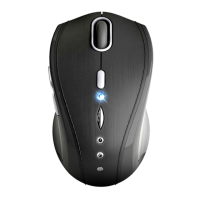



 To Next Page
 General