User Guide
GD32E230C-EVAL
21 /24
5.13.2. DEMO Running Result
Download the program <13_RCU_Clock_Out> to the EVAL board and run. Connect
serial cable to EVAL_COM, open the HyperTerminal. When the program is running,
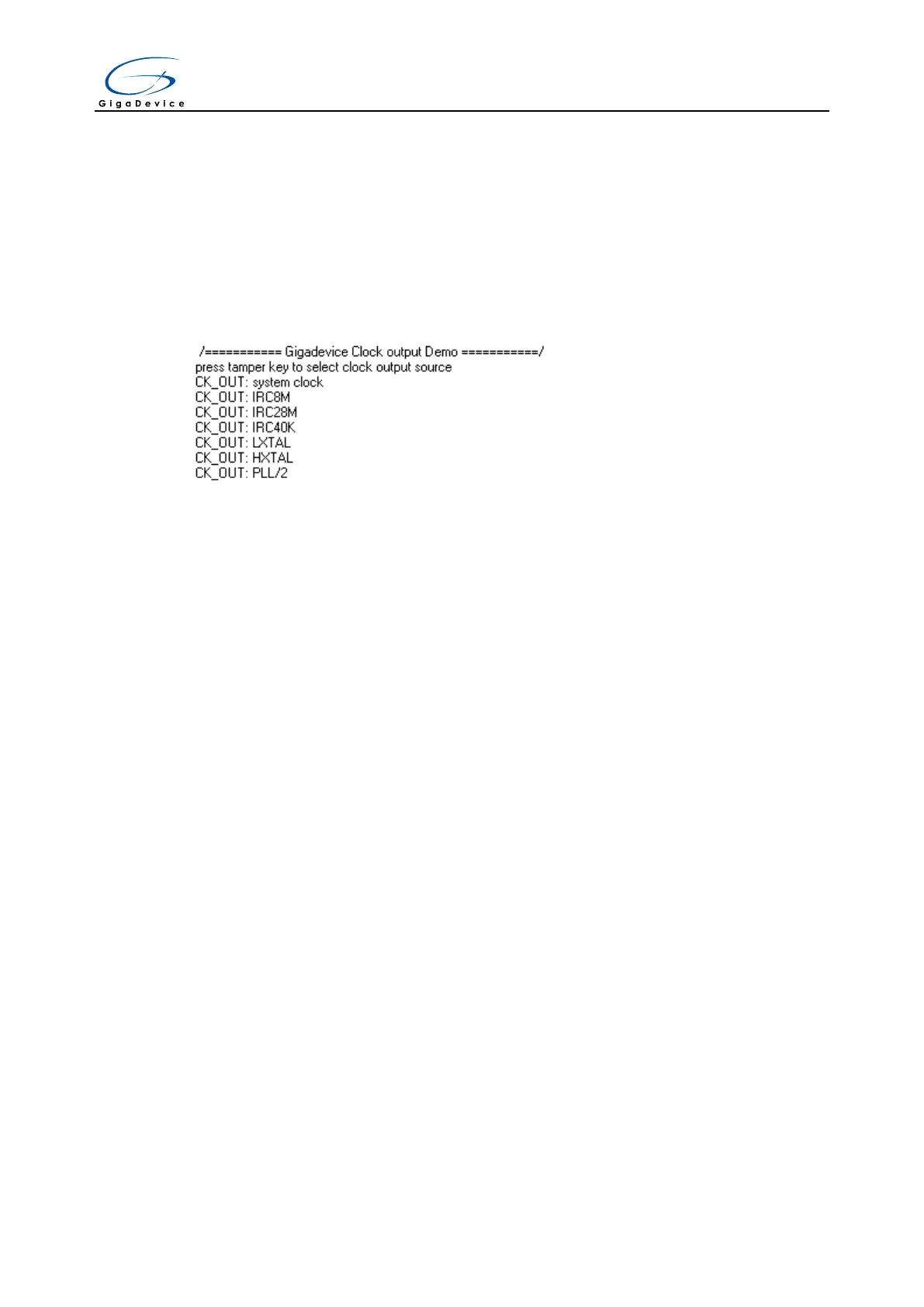
HyperTerminal will display the initial information. Then user can choose the type of the
output clock by pressing the Tamper button. After pressing, the LED will be lit in turn and
HyperTerminal will display which mode be selected. The frequency of the output clock
can be observed through the oscilloscope by PA8 pin.
Information via a serial port output as following:
5.14. PMU_sleep_wakeup
5.14.1. DEMO Purpose
This Demo includes the following functions of GD32 MCU:
Learn to use the USART receive interrupt to wake up the PMU from sleep mode
5.14.2. DEMO Running Result
Download the program < 14_PMU_sleep_wakeup > to the EVAL board, connect serial
cable to EVAL_COM. After power-on, all the LEDs are off. The MCU will enter sleep
mode and the software stop running. When the USART0 receives a byte of data from
the HyperTerminal, the MCU will wake up from a receive interrupt. And all the LEDs will
flash together.
5.15. RTC_Calendar
5.15.1. DEMO Purpose
This Demo includes the following functions of GD32 MCU:
Learn to use RTC module to implement calendar function
Learn to use LCD module to display the time of calendar
5.15.2. DEMO Running Result
Download the program <15_RTC_Calendar> to the EVAL board and run. When the
program is running, the four LEDs, LED1 to LED4 turn on, then turn off. And then the



 To Next Page