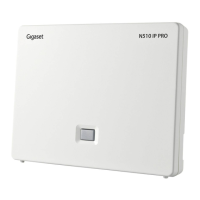
UAD Settings
UAD settings
Login to PBXware web administration interface
Open a new browser window and enter the IP address in order to access the PBXware web
■
administration login screen. Example: http://192.168.1.10.
Login to PBXware with your e-mail address and password.
■
UAD settings
Navigate to Settings:UAD.
■
Make sure Gigaset UAD is enabled. To check the UAD status click on the edit icon
■
corresponding to your Gigaset phone.
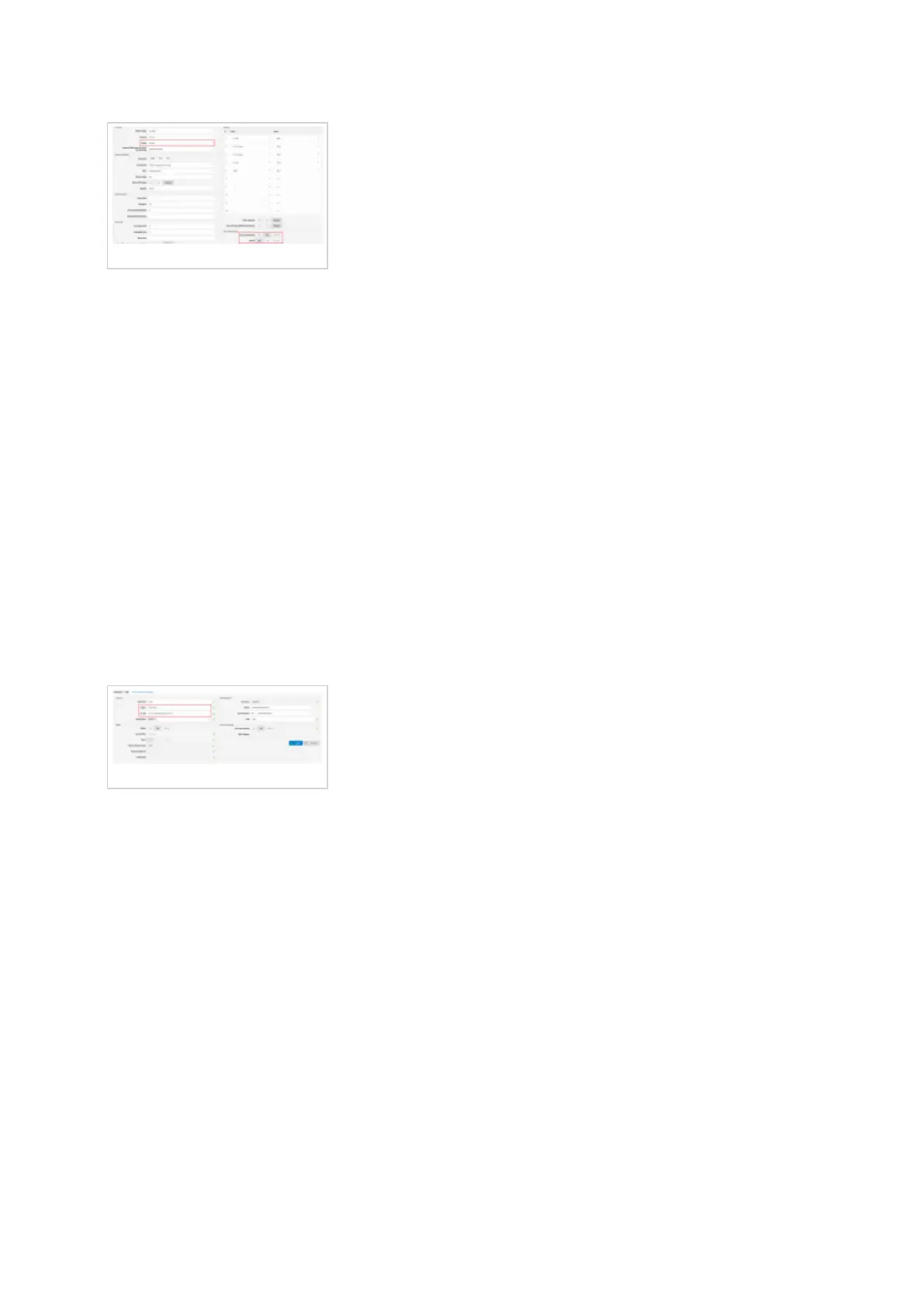
Make sure Status is set to Active, Auto provisioning is set to No, and DHCP is set to Yes.
■
Click on the Save button to save changes.
■
Creating extension
Creating Extension
Add Extension
Navigate to Extensions. Click on Add Extension.
■
The standard options window will be shown below.
■
Select Gigaset phone model from the UAD select box.
■
Select Location: Local or Remote.
■
Local is for all extensions registered on the LAN and Remote is for all extensions
registered from remote networks, WAN, Internet etc.
Click on the Next step button.
■
Extension values
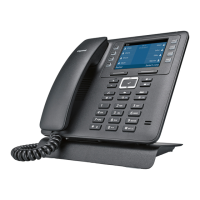
Enter values into the required field text boxes.
REQUIRED FIELDS:


 To Next Page