7
instead). For example, you slide the screen up or down to scroll a list, and in some
Calendar views you swipe quickly across the screen to change the range of time
visible.
Double-tap: Tap quickly twice on a webpage, map, or other screen to zoom. For
example, you can double-tap a section of a webpage in Browser to zoom that
section to fit the width of the screen. You can also double-tap to control the
Camera zoom, In Maps, and in other applications, Double-tapping after pinching
to zoom in some applications, such as browser, reflows a column of text to fit the
width of the screen.
Pinch: In some applications (Such as Maps, Browser, and Gallery) you can zoom
in and out by placing two fingers on the screen at once and pinching them
together (to zoom out) or spreading them apart (to zoom in).
Rotate the screen: On most screens, the orientation of the screen rotates with
the phone as you turn it from upright to its side and back again. You can turn this
feature on and off.
4
4
.
.
4
4
C
C
u
u
s
s
t
t
o
o
m
m
i
i
z
z
i
i
n
n
g
g
t
t
h
h
e
e
H
H
o
o
m
m
e
e
s
s
c
c
r
r
e
e
e
e
n
n
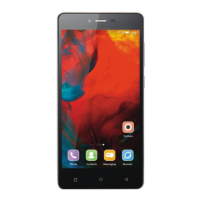
To add items to the Home screen
Enter the main menu, touch & hold the icon of an application, drag it to “Desktop” shown
on the top of screen, then the application will be added to the Home screen.
To move an item on the Home screen
1. Touch & hold the item you want to move. Don’t lift your finger.
2. Drag the item to a new location on the screen. Pause at the edge of the screen to drag
the item onto another screen pane.
3. When the item is where you want it, lift your finger.
To remove an item from the Home screen
1. Touch & hold the item you want to remove. Don’t lift your finger. The top of the screen
will appear “Remove”.
2. Drag the item to the “Remove” icon.
3. When the icon turns red, lift your finger.
4
4
.
.
5
5
C
C
o
o
n
n
n
n
e
e
c
c
t
t
t
t
o
o
n
n
e
e
t
t
w
w
o
o
r
r
k
k
When you assemble your phone with a SIM card from your wireless service provider, your
phone is configured to use your provider’s mobile networks for voice calls and for
transmitting data.
Settings-->All settings-->Mobile networks-->Data connection; the name of the
wireless service provider you’re currently registered with is selected in the list.


 To Next Page