EasyManua.ls Logo

GJD DYGIZONE GJD910 - User Manual

GJD DYGIZONE GJD910
13 pages
Print Icon
To Next Page IconTo Next Page
Loading...
-1-
DYGIZONE
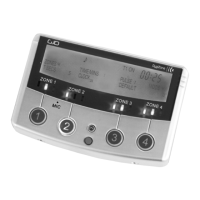
GJD910 Lighting Controller & Enunciator
MASTER WIRING IDENTIFICATION
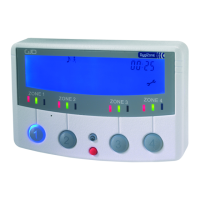
Power up to the DygiZone and you will see:
All the LED’s (red,yellow,green and blue buttons) will ash
All the LCD icons will light up (there is no audible noise) The
blue LCD backlight does not come on
The display will automatically clear after 1 minute, or if any
button is pressed. When the display clears and nothing is
activated
The LCD displays the clock time (automatically defaults to
00:00)
The symbol M appears on the DygiZone which is congured
as the master controller: The letter M does not appear when
setting up a DygiZone as a slave controller
The three zone LED’s will display whatever zone state has been
last programmed or the default setting. The default setting is
audible and automatic for all active zones.
Remove insulating strip from clock back up battery on master
controller
Zone Indicator Icons explained
Along the bottom of the LCD display up to three sub-zone
circular Icons will be displayed above each numbered Zone
button. These will only be displayed when an associated detector
connected to A1,A2 or A3 on the Expansion Unit is activated.
When corresponding detectors connected to A1,A2 or A3 inputs
are activated then-
The LCD screen will display the zone number 1,2 and 3
A circle will appear around the zone number if that sub-zone
detector is activated
The circle ashes on the screen in the same way as the PIR text
whenever a PIR is triggered. -
i.e. the circle ashes for 8 seconds upon activation and then
remains on for pre-programmed time duration (time on )
After that time as elapsed, the circle will disappear.
Note: the numbers 1,2 or 3 always remain steady and never
ash.
When the PIR’s have not been activated
The large circular bluer Zone buttons (1-4) will not be
illuminated
The clock and M display will remain visible but all other icons
on the LCD are turned off
The zone status LED’s that are required will be displayed.
Zone Status Icons (only visible when the zone button is
pushed). At the top in the middle of the LCD, three zone status
icons will be displayed in various combinations, depending on
how the zone has been set up
1. A light bulb icon represents external lights are on from a
detector activation, manual override more or timer operation
and mimics the yellow LED
2. The musical note icon is shown when the audible mode is
selected and mimics the red LED.
3.If voice message mode has been selected(vs beep) then
the microphone icon will also display on the LCD.
4. The stick man icon represents the automatic mode and
mimics the green LED
LED lights explained
Red = Audible Mode - either beep more or voice message
mode.
Green = Automatic Mode - works in conjunction with the
photocell in the detector. The external security lights will only be
activated if it is dark and thereby saves energy.
Yellow = Manual Override - the external security light will now
remain on irrespective of detector status - useful for barbeques or
when working outside in the dark for long periods
Yellow = Lighting Activated - the external security lights have
been activated by a detector and will remain on for the pre set
time
Yellow = Timer Active - the external security lights are on
because the Timer 1 or Timer 2 options are programmed to be
active.
The DygiZone Control and Monitoring Status can be
set individually for each Zone as follows-
1.Pressing a Zone button selects the Zone to be set up. The LED’s and the
LCD display icons will display the current status e.g. Green LED and stick
man means auto more has been selected.
2. A second press on the same button will now light the red LED (green LED
turns off). The musical note icon will now show on the LCD plus a microphone
symbol if voice message has been selected.
3.Pressing the zone button again will turn off all the LED’s and icons.
4. Press once more and the yellow LED lights and the light bulb icon displays
in the LCD. This now sets the DygiZone to manual mode for that specic
zone and the lights will come on and stay on.
5.One more press and both the green and the red LED’s come on indicating
that audible and automatic mode have been selected.
LOCKING THE KEY PAD
Locking the key pad prevents accidental programme or settings changes.
To Lock - press and hold down the Zone buttons 1 and 4 at the same time - a
single beep will be hear and the spanned symbol on the keypad will ash to
conrm that the key pad is locked.
To unlock - repeat the action and two beeps will be heard, and the spanner
symbol will disappear
When a PIR detector in a zone is triggered, the
following zone information is displayed -
LCD Information and Text
PIR text will flash for approximately 8 seconds for that zone
The blue LCD backlight will come on for about 6 seconds during the trigger
state and will remain on after the trigger has occurred.
The text remains on for a time duration (time-on) equal to the time that has
been pre-set in the Mins Setting.
If the DygiZone is triggered during the hours of darkness:
The external security light will also be activated for the pre-set time.
Note: If another PIR activation occurs on any other zone then the text will be
displayed for that new zone for the same pre-programmed time on duration
Recording a voice message to audible indicate
which zone has been activated
1. Press and hold the red button until the microphone symbol appears on
the LCD
2. Press the required Zone button once and then release. As you release
the zone button a horizontal bar with ten segments will appear below the
microphone symbol on the LCD. This indicates the amount of recording time
available where each segment is equivalent to one second therefore a ten
second message can be recorded.
3. Speak into the microphone on the front cover of the DygiZone to indicate
location (e.g. patio area, front door, side garden etc)
4. When you have finished speaking into the microphone quickly press the
zone button again ( there will be no audio beep).
5. The recorded message will now automatically play back. If you are satisfied
with the message do nothing but if you wish to re-record the message
repeat steps 1 to 5.
6. Press and hold down the red button until the microphone symbol appears in
the LCD and then release.
7. Now press and continue to hold down the zone button for which the voice
message is to apply, until an audible beep is heard-release the zone button
and the programming has been completed.
The voice message mode can be confirmed by pressing the the zone button
once and a microphone symbol will appear on the LCD if audible mode has
been pre-selected.

Questions and Answers

Overview

The GJD910 DygiZone is a lighting controller and enunciator designed for security and lighting management. It functions as a master controller, capable of managing up to four zones, with the option to connect up to two additional DygiZone slave controllers for expanded system coverage.

Function Description:

The DygiZone allows for individual control and monitoring of each zone. When powered up, all LEDs (red, yellow, green, and blue buttons) flash, and all LCD icons light up without audible noise. The blue LCD backlight remains off initially. The display automatically clears after one minute or if any button is pressed, then defaults to showing the clock time (00:00). The letter 'M' appears on the DygiZone when configured as the master controller; it is absent for slave controllers. Zone LEDs display the last programmed or default state, which is audible and automatic for all active zones. An insulating strip must be removed from the clock backup battery on the master controller for proper operation.

Sub-zone circular icons appear on the LCD display below each numbered Zone button when an associated detector connected to A1, A2, or A3 on the Expansion Unit is activated. When these detectors are triggered, the LCD displays the zone number (1, 2, or 3), and a circle appears around the activated sub-zone number. This circle flashes for 8 seconds upon activation, then remains on for the pre-programmed "time-on" duration, after which it disappears. The zone numbers (1, 2, or 3) remain steady and do not flash. When PIRs are not activated, the large circular blue Zone buttons (1-4) are not illuminated, and only the clock and 'M' display remain visible, with all other LCD icons off. Required zone status LEDs are displayed.

Zone status icons, visible only when a zone button is pushed, appear at the top middle of the LCD. A light bulb icon indicates external lights are on due to detector activation, manual override, or timer operation, mimicking the yellow LED. A musical note icon signifies audible mode, mimicking the red LED. If voice message mode is selected (vs. beep), a microphone icon also displays. A stick man icon represents automatic mode, mimicking the green LED.

LED Lights Explained:

  • Red: Indicates Audible Mode (either beep or voice message).
  • Green: Indicates Automatic Mode, which works with the detector's photocell. External security lights activate only when dark, saving energy.
  • Yellow: Indicates Manual Override, where external security lights remain on regardless of detector status, useful for extended lighting needs. It also indicates Lighting Activated, meaning external security lights are on due to a detector trigger for the pre-set time. Additionally, Yellow signifies Timer Active, meaning external security lights are on because Timer 1 or Timer 2 options are programmed to be active.

DygiZone Control and Monitoring Status:

Status can be set individually for each zone:

  1. Pressing a Zone button selects the zone. LEDs and LCD icons display the current status (e.g., Green LED and stick man for auto mode).
  2. A second press on the same button lights the red LED (green LED turns off). The musical note icon appears, plus a microphone symbol if voice message is selected.
  3. Pressing the zone button again turns off all LEDs and icons.
  4. Pressing once more lights the yellow LED and displays the light bulb icon, setting the DygiZone to manual mode, keeping lights on.
  5. One more press lights both green and red LEDs, indicating both audible and automatic modes are selected.

Keypad Locking:

To prevent accidental program changes, the keypad can be locked. Press and hold Zone buttons 1 and 4 simultaneously until a single beep is heard and a spanner symbol flashes on the keypad. To unlock, repeat the action; two beeps will be heard, and the spanner symbol will disappear.

PIR Detector Trigger Information:

When a PIR detector in a zone is triggered:

  • "PIR" text flashes for approximately 8 seconds for that zone.
  • The blue LCD backlight turns on for about 6 seconds during the trigger state and remains on after the trigger.
  • The text remains on for a "time-on" duration equal to the pre-set time in the Mins Setting.
  • If triggered during darkness, external security lights activate for the pre-set time.
  • If another PIR activates in a different zone, its text displays for the same pre-programmed duration.

Voice Message Recording:

To record a voice message for audible indication of which zone has been activated:

  1. Press and hold the red button until the microphone symbol appears on the LCD.
  2. Press and release the desired Zone button. A horizontal bar with ten segments appears below the microphone symbol, indicating 10 seconds of recording time (each segment is 1 second).
  3. Speak into the microphone on the front cover of the DygiZone to indicate the location (e.g., patio area, front door, side garden).
  4. After speaking, quickly press the zone button again (no audio beep).
  5. The recorded message plays back. If satisfied, do nothing; otherwise, repeat steps 1-5.
  6. Press and hold the red button until the microphone symbol appears on the LCD, then release.
  7. Press and hold the zone button for which the voice message applies until an audible beep is heard, then release. The voice message mode is confirmed by pressing the zone button once, and a microphone symbol appears if audible mode was pre-selected.

Engineer Programming:

To adjust a zone, press and hold its Zone button until programming options appear on the LCD. The zone number flashes. Use the UP button to change the option, then press RED to confirm. If no adjustment is needed, press RED. This stores changes and moves to adjust TIME MINS. Repeat until all changes are complete, then press the Zone button to exit. If no buttons are pressed for 30 seconds, the DygiZone automatically exits programming.

Number of Active Zones:

  1. Press and hold Zone 1 to enter programming mode.
  2. The Zone number flashes and can be changed with the up arrow.
  3. Press RED to confirm the number of zones. Unused zones are cleared (no LCD info, no LED function), and an audible beep sounds if pressed, but no action is taken.
  4. Press Zone 1 to exit programming.

Light On Time:

When a detector triggers in automatic mode (green LED), lights stay on for the time programmed in the TIME setting (1, 2, 3, 4, 5, 8, 12, 16, or 24 minutes). Select using red and arrow buttons. Press any Zone button to exit.

Optional DygiZone Slave Controllers:

Up to two additional DygiZone controllers can be connected, requiring additional Expansion Units or power supply. Only the Master controller sets programmed options, but voice messages can be recorded on remote Slave controllers. Keypads on Slave controllers can be locked, otherwise they mimic the Master. Changing a button selection on the Master DygiZone instantly changes Slave settings. Changes on a Slave controller instantly change its settings and the Master's within one minute. The DygiZone used most frequently should be configured as the master.

Detector Sensitivity (Pulse Count):

The number of beams (pulse count) required to trigger an alarm output can be set to 1, 2, or 3. When using DygiZone with GJD detectors where pulse count is set on the detector itself, ensure it's set to 1. This applies to D-TECT, OPAL ELITE, and OPAL RFX GJD detectors, but not OPAL XL.

Mode Settings:

Five modes can be programmed for each zone:

  • Mode 1 - 24 hr: Lights operate day and night with detection when auto is selected.
  • Mode 2 - Link (Zone 1/2/3/4): Detectors in one zone activate lights in another linked zone when auto is selected.
  • Mode 3 - 24+L: Outside lights operate day and night with detection according to Link settings.
  • Mode 4 - STD: Outside lights operate only at night with detection. Detectors in that zone only operate that zone.
  • Mode 5 - ALL: All lights in all zones with Mode 5 selected are activated at night with detection from any zone with Mode 5 selected. All zones with ALL selected are treated as a group.

TSEC Output:

When selected on the GJD Expansion Unit, the TSEC output provides a 12 Volt positive switched signal for a selected time (1, 5, 10, 20, or 30 seconds).

Clock Mode (12hr/24hr/Off):

The clock display must be set to 24hr before setting the time. Use red and arrow buttons to set the clock mode. AM/PM symbols appear in 12hr mode. The clock can also be set to display 24hr time or not display time (clock off). Timers for each zone automatically display time in the selected format. If power is turned off and then on without holding Zone 1 & 4 buttons, illuminated zone LEDs and program settings remain, but the clock resets to 00:00.

Setting the Clock:

  1. Press and hold any Zone button until the LCD icon for that zone appears and the Zone button flashes blue (number of connected zones also flashes).
  2. Press the red button six times; hour digits flash.
  3. Set hours with the up arrow, then press red.
  4. Minute digits flash; set minutes, then press red.
  5. Exit clock setup by pressing any zone button. Time displays on LCD.

Volume Adjustment:

The volume is adjusted by turning the potentiometer at the rear of the controller.

Walk Test:

Walk Test Mode must be selected for each zone being tested. When a detector is activated, an audible beep sounds, and the relevant Zone & PIR Number displays on the LCD. External lights connected to that zone turn on for 4 seconds each time a beam is crossed. Each zone must be tested individually. In programming mode (after pressing and holding a Zone button until LCD icons show), use the red button to scroll to the flashing hand icon. Select walk test mode with the up arrow when the hand icon is showing. The blue LED flashes until walk test mode is exited. To exit, press red once (audible beep sounds). DygiZone automatically cancels walk test mode after five minutes from the last trigger.

Switching Lights On/Off at Pre-set Times:

Each zone can be programmed with two timers (T1 & T2) to automatically switch external lights on/off.

  1. Use red and arrow buttons to advance to T1 ON time. When hour digits flash, enter the hour, press red, repeat for minutes, then press red. Repeat for T1 OFF time and T2 timer.
  2. If timers are not required, set on/off times to 01:00 (default).

Default Settings:

DygiZone comes pre-programmed with default settings. To return to defaults, use programming mode, scroll to DEFAULT text icon, and select when flashing with the up arrow. This resets all settings and the clock.

  • Zones active = 4
  • Pulse count = 1
  • Clock mode = 24 hr
  • Light on time = 1 minute
  • T seconds = 5
  • Mode = 4

Power-Up Reset (Reverts to Default Settings):

Performed by a qualified electrician or installer. Remove power from DygiZone, then battery from master controller. Press and hold Zone 1 & 4 buttons, then re-apply power. The clock resets, and the program reverts to default settings (all zones audible and auto modes, red and green LEDs lit). Replace battery. After power down and up, detectors connected to GJD Expansion Unit will not activate for 2 minutes.

Maintenance Mode:

The spanner icon flashes when the keypad is locked and is steady when the supply voltage is outside specification (below 9V or above 14V). If the keypad is not locked and the spanner icon is steady, call a maintenance engineer.

Important Technical Specifications:

  • Supply: 12 VDC @ 20mA standby, 100 mA triggered with message playback.
  • Display: Blue back-lit LCD display showing real-time clock, detector activation, and zone status.
  • Audible: Internal warning tone with individual tones for each zone or selectable 10-second voice recordable message for each zone.
  • Control: Four individual zone buttons for selecting zone status and programming options.
  • System Configuration: Normally 1 Master and 1 Slave DygiZone. One additional Slave can be added if required. Requires GJD Expansion Units.
  • Time Control: Two individual on/off timers per zone.
  • Mounting: Indoor use only. Mount in a clean, dry location. Can be mounted on a standard single or double flush back box.
  • Temperature: -10°C to +55°C.
  • Dimensions: 190g NET, 260g GROSS.

Maintenance Features:

  • Changing the Back-Up Battery: Recommended annually, even if not low. Ensure Communicator is OFF, release from wall, remove battery door, replace with a new 9V BATTERY (Lithium recommended), re-fit door, and hang back on wall.
  • Cleaning: Use only a damp cloth and general household cleaning agent. Do not use turpentine, thinners, gasoline, or similar substances.
  • Installation Location: Do not mount in areas exposed to extreme heat or moisture, as this can adversely affect system performance.

GJD DYGIZONE GJD910 Specifications

General IconGeneral
BrandGJD
ModelDYGIZONE GJD910
CategoryController
LanguageEnglish

Related product manuals