10 Infotainment System
FAV (Favorites): Keep pressing to
scroll through the favorites banner.
The stored stations for each list
display on the bottom of the screen.
To store a favorite station, press and
hold on the desired position on the
banner until a beep is heard.
! (Voice Recognition): Press to
begin voice recognition. See Voice
Recognition on page 78. Press and
hold to mute the radio.
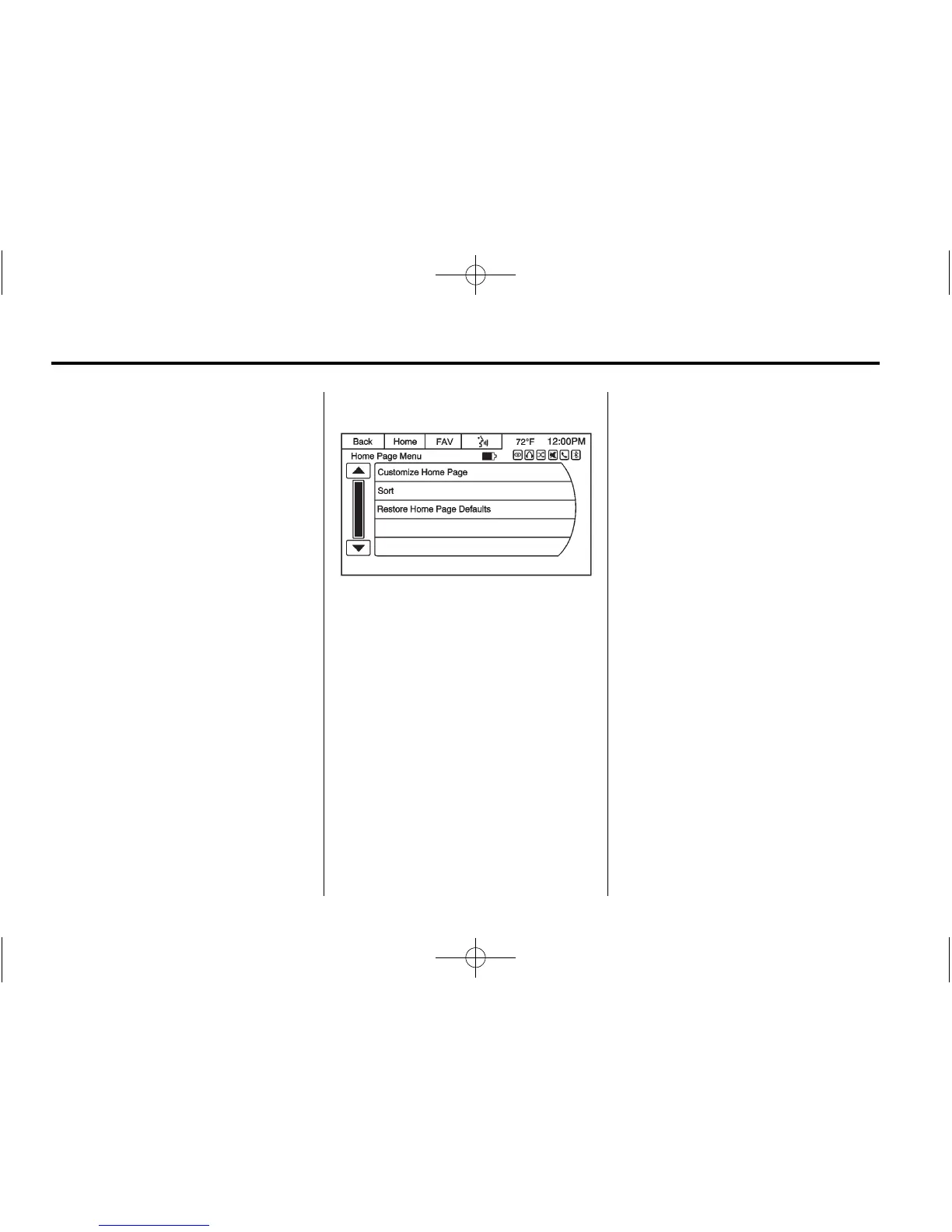
Menu: Press to enter the Home
Page menu.
Next
r : Press to go to the next
Home Page.
q Previous: Press to go to the
previous Home Page.
Home Page Customization
All three Home Pages can be
individually customized.
To change screen buttons on the
current Home Page:
1. Press Menu.
2. Press Customize Home Page.
3. Press a screen button to add or
remove from the first Home
Page. A checkmark indicates it
will be displayed. The maximum
number of buttons on any Home
Page is eight.
4. Press Done.
To re-order buttons on the current
Home Screen:
1. Press Menu.
2. Press an icon to move it.
3. Press another icon to swap the
position with the icon pressed in
Step 2.
4. Press Done.
To restore Home Page defaults:
1. Press Menu.
2. Press Restore Home Page
Defaults.
Home Page Features
Some features are disabled when
the vehicle is moving and some
icons may not be active.
Touch screen buttons are
highlighted in color when available
or grayed-out when not available.
Various functions are disabled when
the vehicle is moving.







 To Next Page