The GNCC C2 Indoor Camera is a smart home security device designed to provide comprehensive surveillance and interaction capabilities for indoor environments such as apartments, dorms, or homes. It integrates with the Osaio App, allowing users to monitor and manage their camera remotely.
Function Description:
The GNCC C2 camera offers crystal clear video quality, enabling users to view high-quality live footage directly from their smartphone. It supports cloud storage plans through Osaio, allowing for video recordings to be stored securely in the cloud. Alternatively, users can opt for continuous video recording using a micro SD card (up to 128GB, not included), with the camera automatically overwriting the oldest files when memory is full.
A key feature is its Night Vision capability, which extends up to 26 feet, ensuring clear images even in low light or complete darkness. The camera is equipped with Real-Time Detection Alerts for both motion and sound, notifying users automatically of any detected activity. This allows for quick action, whether it's observing pets, roommates, or potential intruders. Users can customize these alerts by creating Motion Detection Zones, focusing on areas of importance and reducing unnecessary notifications.
Two-Way Audio is also integrated, featuring a built-in microphone and speaker, which facilitates communication with people or pets in the camera's vicinity. This allows for interactive engagement, such as speaking to a pet or communicating with family members.
Important Technical Specifications:
- Connectivity: Operates exclusively on 2.4GHz Wi-Fi networks (5GHz Wi-Fi is not supported). Public Wi-Fi and Wi-Fi extenders are not supported. Wi-Fi passwords should not contain special characters.
- Storage: Supports micro SD cards up to 128GB for continuous video recording. Cloud storage plans are available via the Osaio app.
- Night Vision Range: Up to 26 feet.
- Audio: Built-in microphone and speaker for two-way audio communication and audio recording.
- Power: Micro USB port for power.
- Indicator Lights: System LED with various states:
- Solid red: Device powered on and initializing.
- Flashing red: Device ready to connect.
- Flashing white: Connection in progress.
- Flashing between white and red: Wi-Fi account or password error.
- Solid white: Device working properly.
Usage Features:
- Easy Setup: The camera is set up using the Osaio app, available on the App Store and Google Play. The process involves plugging in the camera, connecting the phone to a 2.4G Wi-Fi network, logging into the Osaio App, and following on-screen instructions to add the camera.
- Osaio App Interface:
- Device Page: Displays all Osaio devices, allowing quick on/off toggling for cameras.
- Camera Page: Specifically shows all Osaio cameras, also with quick on/off toggling.
- Activity Page: Provides access to system messages and device-specific messages/alerts.
- Me Page: Allows users to change account settings (profile picture, name, password), access FAQs for troubleshooting, and contact support. It also provides information about the Osaio app version and allows clearing of the app cache.
- Live View and Playback: After setup, users can tap their camera in the Osaio app to enter the live view page, where they can access recording, talking, photographing, and sound controls. Cloud storage subscribers or users with an SD card can view replays of detection events or 24/7 recordings.
- Customizable Settings:
- General Settings: Edit camera name, view device ID, firmware version, IP address, and MAC address.
- Audio/Video Settings: Enable/disable audio recording, rotate the image (for upside-down mounting), and control Night Vision (on/off, or automatic IR).
- Motion/Sound Detection: Enable/disable detection, adjust sensitivity (low, medium, high), set a detection schedule, and define specific Detection Zones to ignore motion outside selected areas.
- Detection Notification: Receive alerts on the mobile phone when motion or sound is detected.
- LED Indicator Control: Turn the camera's LED light on or off.
- Synchronized Time: Synchronize the camera's time with the mobile phone.
- Sharing: Users can invite family and friends to share camera access by entering their Osaio account email addresses. Shared users can view the camera feed.
- Placement Tips: Avoid placing the camera outdoors or beside reflective surfaces like glass to ensure optimal performance. It's recommended to place the camera without walls between it and the router to maintain strong Wi-Fi signal strength.
Maintenance Features:
- Reset Button: A physical RESET button is available on the camera for troubleshooting connection issues. A long-press can be used to reset the device if connection fails.
- Micro SD Card Management: The camera overwrites the oldest files when the micro SD card is full, ensuring continuous recording without manual intervention. Users should power off the camera before inserting or removing the micro SD card.
- Firmware Updates: The Osaio app provides information on the camera's firmware version, implying that updates may be available through the app to improve performance and add features.
- Factory Reset: The camera can be removed from the Osaio account and restored to factory settings via the Camera Settings page in the app.

 Need help?
 General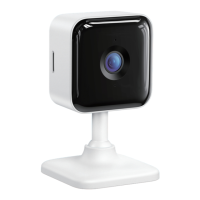

 To Next Page