Appearance
Insert a micro SD Card
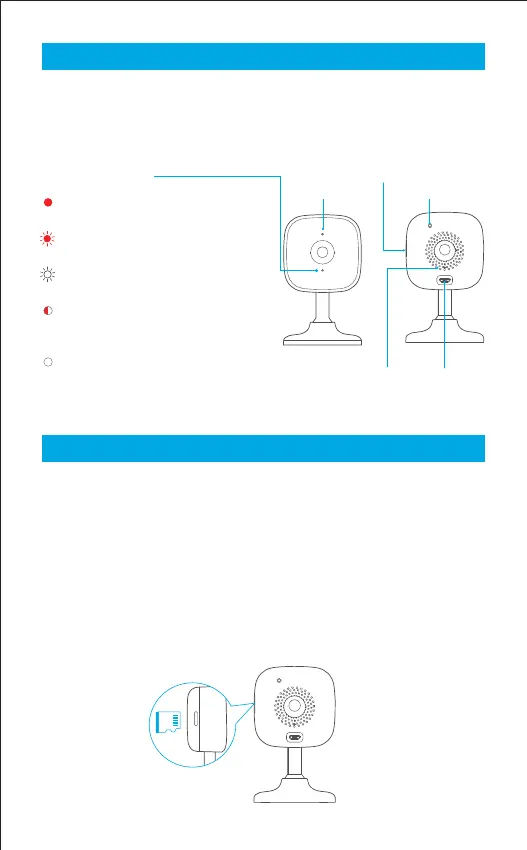
GNCC camera has a system LED that changes color according to its
status, a lens, microphone, speaker, micro USB port, a micro SD card
slot and a RESET button. Refer below for details.
GNCC provides options for your video recording. You can subscribe to
a Cloud plan to store video clips to the cloud.
Or you can save the footage continuously on a micro SD card and play
back with your Osaio app. The camera will overwrite the oldest les
when the micro SD card memory is full. (Micro SD card is not included)
Please power off the camera before you need to insert the micro SD card.
1. SD card slot is on the side of the camera.
2. Holding the card in the correct orientation, carefully insert the card
into the slot.
Light Indicator
Solid red light:
The device is powered on and initializing
Flashing red light:
The device is ready to connect
Flashing white light:
Connection is in progress
Flashing between white and red light:
Wi-Fi account or password is wrong.
Please reconnect
Solid white light
The device is working properly
Reset Button
SD Card Slot
Speaker
Power Port
Microphone
3


 To Next Page