7
8
'SPOUDBN
DVSWFEDBCMF
3FBSDBN
TUSBJHIUDBCMF
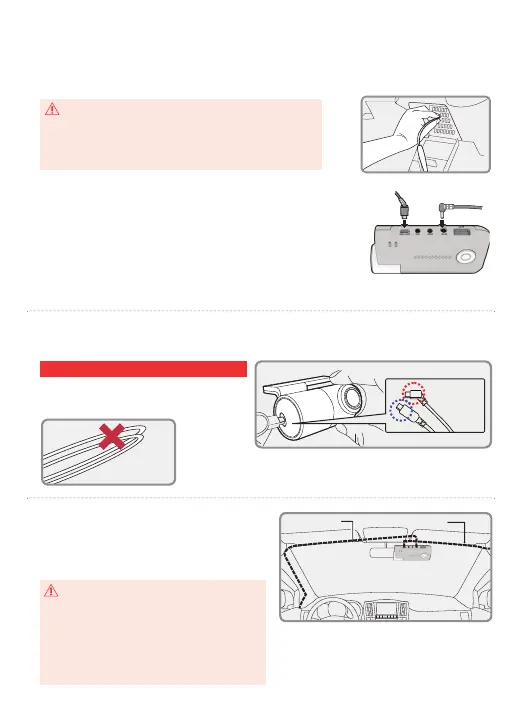
Connect the power cable to the fuse box terminal inside the vehicle.
(The connected terminal should be one which is always supplied power even when ACC
power is turned o, such as emergency lights and/ or door racks.)
Otherwise if using a cigar power cable, plug it directly into the vehicle cigar socket.
5
Connect the other side of the power cable to the DC-IN labeled slot of the front camera.
6
Attach the rear camera to the rear windshield of the vehicle and connect the cable to the
front camera.
When the cable is bent as shown in the picture, the
data ow may be interrupted and a recording error
may occur. Please be careful.
GNET strongly recommends having an experienced installer with the
proper knowledge of electrical systems install the device. Incorrectly
wiring the power cable can result in damage to the vehicle or the
battery and can cause bodily injure.
*3-wire power cable
Connect ACC to a fuse that does not ow when the vehicle is switched o
Connect VCC to current fuse at vehicle start-o
Connect GND to ground on the vehicle’s body
*2-wire power cable
Connect ACC and VCC to the terminal together, and change the setting
from “3 wires” to “2 wires”.
Carefully tuck the power cable and rear
camera connection cable into the linings
of the vehicle between the ceiling and
glass.
%JSFDUQPXFSDBCMF
3FBSDPOOFDUJPODBCMF
CAUTION
GPS reception and terrestrial digital sensitivity may
decrease depending on the navigation installed. When
installing power cables and rear camera access
cables, it is recommended that each cable be installed
on the opposite side. For example, install the power
cable facing the driver's side and the rear camera access
cable facing the opposite seat.
CAUTION
WARNING
Rear cable [CAM1] DC-IN


 To Next Page