59 60
1. In main interface, slide the screen down from the top to
display <Setting>, press <Setting> to enter C.Fn. menu.
Or you can press the <M/ > button to display <Setting>
on the panel, then press <Setting> to enter C.Fn. menu.
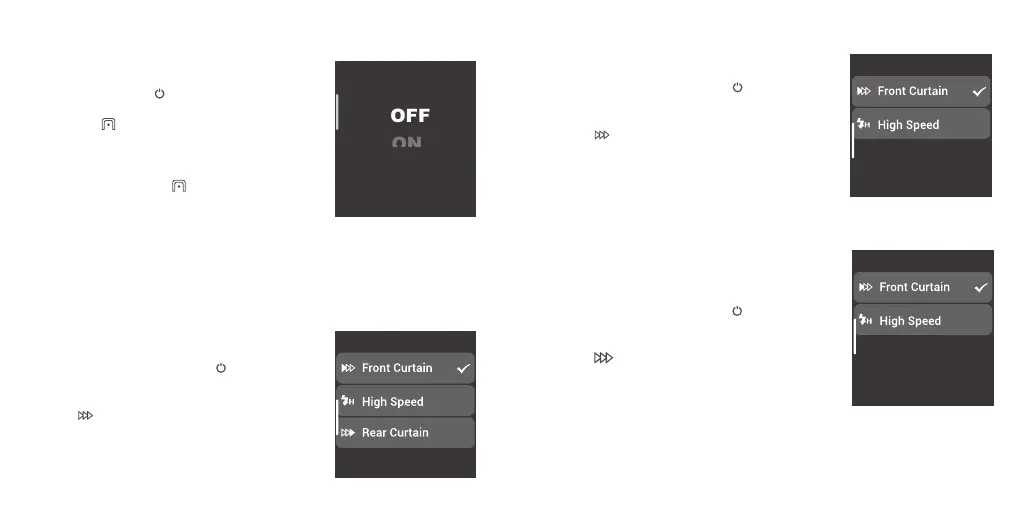
2. Press the < > to enter the legacy hotshoe setting
and choose to turn on or off. The multi mode, TTL mode
and all-shoot mode are unavailable when the legacy hot
shoe is turned on.
3. The legacy hotshoe icon < > will display on the main
interface when it's turned on, then it means the legacy
hotshoe function is available.
Note:
1. Not all the cameras support legacy hot shoe function.
2. The flashes may be out of sync if you trigger at high speed shutter in legacy hotshoe mode.
Legacy Hotshoe
Sync Mode Settings
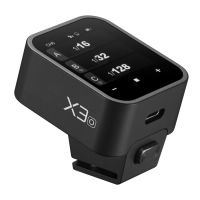
1. X3 C Sync Mode
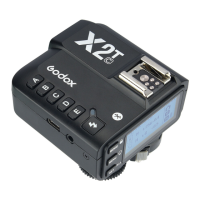
2. X3 N Sync Mode
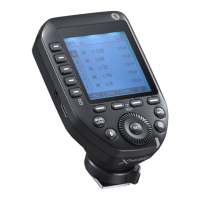
3. X3 S Sync Mode
1. In main interface, slide the screen down from the
top to display <Setting>, press <Setting> to enter
C.Fn. menu. Or you can press the <M/ > button to
display <Setting> on the panel, then press
<Setting> to enter C.Fn. menu.
2. Press < > to enter sync setting, you can
select among front curtain sync, high speed sync
3.Rear Curtain Sync needs to be set on the
cameras.
1. In main interface, slide the screen down from the
top to display <Setting>, press <Setting> to enter
C.Fn. menu. Or you can press the <M/ > button to
display <Setting> on the panel, then press
<Setting> to enter C.Fn. menu.
2. Press < > to enter sync setting, you can select
among front curtain sync, high speed sync and rear
curtain sync.
1. In main interface, slide the screen down from the
top to display <Setting>, press <Setting> to enter
C.Fn. menu. Or you can press the <M/ > button to
display <Setting> on the panel, then press
<Setting> to enter C.Fn. menu.
2. Press < > to enter sync setting, you can select
among front curtain sync, high speed sync
3.Rear Curtain Sync needs to be set on the
cameras.


 To Next Page