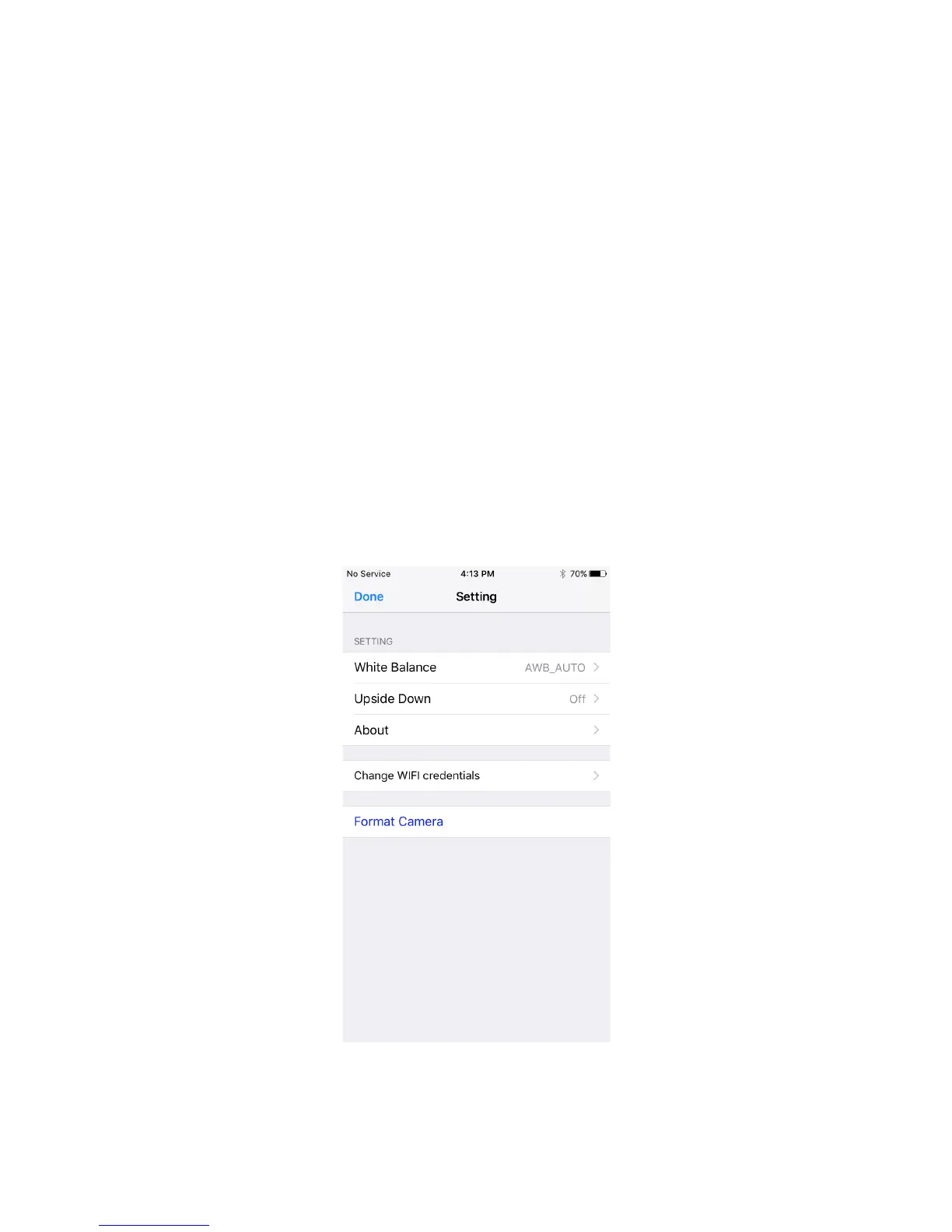
Setting date and time
Your unit will automatically set the date and time of your videos when you sync with
your smartphone. You do not need to do anything, once connected to the "GoFish Cam
App" the unit time will be set to the correct time zone you are in.
When you turn on this unit for the first time, we recommend you to change the SSID/ Password. Be sure to change
them. Otherwise, third parties may intercept your information or use it for malicious purposes.
Using the Setup Menu
Launch the "GoFish Cam App" and tap the “Connect to Camera” icon and follow the
steps to add a new camera. Once the camera is connected and you are on the live
view screen, tap the settings icon. For the latest information on how to use the "GoFish
Cam App", click on the Tutorial item in the user profile menu. As you read the
instructions below, please keep in mind that some displayed items may differ depending
on your OS or "GoFish Cam App" version.
Figure 6


 To Next Page