EDITING
Editing using a smartphone
Videos stored on the MicroSd card in this unit are edited with the smartphone using the "GoFish Cam
App". For more information, refer to the Tutorial section in the Personal Library Tab under settings.
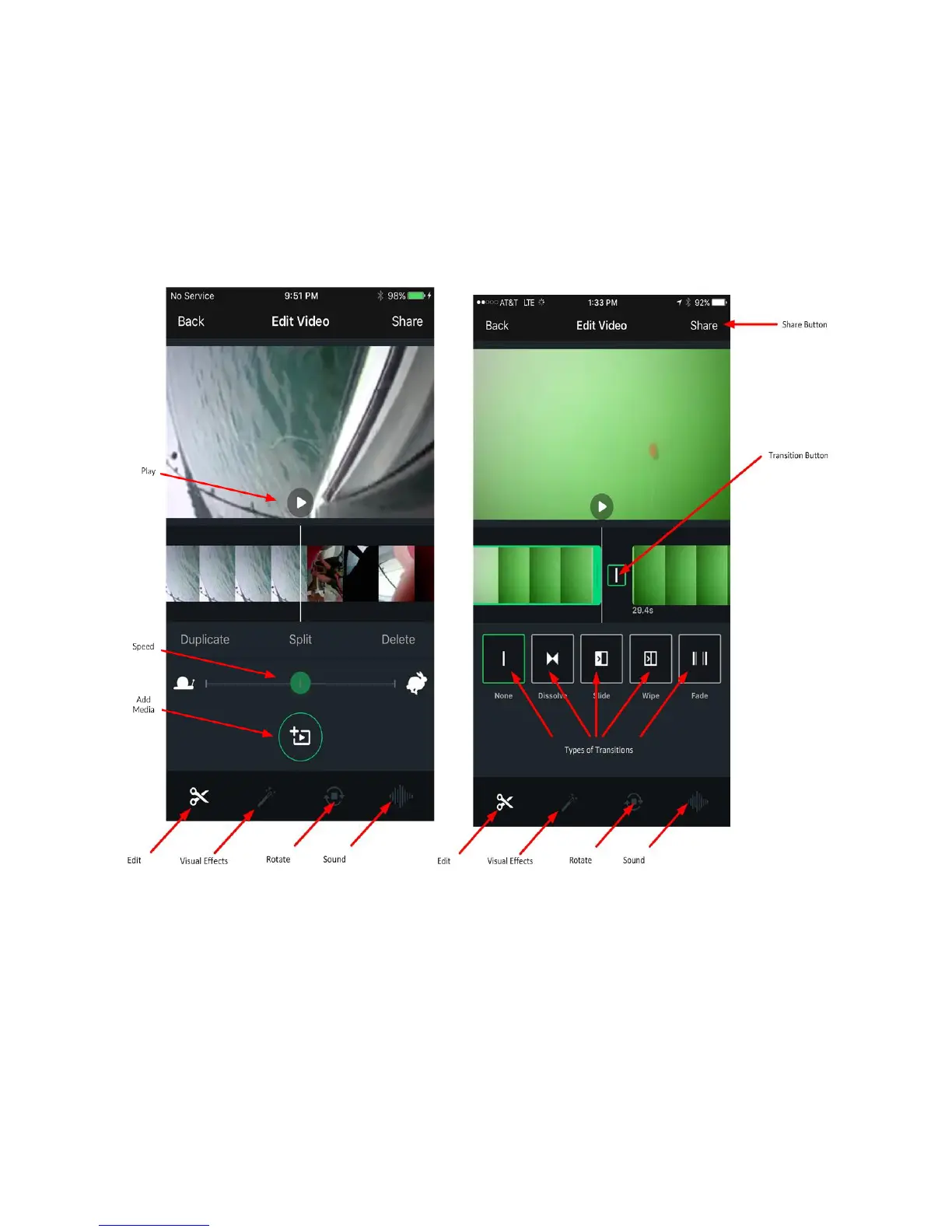
Figure 9
Connect this unit with the "GoFish Cam App" and follow the instructions for Editting.
1. Tap the video library in the bottom left corner of the Live View Screen.
2. Select the preferred video to edit.
3. On the review screen, tap the edit icon.
4. The video will complete processing and you will be on the edit screen.
5. To trim video, duplicate video, split video, speed up / slow down, or add in more clips click on the Trim icon.
a. From the trim screen you can click on a clip by tapping on it in the video preview slider.
b. You can then drag to where in the clip you want to split the clip by tapping split.
c. You can delete the clip by tapping delete.
d. You can duplicate the clip by tapping duplicate.


 To Next Page