3. Registering your GolfBuddy LD2:
4. Updating your GolfBuddy LD2 in three Steps:
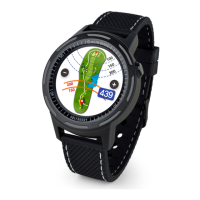
Step 1. Once you get the “Connection Established” message, please click “Next” to
proceed to Step #2: Firmware Update.
Note: If the LD2 is in lock mode (image A.) you will need to press the upper button ( I. ) to
establish a connection between the LD2 and the computer.
16
• Connect your GolfBuddy unit to a USB port on your computer using the USB cable
provided with the unit.
• After a short time, your GolfBuddy unit should show an icon on the screen indicating
it is connected to the computer.
Notes: Disregard any driver download requests that your computer may say is required.
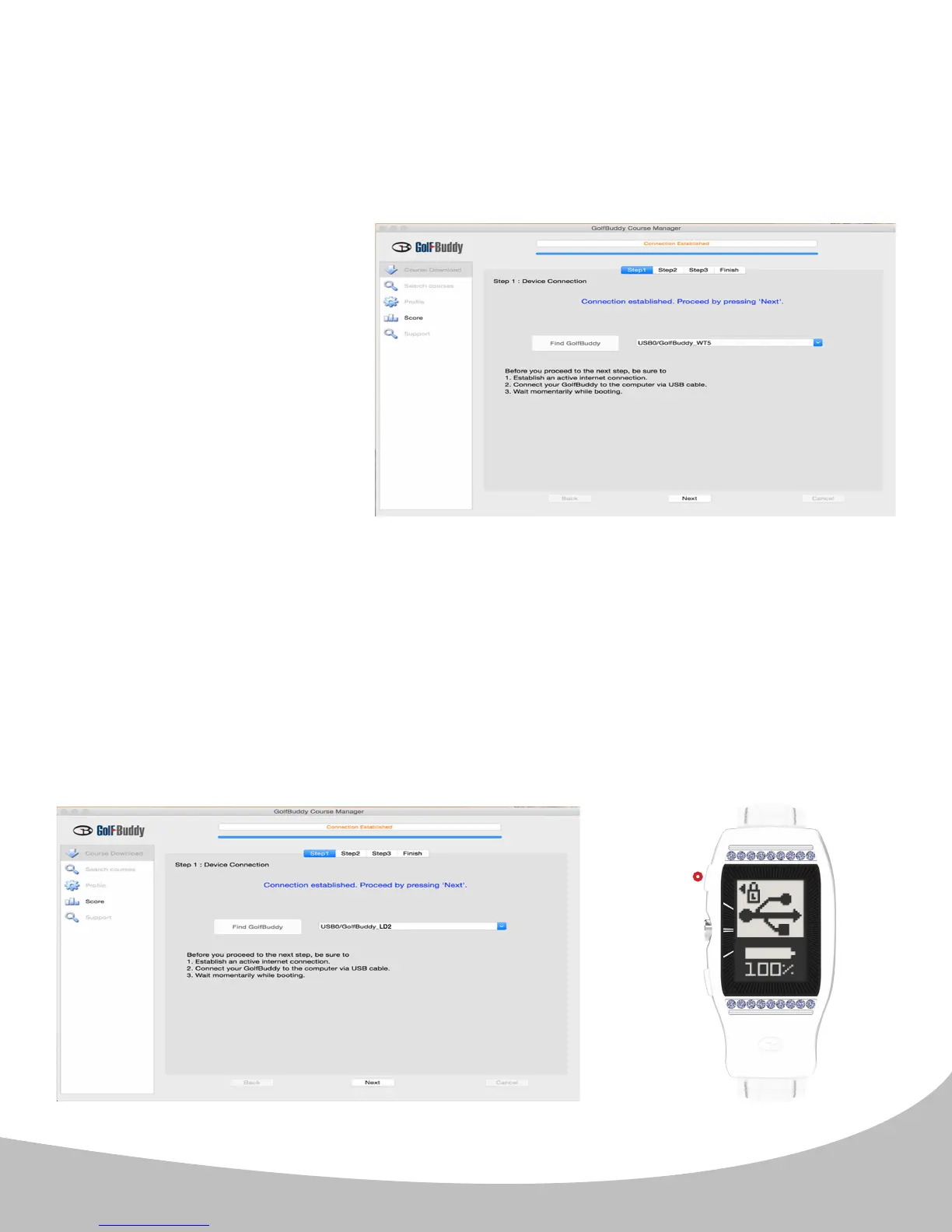
• Click on the blue GB icon on
your desktop and open the
Login Panel.
• Enter your User ID and
Password. You should now
see a panel that indicates the
GB Manager is searching for
the device.
After a short time, you will
see “Connection Established”.
At this stage, your unit is
successfully registered to your
account that you created.
I.
A.


 To Next Page