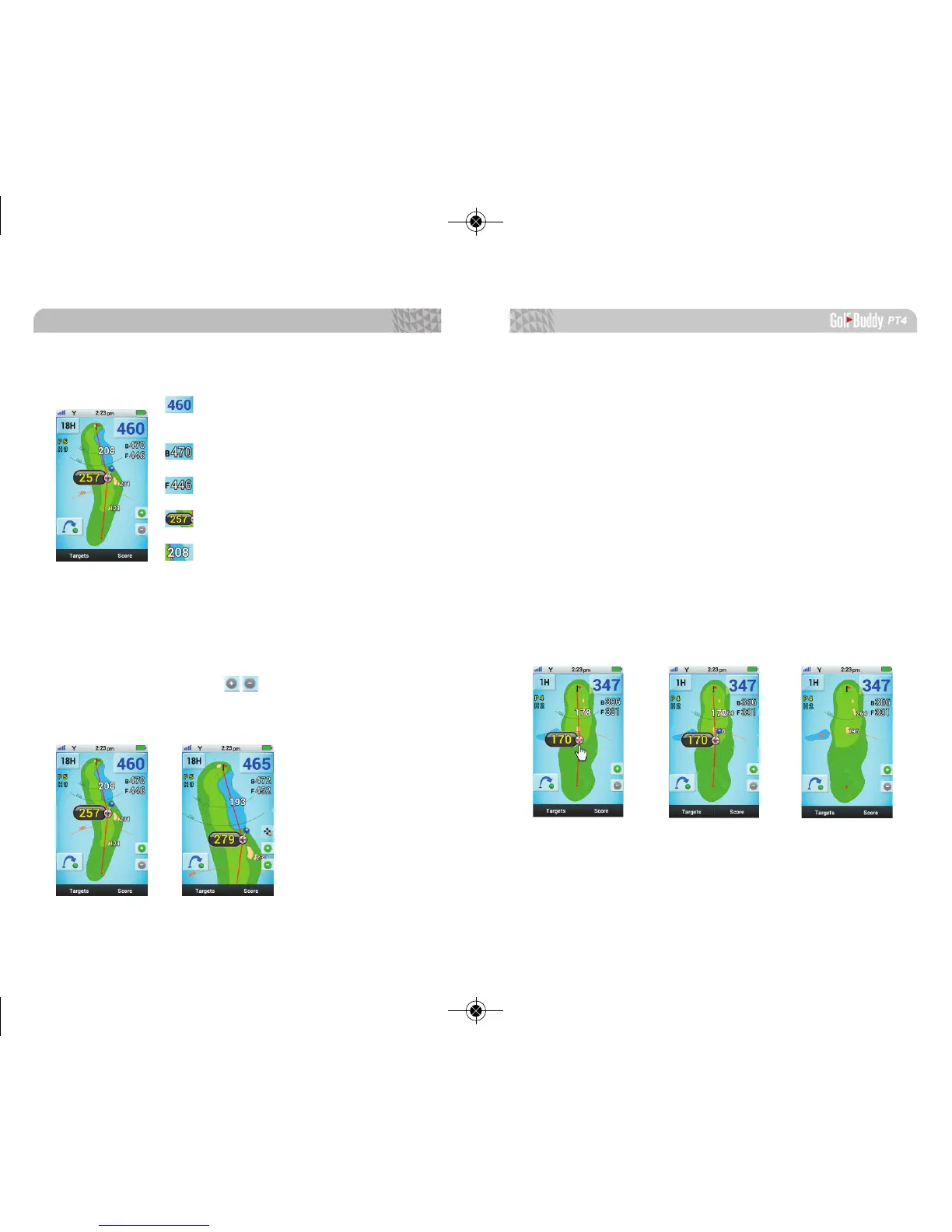
2.4.1. Touchpoint Indicator
When you tap the screen, you will see an indicator that
now gives you the distance to that point and also will dis-
play the distance from the targeted location to the center
of the green.
2.4.2. Touchpoint Indicator Set/Remove
Five seconds after tapping the targeted location, the
Touchpoint Indicator will show a blue pin at that point.
This is to keep the selected position in place. To move the
Touchpoint indicator again, tap the blue pin and select
another position. To remove the Touchpoint Indicator,
“double tap” the screen once the blue pin icon shows the
targeted distance is set.
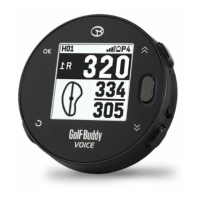
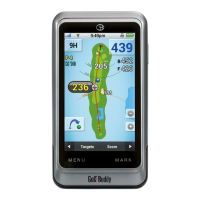
2.3. Distance to the Green
Distance to the center of the
green
Distance to the back of the green
Distance to the front of the green
Distance to the targeted location
Distance from targeted location to
center of the green
2.4. Play Mode
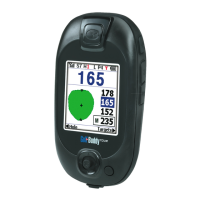
The GolfBuddy PT4 will automatically display dis-
tances to the green as you go around the course.
You can zoom in or out from the full hole layout.
Basic Operations
2524


 To Next Page