EasyManua.ls Logo

GOODEE W80 - Connecting via Charging Cable (Android)

GOODEE W80
20 pages
Print Icon
To Next Page IconTo Next Page
To Previous Page IconTo Previous Page
Loading...
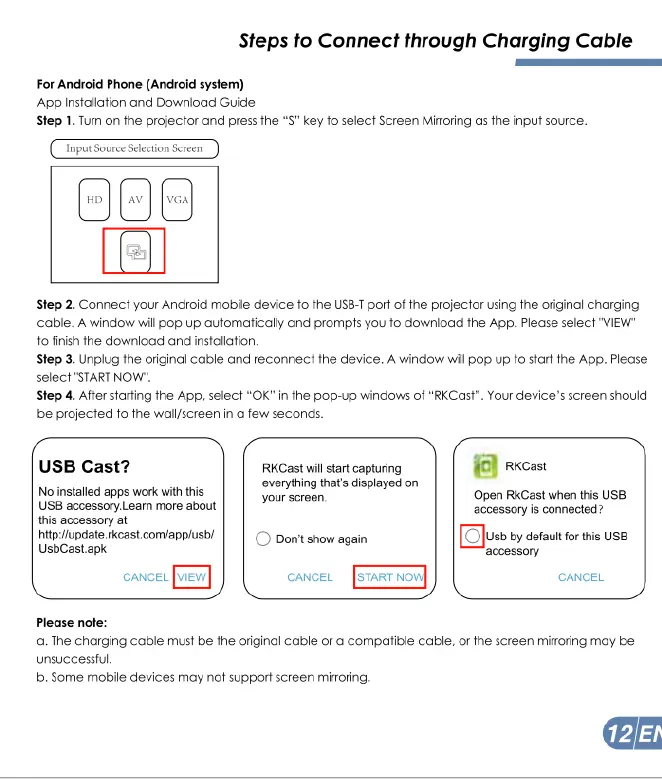
Steps
to
Connect
through
Charging
Cable
For
Android
Phone
(Android
system)
App
Installaion
and
Download
Guide
Step
1.
Tum
on
the
projector
and
press
the
*S"
key
fo
select
Screen
Miroring
as
fhe
input source.
Tnput
Sour
Step
2.
Connect
your
Android
mobile
Gevice
fo
the
USB-T
port
of
the
projector
using
the
original
charging
cable.
A
window
will
pop
up
automatically
and
prompts
you
to
download
the
App.
Please
select "VIEW"
fo finish
the
download
and
installation,
Step
3.
Unplug
the
original
cable
and
reconnect
the
device.
A
window
will
pop
up
fo
start
the
App.
Please
select"START
NOW".
Step
4.
After
starting
the
App,
select
“OK”
in
the
pop-up
windows
of
"RKCast".
Your
device’s
screen
should
be
projected
to
the
wall/screen
in
o
few
seconds.
USB
Cast?
RKGastwil
sar
caturing
10
recast
everything
that's
displayed
on
No nstallec
apps
work
it
s
cveniting
Open
RiGast
when
his
U8
USB
accossaryLoam
mors
about
e
e
s
e
secoseom
ot
hipshpdaeshcastoomiappist!
|
|
5
pon't
show
agan
st
by
dofatfor
s
S5
UsbCastapk
‘accessory
CANCEL CANCEL CANCEL
Please
nofe:
a.
The
charging
cable
must
be
fhe
original
cable
or
a
compatible
cable,
or
fhe
screen
miroring
may
be
unsuccessiul
b.
Some
mobile
devices
may
not
support
screen
miroring.

Related product manuals