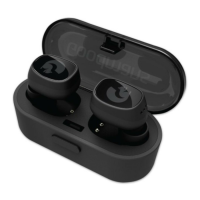
This document outlines the features and usage of the Goodmans True Wireless Earphones, model 364431. These earphones are designed for wireless audio playback and hands-free communication, offering a convenient and portable listening experience.
Function Description
The True Wireless Earphones are designed to provide a completely wireless audio experience. They connect to a Bluetooth-enabled device, such as a smartphone, to play music and handle phone calls. The earphones come with a charging case that not only stores them but also recharges their internal batteries, extending their usage time. The individual earphones are marked with 'L' for left and 'R' for right, indicating their intended ear placement.
Usage Features
In the Box:
Upon unboxing, you will find:
- 1 x True Wireless Earphones
- 1 x Micro USB cable for charging
- S/M/L Silica Gel ear tips to ensure a comfortable and secure fit
- A Quick Start Guide for immediate setup
- An Instruction Manual for detailed information
- A Safety & Guarantee Leaflet
Front View Components:
- Charging Case Cover (A): Protects the earphones when stored in the charging case.
- True Wireless Earphones (B): The main audio devices.
- Charging Case (C): Stores and recharges the earphones.
- Charging Indicator LED Light (D): Located on the charging case, this light indicates the charging status of the case and earphones.
- Charging Touch Spot (E): A contact point on the earphones for charging when placed in the case.
- Mic (F): Built into the earphones for hands-free calls.
- Touch Button (G): A multi-functional touch-sensitive area on each earphone for controlling various functions:
- Power On: Touch for 2 seconds.
- Play/Pause/Answer/End Call: Touch once.
- Refuse Call/Skip to Next Track: Touch once again.
- Activate Voice Assistant: When earphones are on, touch for 2 seconds.
- Power Off: Touch for 5 seconds.
- Earphones Charging Indicator Light (H): Lights on the earphones themselves to show their charging status.
Back View Components:
- Micro USB Charging Port (I): Located on the charging case, this is where the Micro USB cable connects to charge the case and earphones.
- Micro USB Connector (J): The small end of the Micro USB cable that plugs into the charging port.
- USB Cable (K): The cable used for charging.
- USB Connector (L): The larger end of the USB cable that plugs into a power source (e.g., computer USB port or wall charger).
Quick Setup:
Charging Your True Wireless Earphones:
- The earphones have built-in rechargeable batteries and can be used anywhere. Before initial use, fully charge both the earphones and the charging case.
- Ensure the True Wireless Earphones are placed inside the charging case.
- Connect the Micro USB cable to the Micro USB charging port on the back of the charging case.
- Plug the other end of the USB cable into a USB port on a computer or a 5V 1A USB wall charger (not included).
- While charging, the LED indicator light on the charging case will flash, indicating the charge level:
- 1 flash: 10% - 25% charged.
- 2 flashes: 25% - 50% charged.
- 3 flashes: 50% - 75% charged.
- 4 flashes: 75% - 100% charged.
- A low battery warning alert will sound when the battery is low, prompting you to recharge.
Pairing With a Bluetooth Device:
- Remove both earphones from the charging case. The indicator lights on both earphones will flash red and white.
- Once the earphones successfully connect to each other, one earphone's indicator light will continue to flash red and white, while the other will flash white. A "connected" voice prompt will be heard.
- Enable Bluetooth on your smartphone and search for available Bluetooth connections.
- Select "GOODMANS WIRELESS" from the list of devices. If prompted for a pass code, enter "0000".
- Upon successful pairing, a voice prompt will confirm the connection.
- The earphones will remember the paired device and automatically re-pair when the device's Bluetooth is active and within range. Manual re-pairing is not needed for previously connected devices.
- To pair with a new device, turn off Bluetooth on the last connected device, then use the new device to search for and select "GOODMANS WIRELESS".
Playing Your Music:
Once your smartphone or device is paired with the True Wireless Earphones, you can use your music app to play audio and control the volume directly from your device.
Maintenance Features
Troubleshooting:
- Cannot find earphones on Bluetooth list: Delete all existing Bluetooth pairing names from your device and search again.
- Left and right earphones not connecting:
- Take both earphones out of the charging case and turn them on simultaneously.
- Ensure both L&R earphones are within the connection range (10 meters).
- Verify that the earphones are not connected to another Bluetooth device.
- Sound distorted or Bluetooth keeps disconnecting:
- Ensure there are no obstructions like walls blocking the Bluetooth connection, as this can affect signal quality between your device and the earphones.
- Maintain a distance of less than 10 meters between your Bluetooth device and the earphones.
- If the left and right earphones are not connected, turn both off and then turn them back on simultaneously until you hear the "connected" prompt.
The True Wireless Earphones are designed for ease of use and portability, making them a suitable choice for everyday listening.

 Need help?
 General
 Weight and Dimensions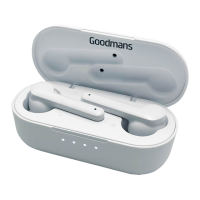

 To Next Page