22 23
CONTROLLING YOUR GOPRO WITH
YOUR VOICE
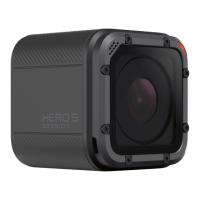
You can control your HERO5 Session with your voice using a set of specific
commands (see list below).
Note: Voice Control performance may be impacted by distance, wind, and noisy
conditions. Keep the product clean and clear of debris.
USING VOICE CONTROL
Voice Control works best in close proximity to your GoPro.
Note: When you first turn on your camera, your GoPro allows you to select a voice
control language. You can change your voice control language later through the
Capture app.
1. Press the Menu button to turn on the status screen.
2. Press the Menu button repeatedly to move to Voice Control, then
press the Shutter button [
] to select it.
3. Turn on Voice Control:
a. Press the Shutter button to select On.
b. Press the Menu button to move to the check mark.
c. Press the Shutter button to confirm the selection.
4. Say a command from List of Voice Commands
(page 23).
5. Turn off Voice Control:
a. Press the Shutterbutton to select Off.
b. Press the Menu button to move to the check mark.
c. Press the Shutter button to confirm the selection.
PRO TIP: To extend the voice control of your camera in windy and noisy
environments, use Remo (Waterproof Voice Activated Remote). For details,
visit gopro.com.
CONTROLLING YOUR GOPRO WITH
YOUR VOICE
LIST OF VOICE COMMANDS
Two types of commands are available with Voice Control:
• Action commands let you immediately capture video or photos. For
example, if you just stopped recording video, you can say the command
to take a photo or begin capturing time lapse—without having to first
change the mode.
• Mode commands are useful if you want to quickly select a mode and
then use the Shutter button to capture.
Your camera does not need to be in a specific mode to capture video or
photos. You can use the action commands from any mode. Your camera
captures video or photos based on the settings you previously selected.
Action Command Description
GoPro start recording Starts capturing video
GoPro HiLight Adds a HiLight Tag to video during
recording
That was sick Adds a HiLight Tag to video during
recording
GoPro stop recording Stops capturing video
GoPro take a photo Captures a single photo
GoPro shoot burst Captures burst photos
GoPro start time lapse Starts capturing time lapse
GoPro stop time lapse Stops capturing time lapse
GoPro turn off Powers off the camera


 To Next Page