5
WARNING: Use caution when using your GoPro as part of your active
lifestyle. Always be aware of your surroundings to avoid injury to
yourself and others.
Abide by all local laws when using your GoPro and related mounts and
accessories, including all privacy laws, which may restrict recording in
certain areas.
MOUNTING OMNI
1. If you want to use the top 1/4-20 threaded insert, unscrew the corner cap.
2. Use a 1/4”-20 screw with the threaded insert on the top or bottom of the
rig (near the power connector) to attach Omni to a monopod or other
suitable mounting solution.
NOTICE: When removing Omni from a monopod or other mounting
solution, disconnect the power connector first to avoid damaging the
connection.
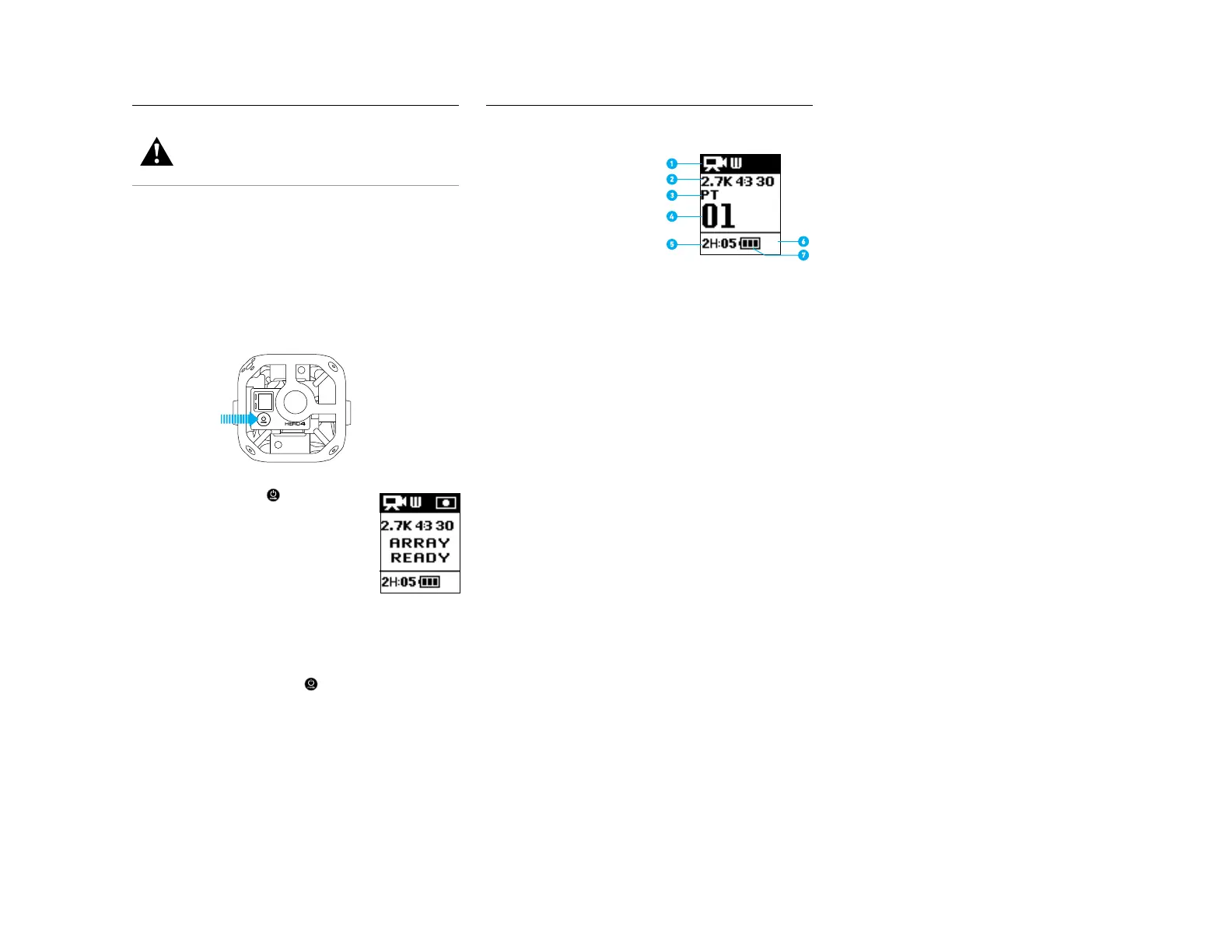
POWERING ON + OFF ALL CAMERAS IN THE ARRAY
To Power On All Cameras:
Press the Power/Mode button [ ] on the
primary camera. The camera status lights flash
three times and the sound indicator emits three
beeps. The primary camera powers up, followed
by the secondary cameras. When Array Ready
disappears, you can begin capturing video or photos.
The array is properly configured if the camera mode
icon and AR alternate in the upper le of the camera
status screen.
If Array Error appears on the primary camera’s status screen, see Array Error
(page 10).
To Power Off All Cameras:
Press and hold the Power/Mode button [ ] on the primary camera for two
seconds. The camera status lights flash several times and the sound indicator
emits seven beeps.
/ Getting Started / Camera Status Screen
Your HERO4 Black features a status screen that displays the
following information:
1. Camera Mode/FOV
(field of view)
2. Resolution/fps
(frames per second)
3. Protune
™
(if on)
4. Number of Files Captured
5. Available Time on Memory Card
6. Wireless (if on)
7. Battery Life



 To Next Page