**If you open the door you will see a red “Aborted” message. To reset the GoScribe you must
then:
1. Press Escape
2. Choose the tag function key again. This will rehome the machine and put it in ready
state to select a new tag.
8. The GoScribe Mini will complete scribing and return to its home position and stop. You may
now open the door and remove the id tag.
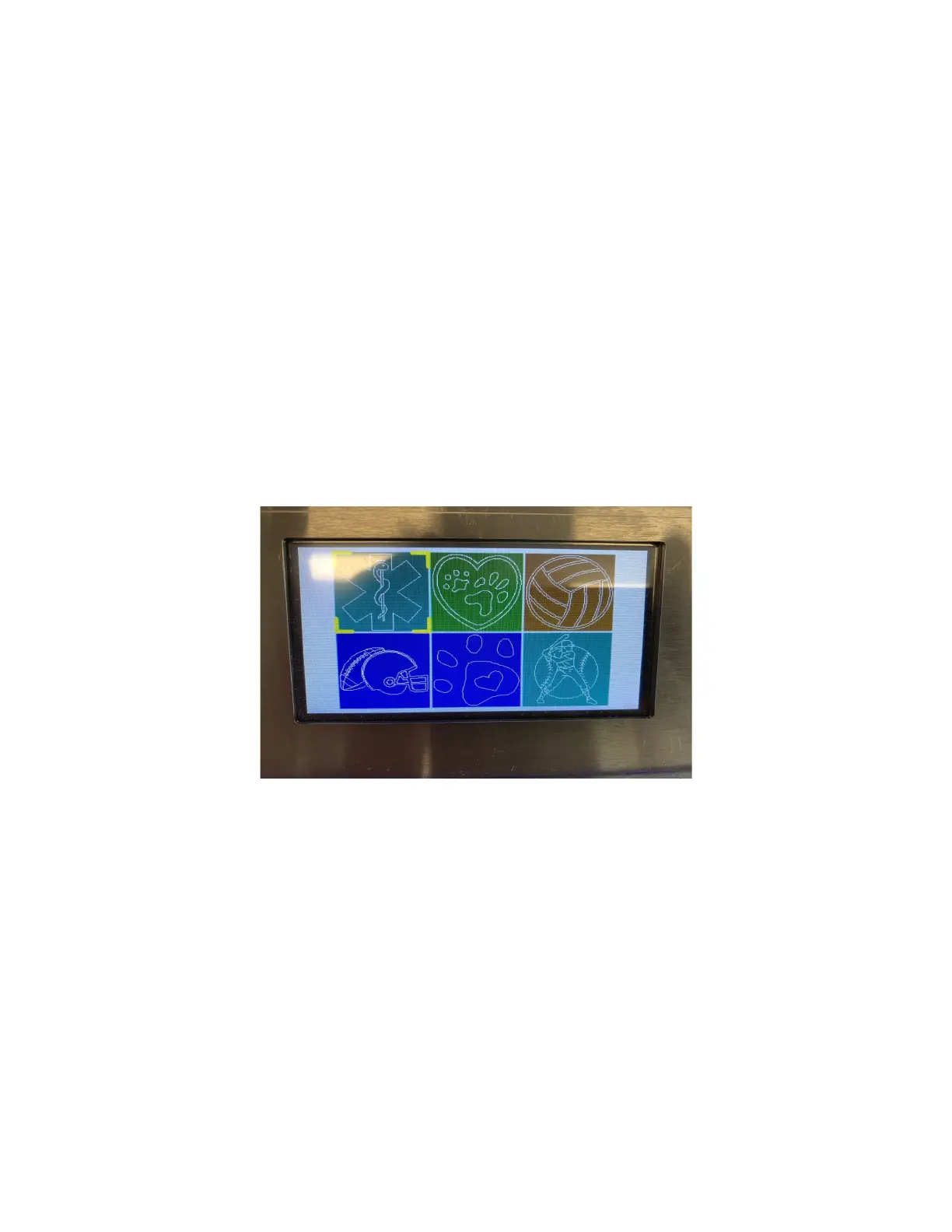
***Scribe Graphics**The GoScribe comes with over 59 popular graphics that may be scribed
on the tags. To scribe a graphic press "g" from the main screen to go into graphics mode. Then
select the tag shape function key for the tag shape you would like to scribe a graphic on. Insert
a tag and close the door. Press G to pull up the graphics available to scribe. Use the left and
right arrows to select a graphic. Press the left and right arrow on the mini keyboard to scroll
through the additional screens with more graphic options.
Once you have a graphic highlighted press Enter. The LCD will now display the graphic on the
tag. Press R to rotate the image if required. Press Go to scribe the graphic onto the tag.
Swarovski Charm Tags
*For our new charm style bone tags with genuine Swarovski crystals you should put 2 spaces
before the pet name and 2 spaces after the pet name. This makes the pet name smaller to allow
room to be scribed without hitting the crystals. Scribe the back of the tag as normal.
Some useful things to note:


 To Next Page