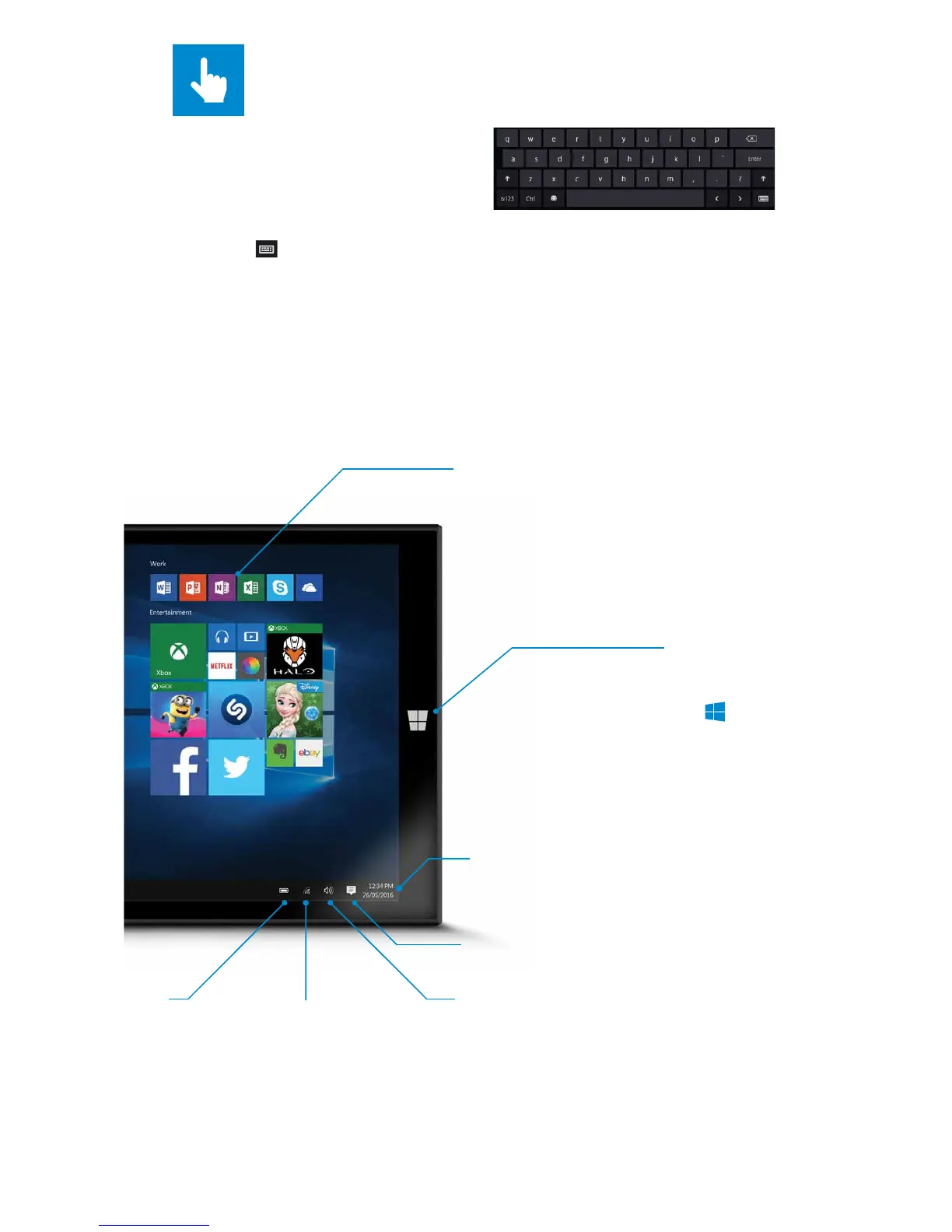
App Tiles
TOUCH KEYBOARD
You can type just like normal using
the On Screen Keyboard. Just tap in a
text box and the keyboard will pop
up, let you type and disappear when
you've nished with it. Or you can
press the symbol in the bottom right corner to make it disappear
Tap & hold keys to see similar characters. For example, pressing and holding
"e" reveals è, ē, é, ê, and ë on-screen. The keys in the top row insert the
corresponding numbers 1, 2, 3.. (shown on the top left of the keys)
The Start button is used to take
you back to the main home
screen at any time. Press on
the front touchpanel of your
GoTab, or in the bottom left
corner of your screen
Battery Level Tap to change
Audio Settings
Tap to Connect to
Wi-Fi or enable
Airplane Mode
Tap to open Action Centre
Time & Date
Tap to change the settings
Once you pin a new app, resize it. Tap
and hold (or right-click) the app tile,
select Resize, and then choose the tile
size you want.
To create a new group of tiles, move
an app's tile up or down until a group
divider appears, and then release the
tile.


 To Next Page