EasyManua.ls Logo

Grace Digital SiriusXM Sound Station - User Manual

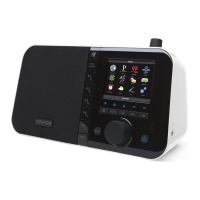
Grace Digital SiriusXM Sound Station
2 pages
Print Icon
To Next Page IconTo Next Page
Loading...
Enter Your SiriusXM Streaming User Name and Password
a. If the Sound Station is in Standby mode, press
the Power button
b. Next you will be prompted to enter your
SiriusXM streaming username. Enter each
character in your username and when complete
select Enter and press the Tune knob or
press the Enter button. Your username is case
sensitive. If you entered an incorrect username
you will be prompted that the username does
not exist. Repeat this step and enter the correct
username.
c. Next enter your password and select Enter and
press the Tune knob or press the Enter button.
Your password is case sensitive.
d. When the Sound Station connects to SiriusXM
the Channel Listing screen will be displayed. Turn
the TUNE knob to scroll through the category
choices and highlight a category. Press the TUNE
knob to display the channels in the category. You
can select a channel to begin listening.
The installation is complete.
IMPORTANT! You must have a qualifying SiriusXM subscription to use the SiriusXM Sound Station. You can
add this service to your existing Sirius or XM subscription, or subscribe only to the SiriusXM Internet Radio
package.
To subscribe, go to siriusxm.com/streaming or call 866-635-2349.
TIP! To verify that you are subscribed to SiriusXM Internet Radio, listen online:
•Go online to siriusxm.com/streaming. Click on the Listen Now link, enter your username and
password, and click Login. If you can listen, then you are subscribed to stream SiriusXM.
IMPORTANT NOTICE: REQUIRED SUBSCRIPTION
Hardware and subscription sold separately. The subscription plan you choose will
automatically renew and you will be charged according to your chosen payment method
at then-current rates. Fees and taxes apply. To cancel, you must call us at 1-866-635-
2349. See our Customer Agreement for complete terms at www.siriusxm.com. All fees
and programming subject to change. SiriusXM streaming is available throughout our
satellite area and also AK and HI. Service available in Canada; see www.siriuscanada.ca or
www.xmradio.ca.
© 2015 Sirius XM Radio Inc. Sirius, XM and all related marks and logos are trademarks of SiriusXM Radio Inc. All other
marks, channel names and logos are the property of their respective owners. All rights reserved.
HOME
BACK
This Quick Start Guide covers the most common type of wireless network connection. If your
wireless network requires manual configuration refer to the User Guide. Also refer to the
“Troubleshooting” section in the User Guide if you encounter any problems.
Turning the TUNE knob scrolls through menus and lists to highlight items, and pressing the TUNE
knob selects a highlighted item.
Connect to a Wireless Network
a. Plug the AC Power Adapter into an AC outlet, and plug the power plug into the connector on
the rear of the SiriusXM Sound Station. Press the Power button if the Sound Station does not
turn on automatically.
b. Wait while the Sound Station scans for wireless
networks and then select your wireless network
from the list. Turn the TUNE knob to highlight
your wireless network and then press the TUNE
knob to select.
c. The Sound Station will attempt to connect to
the wireless network. If you chose a network
that requires a password, you will be prompted
to enter the Network Key (password).
Otherwise, the Sound Station will attempt to
connect to the wireless network.
d. To enter the network key, turn the TUNE knob
to highlight each character of the password
and press the TUNE knob to select the
character. If you make an error, press the BACK
button to erase the character. When you have
completed entering the network key, highlight
Enter and press the TUNE knob or press the
Enter button.
e. When the Sound Station has successfully
connected to the wireless network, Network
OK will be displayed. Wait while the Sound
Station updates itself after which it will enter
Standby mode. Continue with step 2.
Sound Station Functions
STEP 2: Enter Your SiriusXM Account Information
STEP 1: Connect to a Wireless Network
HOME Button
Press to access the menu
for listening modes and
configuration options.
Display Screen
TUNE Knob (Multifunction)
Turning the knob at the Now Playing screen displays the Channel Listing screen;
pressing the knob at the Now Playing screen displays the Direct Tune screen;
turning the knob in a menu or user input screen scrolls through and highlights
menus and choices; pressing the knob in a menu or user input screen selects the
highlighted item.
Context Sensitive Buttons (5)
These buttons change their
functions according to the
context. Press to select the
function shown on the display
screen just above the button.
Volume / Mute Knob
Turn to adjust the volume;
press to mute and un-mute
audio.
0-9 Number Buttons
Press to tune to a favorite
channel; press and hold to
set the current channel as a
favorite channel.
BACK Button
Press to return to the
previously displayed screen.
Action Panel Button
Press to learn more about
the channel, show, or artist,
and for additional selection
options, for example,
customizing a channel.
Headphone
Connection
Alarm Button
Press to edit alarms.
Power Connection USB Connection
For external wired Ethernet
Adapter, sold separately.
Top View
Rear View
Front View
Side View
Aux In
Connection
Sleep / Snooze Button
Press to mute the alarm for 5
minutes, or set the sleep timer;
press and hold to enable/
disable alarms, also modify
alarms.
Power/Standby
Button
AUX IN
ALARM
SLEEP / SNOOZE

Question and Answer IconNeed help?

Do you have a question about the Grace Digital SiriusXM Sound Station and is the answer not in the manual?

Overview

The SiriusXM Sound Station WiFi Table Radio is a comprehensive audio device designed for streaming SiriusXM content over a wireless network. This Quick Start Guide provides essential information for setup and operation, covering network connection, account login, and an overview of the device's functions and display screens.

Function Description:

The SiriusXM Sound Station primarily functions as a WiFi-enabled radio for accessing SiriusXM streaming content. Users can stream live SiriusXM channels, access custom channels, and listen to on-demand shows. The device also supports listening to previously aired shows and offers an Aux In connection for playing audio from external devices. It includes an alarm clock function and a sleep timer.

Important Technical Specifications:

While specific technical specifications like power output or frequency range are not detailed in this guide, the device operates on a WiFi network for streaming. It requires an AC Power Adapter for operation. An optional USB connection allows for an external wired Ethernet Adapter, sold separately, for alternative network connectivity.

Usage Features:

  • Wireless Network Connection:

    • Setup: Users plug in the AC Power Adapter, power on the device, and wait for it to scan for wireless networks.
    • Selection: The TUNE knob is used to highlight and select the desired wireless network from a list.
    • Network Key Entry: If the network requires a password (Network Key), the TUNE knob is used to select individual characters. The BACK button allows for corrections. After entering the key, "Enter" is selected.
    • Confirmation: Upon successful connection, "Network OK" is displayed, followed by a system update and entry into Standby mode.
  • SiriusXM Account Information Entry:

    • Power On: If in Standby mode, the Power button is pressed.
    • Username Entry: Users are prompted to enter their SiriusXM streaming username. The TUNE knob is used to select characters, and "Enter" is pressed when complete. The username is case-sensitive, and incorrect entries will prompt a re-entry.
    • Password Entry: Similar to username entry, the password is entered using the TUNE knob, followed by selecting "Enter."
    • Channel Selection: Once connected to SiriusXM, the Channel Listing screen appears. The TUNE knob scrolls through categories, and pressing it displays channels within that category. A channel can then be selected to begin listening.
  • Controls and Buttons:

    • TUNE Knob (Multifunction):
      • Now Playing Screen: Turns to display the Channel Listing screen; presses to display the Direct Tune screen.
      • Menus/User Input: Turns to scroll and highlight items; presses to select highlighted items.
    • HOME Button: Accesses the menu for listening modes and configuration options.
    • Action Panel Button: Provides more information about the current channel, show, or artist, and offers additional selection options (e.g., customizing a channel).
    • BACK Button: Returns to the previously displayed screen.
    • Context Sensitive Buttons (5): These buttons' functions change based on the display screen's context, indicated by labels on the display directly above them.
    • Volume / Mute Knob: Turns to adjust volume; presses to mute/unmute audio.
    • 0-9 Number Buttons: Tunes to a favorite channel; press and hold to set the current channel as a favorite.
    • Power/Standby Button: Powers the device on/off and puts it into standby mode.
    • Alarm Button: Presses to edit alarms.
    • Sleep / Snooze Button: Presses to mute the alarm for 5 minutes or set the sleep timer; presses and holds to enable/disable alarms or modify alarms.
  • Display Screens:

    • Home Screen: Shows recent listening history, options to stream live channels, access custom channels, find channels by category, change equalization settings, and access system setup or Aux In connection.
    • Now Playing Screen: Displays clock, album art, artist name, song/program title, WiFi signal strength, channel logo, and a pause/replay timebar. It also shows options to start the show now, go to live, rewind, play/pause, and fast-forward, or return to live broadcast.
  • Connectivity:

    • Power Connection: For AC power adapter.
    • USB Connection: For an external wired Ethernet Adapter (sold separately).
    • Headphone Connection: For private listening.
    • Aux In Connection: For connecting external audio devices.

Maintenance Features:

The guide does not explicitly detail maintenance features. However, it implies that the device receives system updates during initial setup after connecting to a wireless network, which likely includes software maintenance.

Important Notices:

  • Subscription Required: A qualifying SiriusXM subscription is necessary to use the Sound Station. Users can add this service to an existing Sirius/XM subscription or subscribe to the SiriusXM Internet Radio package.
  • Subscription Terms: Hardware and subscription are sold separately. Subscriptions automatically renew at current rates. Fees and taxes apply. Cancellation requires calling SiriusXM. All fees and programming are subject to change.
  • Availability: SiriusXM streaming is available throughout the satellite area, including AK and HI, and in Canada.

This SiriusXM Sound Station offers a user-friendly interface for accessing a wide range of audio content, making it a versatile addition for SiriusXM subscribers.

Grace Digital SiriusXM Sound Station Specifications

General IconGeneral
BrandGrace Digital
ModelSiriusXM Sound Station
CategoryRadio
LanguageEnglish

Related product manuals