CONVERTING THE RECORDED FILES TO .WAV AND .MP3 FILE FORMATS
Please make sure that you have properly connected the USB Turntable to your computer and follow the instructions
below to convert your files to “.wav and .mp3” file formats.
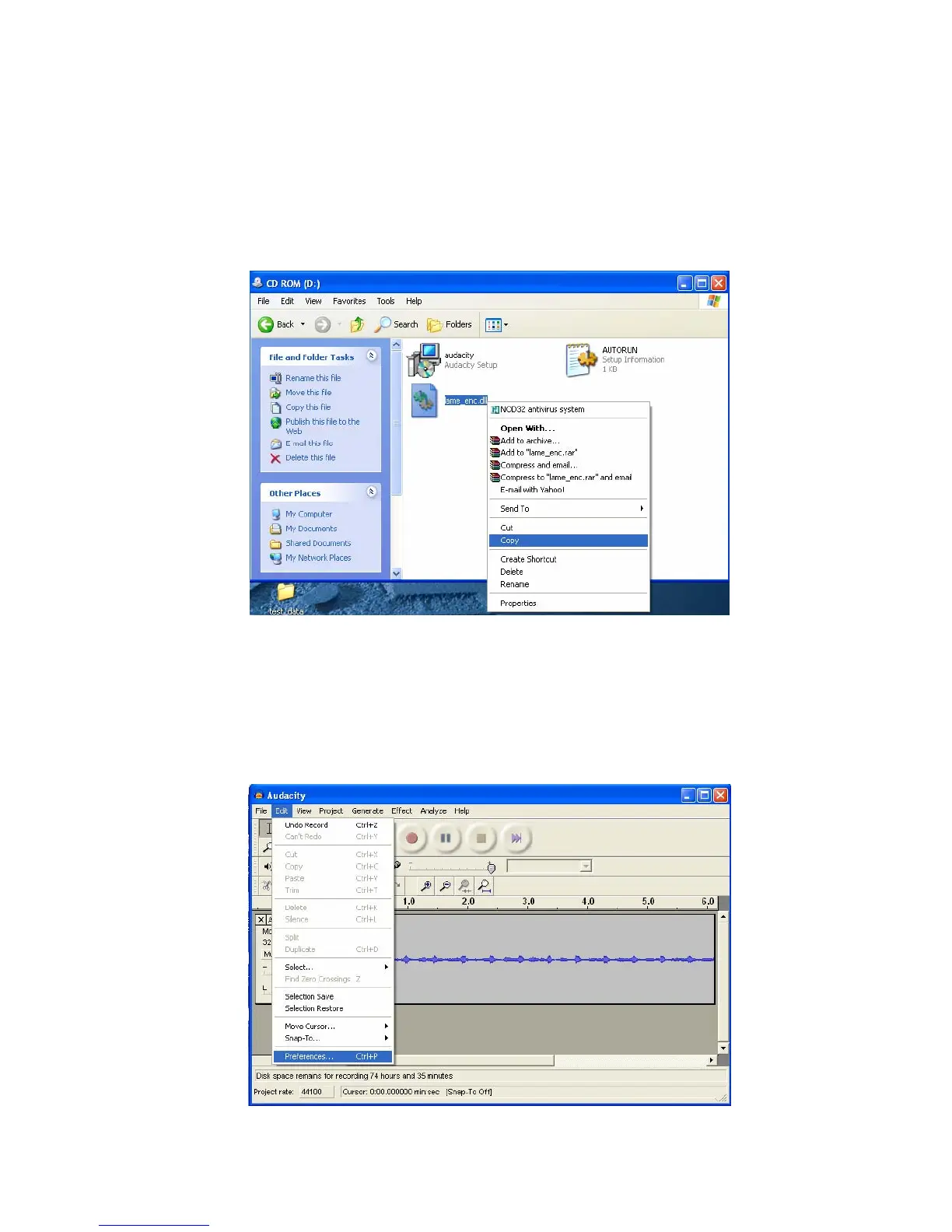
1. Make sure that the Audacity installation disc is still inserted in your computer. Go to your Desktop and double click on
the "My Computer" icon.
2. Locate the CD ROM Drive and double click on the icon.
3. Copy the lame_enc.dll file and paste it to your Desktop.
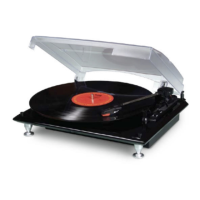
4. After copying the file, open the Audacity Software. Click on the "RECORD" Button to start the recording process.
Make sure that a vinyl record is playing on the turntable and the USB cable is connected to the turntable and your
computer.
5. You may press the Stop Button at any desired time. Once you have the recorded file that will be converted, press the
"Edit" tab and select "Preferences"
12


 To Next Page