P a g e | 15
4. In Routes field, add the list of networks that are reachable through the GWN7000 running
OpenVPN
®
server. Here we set the IP range for the core site LAN (i.e. 192.168.1.0/24).
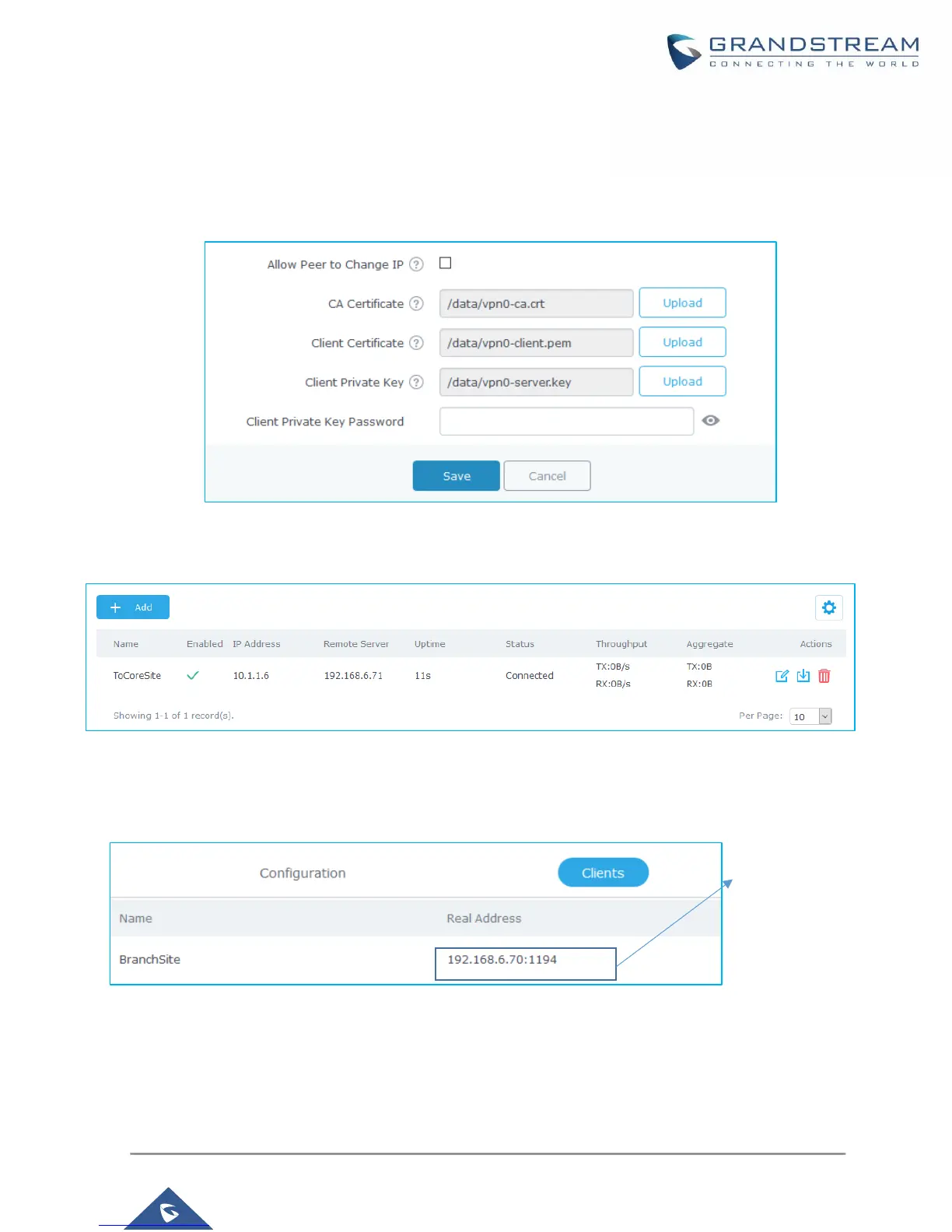
5. The final step would be to upload the client certificate and key, along with CA file which was used
to sign the certificates.
Figure 11: OpenVPN
®
Client – Upload Certificate and Key
6. Once this done, press save and apply then check the OpenVPN
®
client status.
Figure 12: OpenVPN
®
Client Status from Client Side
Administrator could check the connected client(s) under the OpenVPN
®
server
under VPNOpenVPN
®
Server. hit edit and check the connected clients as shown below:
Figure 13: OpenVPN
®
Client Status from Server Side


 To Next Page
 Loading...