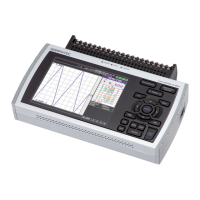
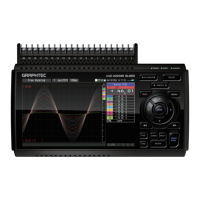
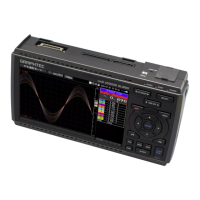
This section explains how to install the environment settings tool and
GL900 application software.
System Requirements
This software can be installed on a PC which fulfills the following
conditions.
OS : Windows 2000, WindowsXP, WindowsVista
CPU : Pentium4 1.7GHz or higher
Memory : 512MB or more (1GB or more recommended)
HDD : 200MB (1GB recommended) additional space required for installing the
application software
Display : Resolution 1024 x 768 or higher, 65535 colors or above (16 Bit or higher)
Others : CD-ROM drive (for installing from CD), USB port required
To Install the USB Driver
To install the USB driver, follow the directions below.
Insert the accompanying midi LOGGER GL900 CD-ROM in the PC's CD
drive.
Connecting the PC and GL900.
Connect the PC and GL900 via a USB cable and power on the GL900.
Installing the USB driver
The "Found New Hardware" message appears, followed by the Install New
Hardware wizard for the environment settings tool.
Follow the directions displayed by the installer.
Choose "USB Driver" for driver selection.
The driver is located in the "USB Driver".
To Install GL900 Application Software
To install the application software which sets and controls the GL900,
follow the directions below.
Insert the accompanying midi LOGGER GL900 CD-ROM in the PC's CD
drive.
Select [Start] m [Run] to open the [Run] window.
In the [Open:] field, type in "D:\English\GL900APS\SETUP.EXE" and press
[OK]. The installer starts.
("D:" represents the CD-ROM drive. Change this letter to the drive letter
representing your CD-ROM drive, if necessary.)
Follow all directions displayed by the installer to continue.
GL900 Installation Guide
20








 To Next Page
