10. REVIEW
11. DISPLAY
12. CURSOR (ALARM CLEAR)
13. FILE
14. NAVI
9. START/STOP (USB DRIVE MODE)
7
Press the START/STOP key to perform a data capture start operation while the GL900 is in
the Free Running status, and a data capture stop operation when data capture has ended. If
this key is held down while the power to the GL900 is turned on, the GL900 goes into USB
Drive Mode.
Press the REVIEW key to perform a data capture start operation while the GL900 is in the
Free Running status, and a data capture stop operation when data capture has ended. If this
key is held down while the power to the GL900 is turned on, the GL900 goes into USB Drive
Mode.
Note: A data replay operation will not be performed if data has not been captured.
Press the DISPLAY key
Press the CURSOR key to switch between the A and B cursors during a data replay
operation. If the Alarm setting has been specified as "Alarm Hold", press this key to clear the
alarm. The alarm settings are made in the "TRIG" menu.
Press the FILE key to save data to the GL900's internal memory and to a USB memory
device.
Press the NAVI key to display operational descriptions during the Free Running status, and
during data capture and data replay operations.
Waveform + Digital
Expanded Waveform
Digital + Calc
X-Y Waveform
Waveform + Digital - This is the default screen
when the GL900 is turned on, and both waveforms and
digital values are displayed. The screen settings can also
be changed by using the SPAN/POSITION/TRACE
key.ngs can also be changed by using the
SPAN/POSITION/TRACE key.
Expanded Waveform - Displays waveforms only.
Digital + Calc - Displays large-size digital values
and two types of calculation processing results. The
calculation settings are made in the "DATA" menu.
X-Y Waveform - X-Y display of 4 channels is
possible. You can specify channels freely for X and Y
axes. The settings can also be changed using the
SPAN/TRACE/POSION keys. Penup and clear screen
can also be performed.
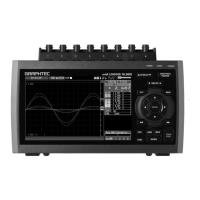
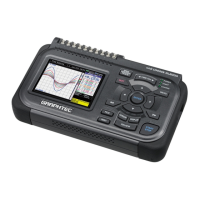
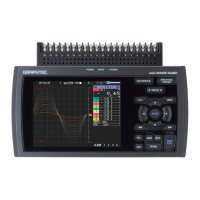
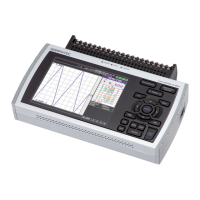
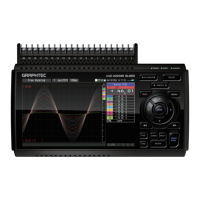
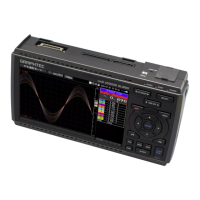
Many display modes are
available !








 To Next Page
