11
| | 11 20 20
Device pages
We will go over each device page in order, explaining their contents per page.
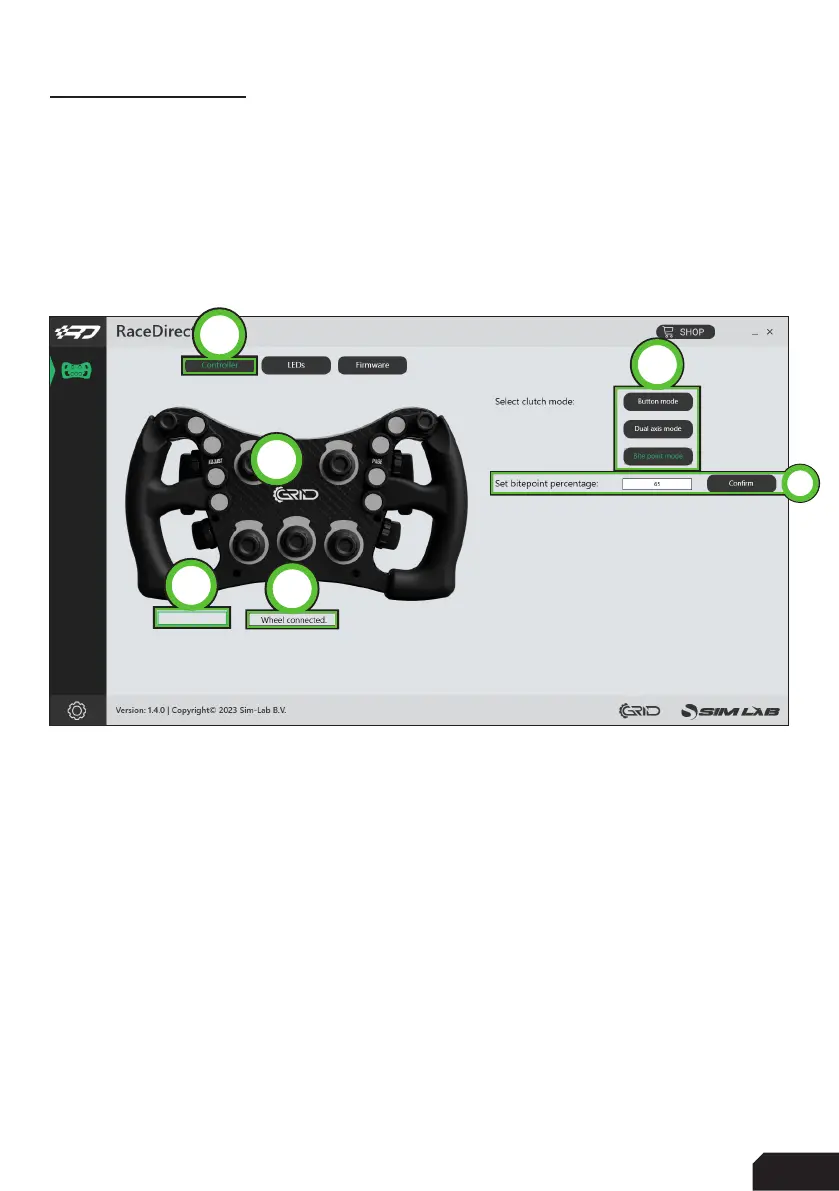
Controller (A)
This device page focusses more on the mechanical part of controlling the hardware.
Seeing the options mentioned, it is probably clear this page has more to do with
wheels than dashes for example.
On the left is the ‘Visual Representation’ (1) of the wheel, included is a ‘Status indicator’
(2) and the ‘Clutch indicator(s)’ (3) which show the clutch input. The clutch indicator
will be a single or double one, or hidden, depending on your clutch settings.
The right side of the screen contains some options, at his moment they all have
to do with the clutches. Although clutch options can be controlled hardware wise
through the wheel entirely, we also offer the possibility to configure the clutch
through software as well. The various ‘Clutch modes’ (4) can be selected as would be
done on the wheel.
One option which is easier done through software than on the actual wheel is
precisely dialing a bitepoint for the clutch in ‘Bite point mode’. In the input field next to
‘Set bitepoint percentage’ (5) you are able to specify a bitepoint from 0-100% and this
is even possbile in the tenths. Let’s just say you you want to enter a percentage of
45.6% in there, you are able to.
5
2
3
4
A
31



 To Next Page