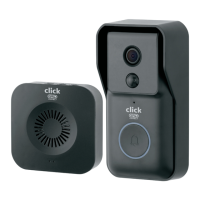
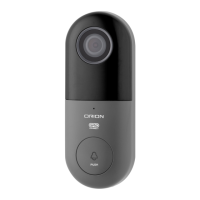
24 pages 105mm x 148mm (A6) 160gsm Gloss Art Stock 4 colour process double sidedDC60HA - CPIN005634
SMART HOME
12
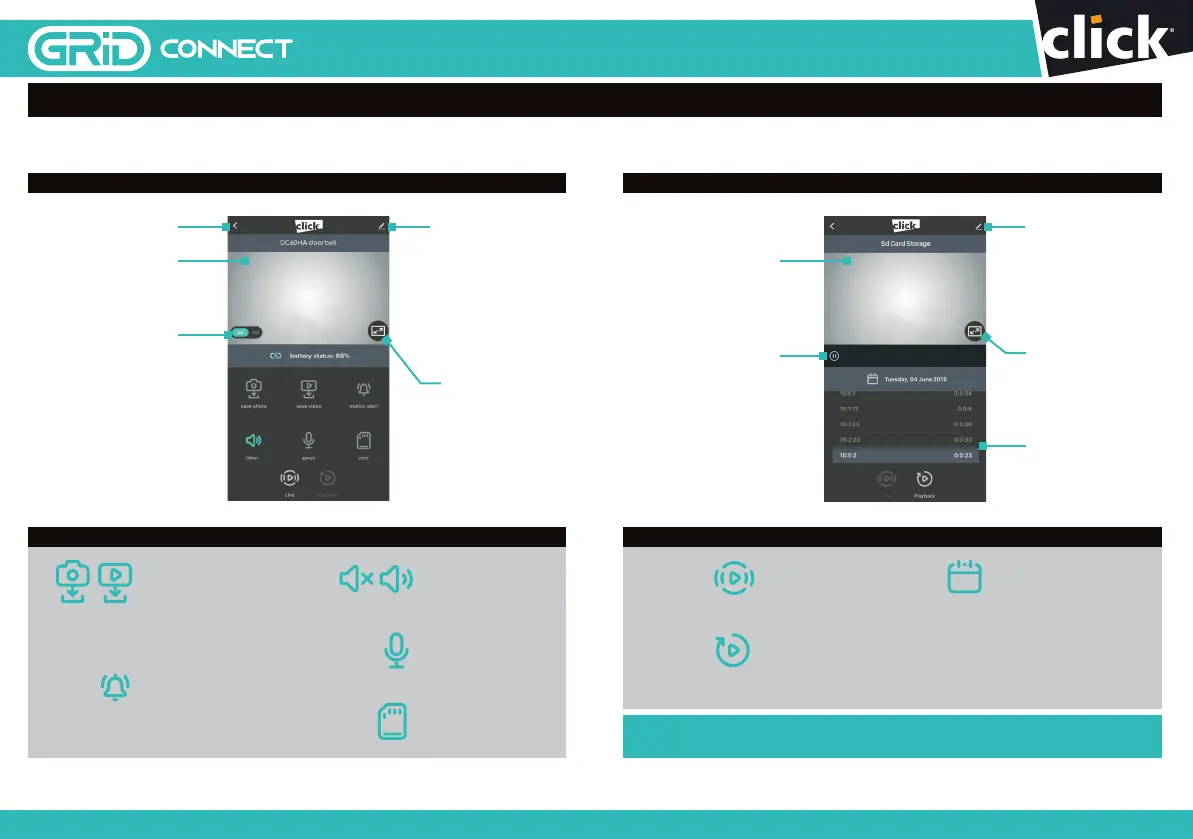
Once your doorbell is paired to your Wi-Fi network, you can view your doorbell,
once doorbell is activated, from your smartphone as long as there is internet access.
Back to device
screen.
Note: This screen is
only accessible when
the doorbell has been
pressed or motion is
detected (if set).
Note: This screen is
only accessible when
the doorbell has been
pressed or motion is
detected (if set).
Switch video quality
between Standard
denition (smoother
movement with
smaller le size)
and High denition
(clearer images but
larger le size).
Tap to capture a photo/
video during live view.
Note: the photo and
video are saved to the
internal memory of your
smartphone
Tap to enable the
talk function
Access to PIR mode
(motion detector
sensor) to set it on off.
When detecting
movement, doorbell
starts recording
automatically on
SD card.
Switch to full
screen display
for live view.
Enable motion
detection alerts
and adjust
sensitivity of
motion detection
Tap to mute or
hear the sound
Live Screen
Feature Controls
13
For more information, refer to grid-connect.com.au
Scroll up/down
playback video
on time slider.
Pause playback
video.
Access playback
screen
Access to select
desired date of
playback from
SD card
9 OPERATING YOUR DOORBELL
Playback Screen
Feature Controls
Switch to full screen
display for playback.
Access to settings
including share
device, PIR (motion
detection setting),
rmware information,
remove device etc.
Access SD
card settings
Access live screen


 To Next Page
 Loading...