5
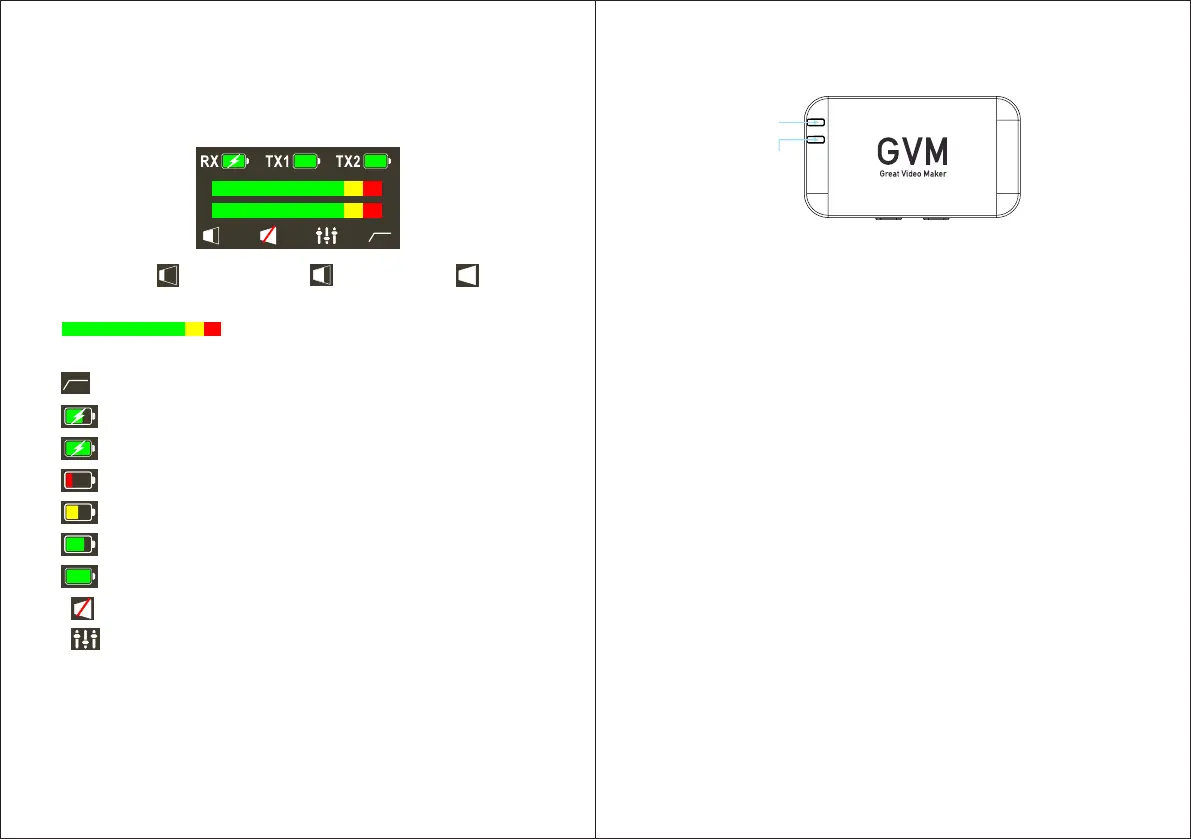
1. Volume icon: minimum volume, medium volume, maximum
volume.
2. The voice input signal strength of the microphone
is displayed.
3. The noise reduction symbol lights up in the noise reduction state.
4. Charging symbol.
5. Charging complete symbol.
6. Low battery symbol.
7. Two grid electricity symbols.
8. Three grid electricity symbols.
9. Full battery symbol.
10. Mute icon, light up when mute.
11. EQ symbol, light up when EQ is turned on. (enhance middle and low
frequency sounds)
12. RX pairing display: Press and hold the ON/OFF button for 5 seconds to
enter pairing when the device is off. The TX1 and TX2 characters will flash.
After the pairing is successful, the TX1 or TX2 characters will stay on and
wait for 5 minutes. If the device is not connected, the device will
automatically shut down.
1. TX work light (blue light): flashes 1 time per second when there is no
connection, and stays on when the connection is successful.
2. TX pairing light (blue light): Press and hold the ON/OFF button for 5
seconds to enter pairing in the off state, the blue light will flash quickly
(once every 0.5 seconds), and the device will automatically shut down after
waiting for 5 minutes if the connection fails.
3. TX recording light (green light): It is always on when the recording is turned
on, and the light is off when the recording is turned off.
4. Prompt when the TX recording memory is full: the green light flashes once
every 0.5 seconds.
5. TX low power flashing light: Green and red lights flash alternately.
6. TX charging indication: The red light is flashing (once every 1.5 seconds),
and the flashing light is turned off after a delay of 5 seconds after fully
charged.
6
① Receiver TFT display
② Transmitter LED Indicators
Blue light
Green, red
two-color lights
TFT SCREEN ICON AND LED LIGHT
FUNCTION INTRODUCTION



 To Next Page