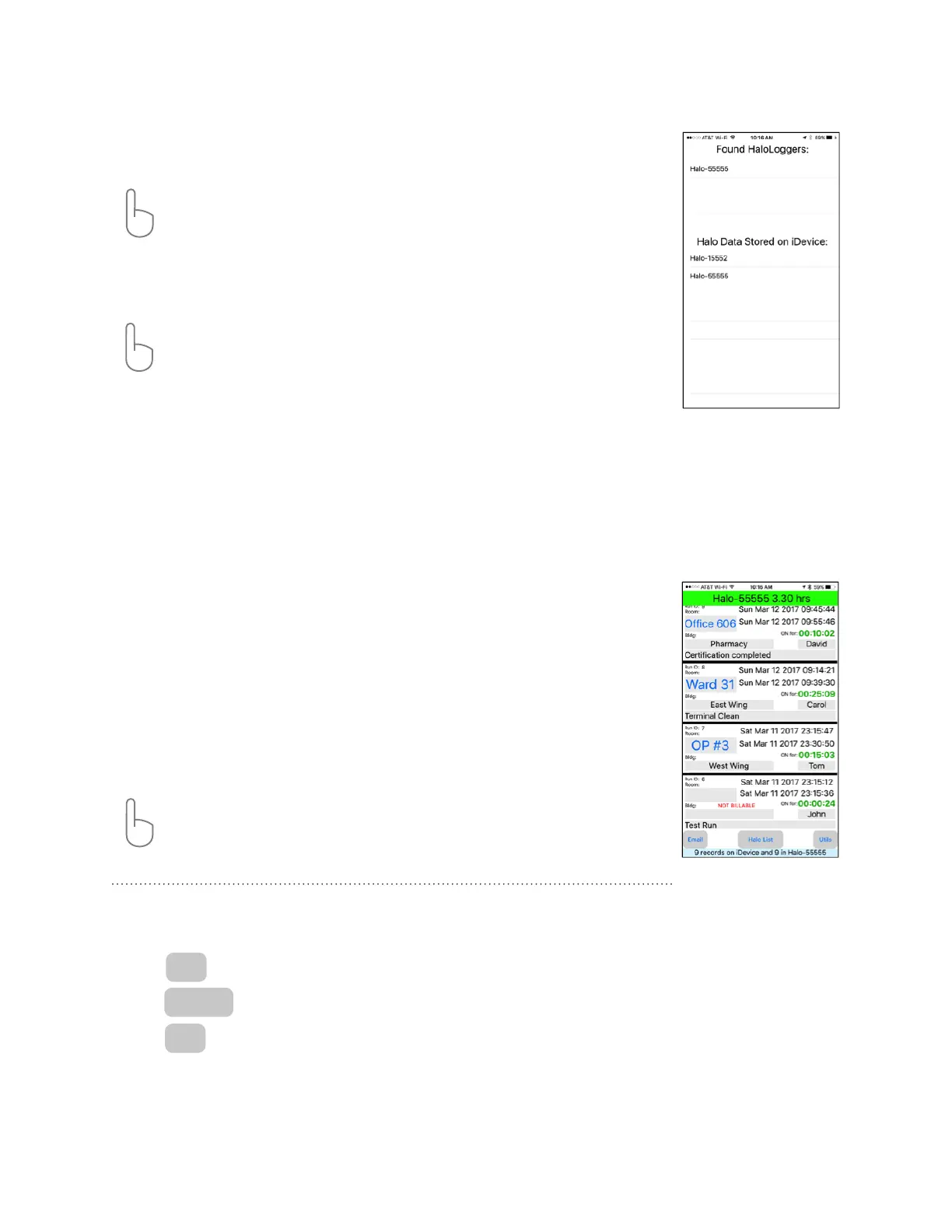
When the HaloLog App is started, the Halo List screen will appear. The the top of the screen will show
“Found HaloFoggers” listed by the fogger’s individual serial number. Only HaloFoggers that are within
range to the HaloLog App will be displayed.
ACTION: Tap on a specic HaloFogger serial number to connect or ‘handshake’ to that fogger.
You will automatically be taken to the Run Events Screen.
The bottom of screen displays “HaloLogs Stored on iDevice.” This is a list of previously downloaded data
logs identied by a fogger’s serial number.
ACTION: Tap on specic HaloFogger serial number to view a previously downloaded run cycle
log for review, editing or sharing. You will automatically be taken to the Run Events Screen to see
this data.
Halo List Screen
The Run Events Screen shows a list of all Run ID’s that have been downloaded to the iDevice.
When a HaloFogger is connected to the iDevice the top row of the screen will display the Serial Number and
total Run Time for that HaloFogger highlighted in GREEN.
The HaloLog data stored on the selected HaloFogger will download automatically after the Bluetooth®
“handshake” has been established, which is indicated when the top row turns GREEN.
Each Run Event is listed with specic information including: Run ID, Room, Building, Operator, Date, Cycle
Start and Stop Time, and duration of run event.
The very bottom row of the screen (highlighted in light BLUE) depicts how many records are kept on the
HaloFogger and how many have been downloaded to the iDevice.
ACTION: Tapping on any run event will open the Run ID Screen where information on that run
cycle can be edited.
Run Events Screen
Button selections at the bottom of screen:
1. Tap to go to Email Screen to send data le by e-mail.
2. Tap to return to Halo List Screen.
3. Tap to go to Utilities Screen to monitor data exchange between iDevice
and HaloFogger.
NOTE: Downloading of data will be interrupted if, during downloading, any input to the iDevice screen is
initiated (tapping to select). Data downloading will resume the next time you re-connect.
Email
Utils
Halo List
HaloFogger® Operation Manual_1911


 To Next Page
 Loading...