8
9
NEXUS SOFTWARE - NSP
Installing the software
1. Insert the supplied USB Key into your PC. If
you have lost your USB key, you can download
the Haltech NSPsoftware from the DOWNLOADS
section of the Haltech website.
2. If the window does not open automatically, open
My Computer and find the USB drive. Double click
on the USB drive icon.
3. Double click on the installer icon located in the
root directory of the USB drive.
4. Once the Haltech NSP software is installed, run
the software.
Going Online with the VCU
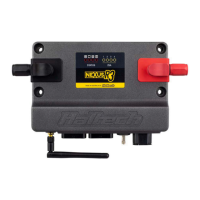
1. Plug the supplied USB-C cable into the USB-C
Port on the front of the NEXUS R3.
2. The USB-C connection will power the VCU in a
low power mode.
This mode allows the user to connect to NSPfor
map configuration and data-log extractionwithout
powering the VCU completely. VCU inputs and
outputs are disabled in low power mode.
Setting up Wi-Fi communications
Wi-Fi communications can be enabled using NSP
in the Wi-Fi Module Settings.
When disabled, the module is held in an OFF state
and is completely inactive.
To set up your Wi-Fi connection follow these steps:
1. Open NSP and connect to your NEXUS R3 via
the supplied USB-C cable.
2. Click on Connections in the feature tree and
enable the Wi-Fi module setting.
3. Under Connections click on Wi-Fi to setup your
SSID and password. Your SSID must be at least 1
character and your password must be at least 8
characters.
4. Press Apply.
5. With the VCU powered up on main power go to
your computer’s Network settings and connect to
your NEXUS R3 by selecting your chosen SSID and
typing in your password.
3. NSPwill recognise the VCU automatically.
4. Click File/Open to choose your base map.
NOTE: The VCU must be powered on main
power for Wi-Fi communication. Up to two
computers may be connected to the VCU over
Wi-Fi and one over USB-C at any one time.


 To Next Page