4
Note
•For moreinformation, please refer to the operating
instructions of your terminal device.
•Functions can still be controlled directly via the terminal device.
•Set the volume on your terminal device to alow level.
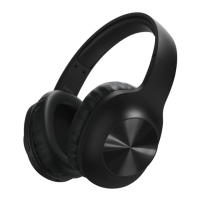
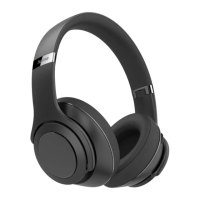
•Switch on the headphones with the MFB button (5).
•Start audio playback on the connected terminal device.
•Press and hold Volume + (8) to increase the volume.
•Press and hold Volume - (7) to reduce the volume.
•Brieypress the MFB button (5) to start or pause audio
playback.
•Brieypress Volume + (8) to skip to the next track.
•Brieypress Volume - (7) to skip back to the previous track.
Note
An acoustic signal is given when the minimum or maximum
volume is reached.
5.4. Hands-free function
•Press the MFB button (5) once to answer an incoming call.
•Press and hold the MFB button (5) for 2seconds or use your
telephone to reject an incoming call.
•During acall, press the MFB button (5) once to end the call.
•Press and hold Volume + (8) to increase the volume.
•Press and hold Volume - (7) to reduce the volume.
•Press the MFB button (5) twice to redial the number last dialled.
Note
•Not all terminal devices support allthe functions specied
above. Formoreinformation, please also refer to the
operating instructions of your terminal device.
•Some functions and acoustic signals aredependent on your
terminal device.
Note –Call quality
To increase the call quality,please make surethat you arenear
your mobile phone during the call.
5.5. Voice Assistant function
The Voice Assistant is an integrated, interactive function that
enables you to start communication with your Siri or Google
Assistant at the press of abutton. This function enables you to ask
questions and get various forms of help from your voice assistant,
even if you arenot holding your telephone in your hands.
Below you will nd some examples selected from the large number
of possibilities.
Note –Siri
Siri is only available on suitable terminal devices with iOS 5or
higher (from iPhone 4s onwards).
Note –Google Assistant
•The Google Assistant is only available on suitable terminal
devices with Android 5.0 or higher,Google Play Services,
>1.5 GB of free memory and aminimum screen resolution
of 720P.
•The Google Assistant app must be available on your
terminal device and set as the default voice assistant.
Press the Voice Assistant button (1) while the headphones are
connected via Bluetooth
®
to start communication with your Siri or
Google Assistant. As soon as you hear an acoustic signal, your voice
assistant is ready to help you.
• Example 1:
Press the Voice Assistant button (1) and then speak into your
headphones: ‘What’sthe weather like today?’ The voice assistant
will answer as follows, for example: ‘Mainly cloudy with some
showers’
• Example 2:
Press the Voice Assistant button (1) and then speak into your
headphones: ‘What time is it?’ The voice assistant will answer as
follows, for example: ‘It is 8pm’
• Other examples: Set an alarm for tomorrow at 7am.
Play music.
What’sinthe news?
5.6. Audio input socket
In addition to connecting these headphones via Bluetooth®, you
can connect them using the included AUX cable.
To do so, insert one end of the cable into the terminal device and
the other end into the Audio input socket (2) on the left side
of your headphones. The Bluetooth
®
connection is automatically
ended when you plug in the audio cable. The headphones now
function as wired headphones.
Note
To operate the headphones with the AUX cable, the headphones
do not have to be switched on. The Volume +/-, Play/Pause and
Next/Previous track functions arecontrolled solely using your
terminal device.
5.7. Disconnecting the headphones
•Switch off the headphones.
•Disconnect the headphones via the Bluetooth
®
settings on your
terminal device.


 To Next Page