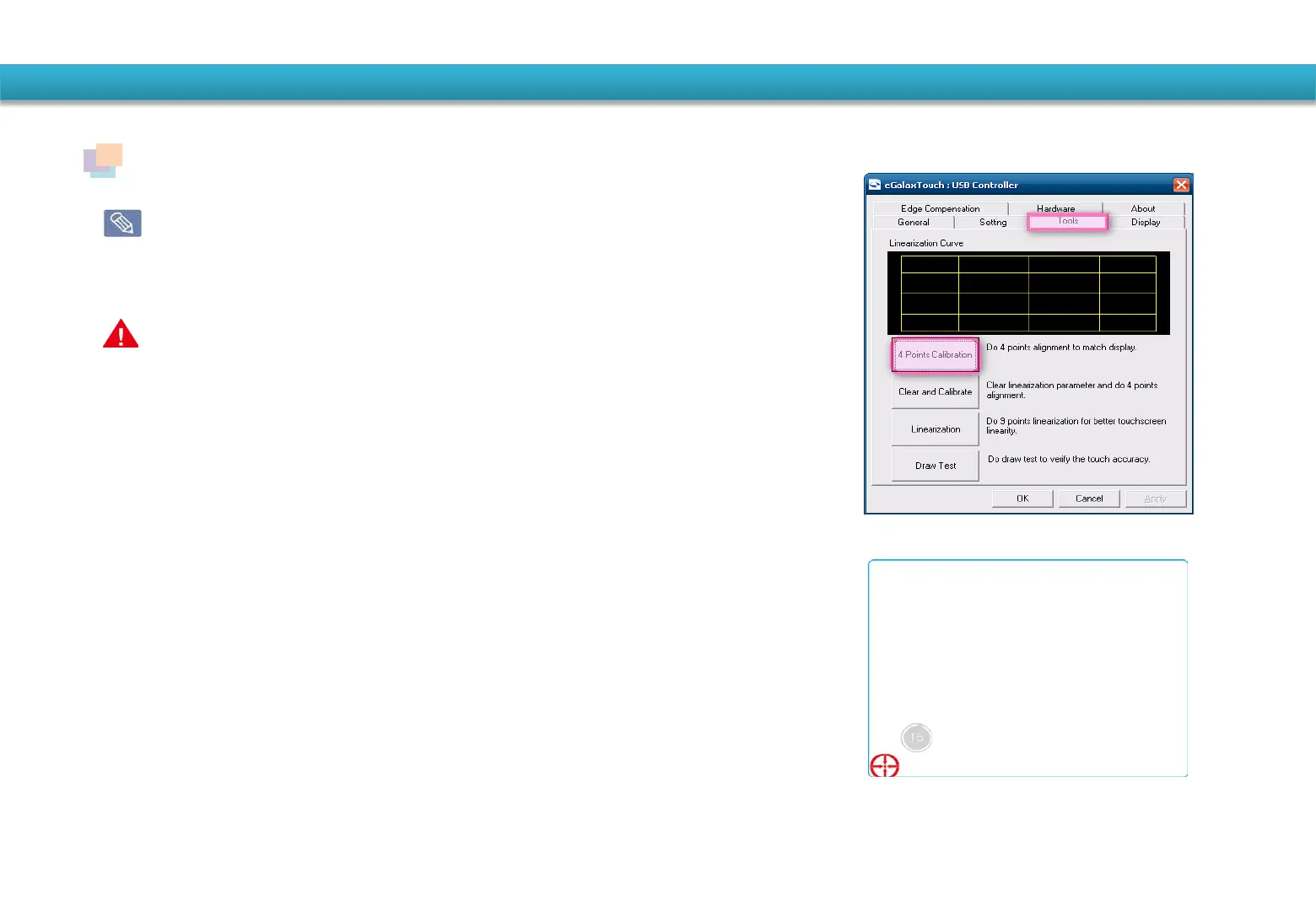
① Click Start>All Programs>eGalaxTouch>Configure Utility
② Click the 'Tools' tab and „4Points Calibration‟
③ When the Calibration window appears, touch the
point represented by the “+”.
④ The “+” is displayed from the bottom left to the
top left of the screen sequentially.
⑤ The touch screen input points are calibrated.
Using the system
Touch Screen Calibration
When you use the touch screen for the first time or the pointer does not pre
cisely match your touch, calibrate the touch screen in the „eGalaxTouch‟. The
calibration process for the touch screen may differ depending on the operati
ng system and may not be available in some operating systems. The followin
g descriptions assume the Windows POSReady2009 operating system.
Do not apply a severe impact to the touch screen or press the screen with a
sharp object such as a ball-point pen.
This may damage the touch screen.


 To Next Page