V4000 SERIES OWNER’S MANUAL
4
SETTING UP / HELPFUL TIPS
• Position your VARI in the desired location, and ensure it is stable.
• Make sure the Power Switch is off.
• Turn Channel 1, 2, and 3 knobs to minimum.
MAKING THE CONNECTIONS
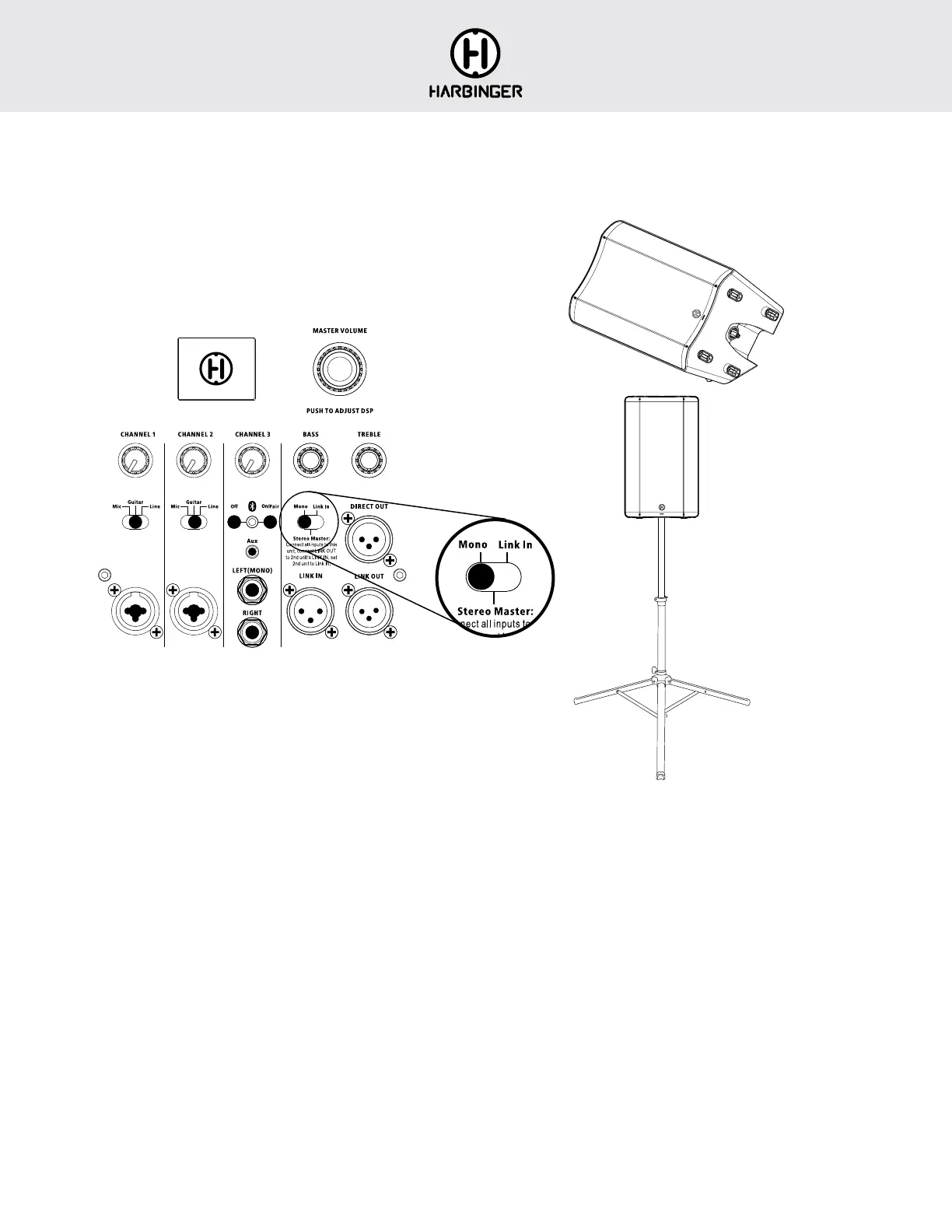
• Connect sources to Channel 1, 2 and 3 input jacks as desired. (All these
input jacks can be used at once, along with Bluetooth audio input.)
CHECK SWITCHES
Check that Mono / Stereo Master / Link In switch is set to Mono.
Check that Channel 1 and Channel 2 switches match sources:
• Mic for microphones, or line level sources with low output volumes
• Guitar for acoustic guitar or pedal board output
• Line for mixers, keyboards and other electronics
POWERING UP
• Power on any devices connected to input jacks.
• Turn up the output volume of all sources.
• Turn Channel 1, 2, 3, Bass, Treble, and Master Volume knobs
to desired levels.
BLUETOOTH AUDIO INPUT
• Press On/Pair button so Blue LED flashes
• From your Bluetooth audio source device, look for V4112 or V4115
and select it.
QUICK START GUIDE: SINGLE V4112/V4115
Speaker stand
not included
Main
Floor Monitor
BLUETOOTH
®
TROUBLESHOOTING
These steps should resolve any Bluetooth audio trouble you may encounter:
FOR APPLE iOS DEVICE
1. Power off the V4112 or V4115 and leave it off
2. On your Apple iOS device
• Open Settings app, select Bluetooth
• If V4112 or V4115 is listed under MY DEVICES, touch info button,
tap to Forget This Device
• Turn off Bluetooth, wait 10 seconds, turn on Bluetooth
3. Turn off Bluetooth, wait 10 seconds, turn on Bluetooth
4. Then power on your V4112 or V4115, and touch On/Pair button
so Bluetooth LED flashes
FOR ANDROID DEVICE
1. Power off the V4112 or V4115 and leave it off
2. On your Android device
• Open Settings, select Bluetooth
• If V4112 or V4115 is listed under Paired Devices, touch gear
Icon, and tap to Unpair
• Turn off Bluetooth, wait 10 seconds, turn on Bluetooth
3. Then power on your V4112 or V4115, and touch On/Pair button so
Bluetooth LED flashes
4. You should now be able to connect to V4112 or V4115 via Bluetooth
FOR FLOOR MONITOR USE
• Set Location to Floor Monitor (see page 12 for details)








 To Next Page