EasyManua.ls Logo

Harman dbx DriveRack 260 - User Manual

Harman dbx DriveRack 260
2 pages
Print Icon
To Next Page IconTo Next Page
Loading...
WHAT’S IN THE BOX
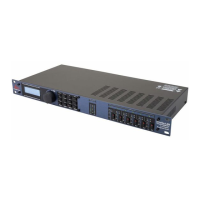
DriveRack 260 Processor
Power Cable
Null Modem Cable
Rack Mount Screw Kit
Quick Start Guide
PRODUCT REGISTRATION
Register your product at http://dbxpro.com/en-US/
support/warranty_registration or scan the code to the
right with a QR scanner app on your mobile device.
DriveRack 260 Quick Start Guide
PN: 5059584-A
801.566.8800
dbxpro.com
© 2015 Harman. dbx Professional Products is a registered trademark of Harman. All rights reserved.
1
Getting Started
Before making any audio connections, perform the following:
Ensure power to your mixer, 260, and amplifier(s) are turned off.
Turn the attenuators on all power amplifiers or powered speakers all the way down.
Make the audio connections per your application (see the system diagrams inside this
quick start guide for reference).
Power up
the mixer, then the 260, then your amplifiers or powered speakers.
2
Run The Setup Wizard
The Setup Wizard will walk you through the configuration process. To run the Setup Wizard,
follow these steps:
A. Press and hold the WIZARD button for
2 seconds.
B. Select the “System Setup” Wizard option
by pressing the SELECT wheel.
C. Follow the on-screen instructions. Use
the NEXT PG and PREV PG buttons
to navigate the Wizard and the SELECT
wheel to make selections. Select the
“Custom” option for amplifier and/or
speaker models not listed in the System
Setup Wizard.
TIP: The “GEQ” option must be selected to use the Auto EQ Wizard and the “AFS”
option must be selected as one of the inserts to use the AFS Wizard.
NOTE: For information on manually configuring the 260 using Configuration mode,
see the “Manual Configuration” section inside this Quick Start Guide.
DOWNLOAD THE OWNERS MANUAL
Get the owner’s manual at http://dbxpro.com/en-US/
products/driverack-260#documentation or scan the code
to the right with a QR scanner app on your mobile device.
Question and Answer IconNeed help?

Do you have a question about the Harman dbx DriveRack 260 and is the answer not in the manual?

Summary

Getting Started and Setup Wizard

Getting Started

Initial steps before making audio connections, including power off and connections.

Run The Setup Wizard

Guide to initiating and navigating the on-screen Setup Wizard for configuration.

Product Registration and Manual Download

Product Registration

Instructions for registering the product online or via QR code for warranty.

Download Owners Manual

Information on obtaining the full owner's manual via URL or QR code.

System Configuration Options

Auto EQ The System

Optional process for automatically adjusting system equalization using a measurement microphone.

Ring Out The System For Feedback

Optional process to identify and mitigate feedback frequencies using the AFS Wizard.

Store the Preset

Instructions on how to save the current system configuration as a preset.

Control Using DriveWare Software

Guidance on connecting to a computer and using the DriveWare software application.

Manual Configuration

Information on entering configuration mode for advanced manual setup.

Summary

Getting Started and Setup Wizard

Getting Started

Initial steps before making audio connections, including power off and connections.

Run The Setup Wizard

Guide to initiating and navigating the on-screen Setup Wizard for configuration.

Product Registration and Manual Download

Product Registration

Instructions for registering the product online or via QR code for warranty.

Download Owners Manual

Information on obtaining the full owner's manual via URL or QR code.

System Configuration Options

Auto EQ The System

Optional process for automatically adjusting system equalization using a measurement microphone.

Ring Out The System For Feedback

Optional process to identify and mitigate feedback frequencies using the AFS Wizard.

Store the Preset

Instructions on how to save the current system configuration as a preset.

Control Using DriveWare Software

Guidance on connecting to a computer and using the DriveWare software application.

Manual Configuration

Information on entering configuration mode for advanced manual setup.

Overview

The dbx DriveRack 260 is a complete equalization and loudspeaker management system designed to optimize the performance of audio systems. It integrates a variety of signal processing functions into a single 1U rack-mountable unit, making it a versatile tool for live sound, installed sound, and studio applications.

Function Description:

The DriveRack 260 combines several critical audio processing components:

  • Crossover: It provides precise frequency division for multi-way loudspeaker systems, ensuring that each speaker component receives the appropriate frequency range. This is crucial for achieving optimal sound quality and protecting speakers from damage.
  • Equalization (EQ): The device includes both Graphic EQ (GEQ) and Parametric EQ (PEQ) capabilities. The GEQ offers broad frequency adjustments, while the PEQ allows for more precise control over specific frequency bands, Q-factor, and gain. This enables users to tailor the sound to the acoustic characteristics of any venue or to achieve a desired sonic signature.
  • Feedback Suppression (AFS - Advanced Feedback Suppression): This feature automatically identifies and eliminates feedback frequencies, allowing for higher gain before feedback and clearer sound. It uses sophisticated algorithms to detect potential feedback and apply narrow-band filters without significantly affecting the overall sound quality.
  • Compressor/Limiter: The built-in compressor and limiter protect loudspeakers from over-excursion and clipping, ensuring consistent sound levels and preventing damage. The compressor reduces dynamic range, making the sound more consistent, while the limiter acts as a hard ceiling to prevent signals from exceeding a set threshold.
  • Automatic Gain Control (AGC): This function helps maintain a consistent output level, which is particularly useful in environments where input levels may vary.
  • Real-Time Analyzer (RTA): When used with an optional RTA-M measurement microphone, the DriveRack 260 can analyze the acoustic response of a room. This allows for automated system equalization, optimizing the sound for the specific environment.
  • Delay: The device offers delay capabilities for aligning loudspeakers in different physical locations, ensuring phase coherence and improving imaging.
  • Subharmonic Synthesizer: This feature can generate low-frequency content, enhancing the impact and depth of the bass.

Important Technical Specifications:

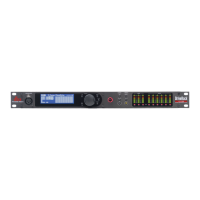
While specific numerical specifications are not detailed in the provided manual excerpts, the device is designed for professional audio applications, implying high-quality audio converters and processing. It features multiple inputs and outputs, typically two inputs and six outputs, allowing for configurations such as stereo 3-way or mono 6-way systems. The rear panel includes XLR connectors for audio I/O, an RTA Mic Input (XLR), and an RS-232 port for computer control. The front panel features a clear LCD display, navigation buttons (NEXT PG, PREV PG), a SELECT wheel (push-button), and dedicated buttons for WIZARD, PROGRAM/CONFIG, STORE, and MUTE for each output.

Usage Features:

  • Setup Wizard: The DriveRack 260 features a user-friendly Setup Wizard that guides users through the initial configuration process. This simplifies setting up crossovers, equalization, and other parameters, making it accessible even for users with limited technical expertise. The wizard allows selection of system type (e.g., mono/stereo full range, 2-way, 3-way), amplifier models, and speaker models.
  • Auto EQ Wizard: This wizard, used in conjunction with the dbx RTA-M measurement microphone, automates the equalization process. By analyzing the room's acoustics with pink noise, the system can automatically apply corrective EQ to achieve a desired frequency response. Users can select different response curves (e.g., "A" for live band PA, "D" for DJ).
  • AFS Wizard (Advanced Feedback Suppression): The AFS Wizard helps "ring out" the system by identifying and suppressing potential feedback frequencies during a sound check.
  • Configuration Mode: For advanced users or more complex applications, the device offers a manual Configuration mode, accessible by holding the PROGRAM/CONFIG button. This allows for granular control over all parameters.
  • Preset Storage: Users can store their customized configurations as presets, allowing for quick recall of settings for different venues or applications. The manual indicates a "STORE" button for this purpose.
  • DriveWare Software App: The DriveRack 260 can be controlled remotely via a computer using the DriveWare software application. This requires connecting the device to a computer via an RS-232 null modem cable (and potentially an RS-232 to USB serial adapter). The software provides a graphical interface for easier setup, monitoring, and control of all parameters.

Maintenance Features:

The manual does not explicitly detail maintenance features beyond the initial setup and configuration. However, as a professional audio device, it is designed for reliability and durability. Regular software updates (if available) would be managed through the DriveWare application. The robust rack-mount design suggests it is built to withstand the rigors of touring and permanent installations. Product registration is encouraged for warranty support.

Harman dbx DriveRack 260 Specifications

General IconGeneral
BrandHarman
Modeldbx DriveRack 260
CategoryRecording Equipment
LanguageEnglish

Related product manuals