EasyManua.ls Logo

Hayear HY-1139 - User Manual

Hayear HY-1139
13 pages
Print Icon
To Next Page IconTo Next Page
Loading...
HDMI Industrial Camera
User Manual
HY-1139 Industrial Camera V1.5 ( English Version )
Question and Answer IconNeed help?

Do you have a question about the Hayear HY-1139 and is the answer not in the manual?

Summary

Safety Guides

Operation Instructions

Preparatory Work

Twist the cover and install the lens.

Menu Operation Instructions

Line Setting

Configure cross hair, line, direction, position, color, and weight.

Video Resolution

Select video resolution options like 2.7K, 2.5K, or 1080P.

Image Size

Select image size options like 34MP, 21MP, or 14MP.

Picture Scale and Mirror Contrast

Picture Scale

Select aspect ratio, 16:9 or 4:3.

Mirror Contrast

Adjust mirror contrast settings, including horizontal and vertical options.

Exposure and White Balance

Exposure

Adjust exposure values, compatible with auto exposure.

White Balance

Configure white balance settings like Auto, Daylight, Tungsten, etc.

Color and Language Settings

Color

Select color modes such as Multicolor, Black & White, or Sepia.

Language

Choose the menu language from available options.

Frequency and System Settings

Frequency

Select power frequency, 50Hz or 60Hz.

Date;Time and Format

Set date/time and format the storage device.

Default Setting

Restore factory default settings.

Advanced Features and Output

Electronic Amplification and Reduction

Use freeze/capture buttons for digital zoom.

Switch Photo and Video Mode

Toggle between photo and video modes using buttons.

HDMI Output

Connect to an HD monitor for display; no video recording via HDMI.

FAQ and USB Output

FAQ

Answers to common questions regarding image display and functionality.

USB Output Overview

Details on the S-EYE software for image processing.

Capture Images and Camera Control

Capture Images

Instructions for taking pictures and recording videos.

Camera Control

Device control, exposure, gain, and white balance settings.

Measurement Functions

Color Adjustment

Adjust Hue, Saturation, Brightness, Contrast, and Gamma.

Measurement Tools

Utilize tools for line, rectangle, circle, arc, and angle measurements.

Thanks and Contact

Thanks

Appreciation to users and contact information for support.

Overview

This document describes the HY-1139 Industrial Camera, a 34-megapixel HDMI industrial camera designed for various applications, including microscopy. It offers both HDMI and USB output, supporting high-resolution image capture and video recording.

Function Description

The HY-1139 Industrial Camera is a versatile imaging device capable of capturing still images and recording videos. It features a 34-megapixel CMOS Panasonic sensor, providing a broad viewing angle. The camera supports HDMI output at 1080P 60fps and USB output at 1080P 30fps. It allows for one-key freeze/unfreeze functionality, 21MP image capture, and 1080P video recording. Additionally, it supports 2.7K 30fps video recording.

Key functionalities include digital zoom in and zoom out, manual and auto exposure with EV adjustment, and manual and auto white balance with RGB adjustment. The camera can display 10 lines (5 horizontal, 5 vertical) at any position, with options to turn crosshairs on/off. It supports TF card storage up to 128GB and comes with a remote control for easier operation. The menu is available in English and Chinese, with settings saved after power off.

For USB output, the camera uses the S-EYE User Manual software. This application facilitates dynamic image processing and offers a user-friendly interface with a toolbar for capturing pictures, recording videos, and browsing files. It includes a sidebar for switching control panels (camera control and measurement functions), a control panel for specific operations, and a status bar for displaying camera information and toggling measurement results. The main menu allows access to setting dialogs and software information.

The S-EYE software enables users to take pictures by clicking the "Snap" button, with options to set picture file format and resolution. Video recording is initiated by clicking the "Record" button, with an animation indicator displayed during recording. Users can browse stored pictures and videos through the "Browse" button.

Camera control within the S-EYE software includes device control for supporting different cameras, preview resolution, and output format, with the highest resolution being 1920x1080. Exposure and gain settings are available, though some functions may not be supported depending on the connected camera. White balance settings are also provided, with similar support limitations. Red, Green, and Blue gain adjustments are available if supported by the camera. Normal camera parameter adjustments for Hue, Saturation, Brightness, Contrast, and Gamma are also included, along with options to reset camera parameters and open camera property dialogs for DirectShow cameras.

The measurement sheet in the S-EYE software offers various tools:

  • Move: Adjust measurement tools.
  • Point: Setup > Video Overlay > Marker.
  • Line: Measure length of a line.
  • Vertical: No specific description provided, but implies vertical line measurement.
  • Rectangle: Measure perimeter and acreage.
  • Polygon: Measure perimeter and acreage.
  • Circle: Measure a circle by center point and radius.
  • Two Points Circle: Measure a circle determined by two points.
  • Three Points Circle: Measure a circle determined by three points.
  • Arc: Measure length of an arc.
  • Angle: Measure angle.
  • Calibrate: No specific description provided.
  • Scale Bar: No specific description provided.
  • Text: No specific description provided.
  • Stitch: No specific description provided.

Important Technical Specifications

  • Image Sensor: 34 megapixel CMOS Panasonic sensor, 1/2.33 inch.
  • Pixel Size: 1.335µm × 1.335μm.
  • HDMI Output: 1920*1080 60fps.
  • USB Output: 1920*1080/30, 1280*720/30, 640*480/30, 320*240/30 (MJPG).
  • Photo Resolution: 6800x5100 (34M), 5200x3900 (21M), 4320x3240 (14M).
  • Video Recording: 2.7K 30fps, 1080P 60fps.
  • Lens Interface: C/CS.
  • Exposure: Auto/Manual, with EV (exposure compensation) support.
  • White Balance: Auto/Manual, with RGB adjustment support.
  • Storage: TF card, max up to 128GB.
  • Input Voltage: DC 12V.
  • Lines: 10 lines (5 horizontal, 5 vertical), adjustable positions.
  • Menu Language: English, Chinese, Japanese, French, German, Spanish.
  • Remote Control: Supported.
  • Net Weight: 250g.
  • Dimensions: 72mm (width) x 72mm (height) x 31.5mm (depth), with a 24.8mm lens interface.

Usage Features

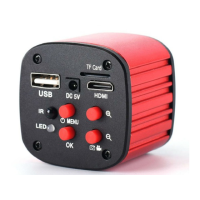
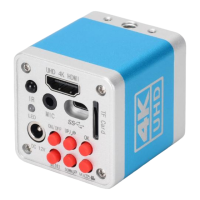
  • Connectivity: HDMI output interface, USB output interface, TF card storage interface, DC 12V power interface.
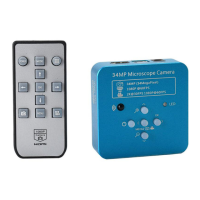
  • Remote Control: The included remote control allows for power on/off, mode switching (image/video), photograph/video record, menu access, upward/downward/left/right navigation, and confirmation (OK).
  • Menu Operation:
    • Line Setting: Configure crosshairs (on/off), line count (1-10-OFF), direction (horizontal/vertical/off), position (adjustable with rapid increase/decrease), color (transparency, black, white, red, green, blue, orange), and weight.
    • Video Resolution: Select between 2.7K 30fps, 2.5K 30fps, and 1080P 60fps.
    • Image Size: Select photo resolution from 34M, 21M, or 14M.
    • Picture Scale: Choose between 16:9 and 4:3 aspect ratios.
    • Mirror Contrast: Options for Off, Horizontal & Vertical, Horizontal, and Vertical mirroring.
    • Exposure: Adjust exposure value (e.g., +0.0, -1.0, -1/3, -4/3, etc.) under auto exposure.
    • White Balance: Select Auto, Daylight, Cloudy, Tungsten, or Fluorescent.
    • Color: Choose Multicolor, Black & White, Sepia, or Inverse Color.
    • Language: Select from English, Chinese (Simplified/Traditional), Japanese, Portuguese, German, French, Spanish, Russian.
    • Frequency: Select 50Hz or 60Hz.
    • Date/Time: Set date and time.
    • Format: Format the TF card (deletes all data).
    • Default Setting: Restore factory settings.
  • Electronic Amplification and Reduction: Press the "freeze" button for electronic amplification up to 5 times. Press the "capture" button for reduction back to original size.
  • Photo and Video Mode Switch: Default is photo mode. Press "OK" to take a photo. Press "MODE" to switch to video mode, then "OK" to start/stop recording.
  • HDMI Output Usage: Ensure a connected HD monitor. Power on the microscope and connect to the monitor. Adjust working distance for a clear image. Under HDMI output, the microscope can take pictures but cannot record video.
  • USB Output Usage (S-EYE Software):
    • Capture Images: "Snap" for pictures, "Record" for videos, "Browse" for file management.
    • Camera Control: Adjust preview resolution, output format, exposure, gain, white balance, and RGB gain.
    • Measurement Tools: Utilize various tools for measuring lines, rectangles, polygons, circles, arcs, and angles.

Maintenance Features

  • Storage: Store the camera between 0℃ and 50℃ with humidity under 90%.
  • Protection: Prevent foreign objects from entering, avoid liquid spills, and protect against knocks and violent vibrations during transportation, storage, and installation.
  • Disassembly: Do not attempt to disassemble the camera as there are no user-serviceable parts inside.
  • Cleaning:
    • Shell: Use a dry soft cloth to wipe the camera's shell. For serious dirt, use a neutral detergent gently.
    • Optical Filter: If a gray shadow appears on the image, use a dust blower to remove dust from the optical filter. Do not use detergent on the optical filter.
  • Power Supply: Use the recommended 12V 1A power adapter that came with the camera. Ensure the power voltage is within AC100V-240V@50-60Hz.
  • Troubleshooting:
    • No Image on Monitor: Check connections and power switch.
    • Vague Image: Adjust focal distance, lighting angle, and check for dirt on the lens.
    • Remote Control Not Working: Check if batteries are installed.
    • No Image on Monitor During Playback: Video might be incomplete or too large, requiring system runtime.
    • Unclear Photograph: Check if photo setting is at the highest pixel.
    • TF Card Error: Ensure it's a certified memory card, then format and retry.

Hayear HY-1139 Specifications

General IconGeneral
BrandHayear
ModelHY-1139
CategoryDigital Camera
LanguageEnglish

Related product manuals