2. Battery Status & Charging Indicator
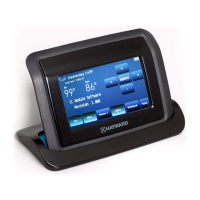
The Charging Indicator will display when the AquaPod 2.0's battery is charging. This occurs when
the AquaPod 2.0 is sitting in the charging stand and the stand is plugged into the wall. During
charging, the battery bars will move from left to right. When the battery is fully charged, the Charg-
ing Indicator will stop moving and show all bars. Note that when the battery charge is low, the
message “Please plug in to charge battery” will appear every few seconds. If the battery charge
gets too low to continue powering the AquaPod 2.0, the display will show “Battery dead! Please
charge now”. When removed from wall power, the indicator will show the amount of battery
charge remaining.
3. Day/Time, System Off and Check System error
Normally, the day of the week and time is shown in this location on the display. The day and time
are sent from the pool control automatically. Note that all timers will refer to this information for
starting and stopping timed events. If this information is not accurate, pool/spa equipment may
not run properly.
When the pool control is in System Off mode, “System Off” will blink in this location on the display.
If an error occurs that requires someone to check the system, “Check System” will blink in this
location on the display.
4. Pool, Spa and Air Temperatures
This location of the display will show the pool, spa and/or air temperatures depending on how
the system is configured. Both Pool and Spa will only display when the control is in dual equip-
ment mode and both pumps are running. Note that “---” is displayed in place of the Pool or Spa
temperature if the filter pump is off. “Err” is displayed when a temperature sensor or its wiring is
either open or shorted.
5. Menu Display
This location on the AquaPod 2.0's display is used for the direct communication to the pool
control system. Access to the menus and submenus are displayed here. This information follows
the pool control local display, as well as any other remote control connected to the system. Any
programming changes made from the AquaPod 2.0, pool control or any remote in the system will
be displayed here. When no changes have been made from any location for more than 2 minutes,
the AquaPod 2.0 will scroll through each display of the pool control's Default menu. Refer to the
pool control Installation and Operation manuals for more information.
6. Equipment On/Off/Auto Buttons
The AquaPod 2.0 allows for easy On/Off/Auto control of your pool equipment. Any of the pool
equipment shown in this location of the display can be turned On/Off or returned to automatic op-
eration. When equipment is on, the equipment name will be displayed behind a solid backfill (see
diagram on page 4). When the output is off, the name will be displayed with no backfill. A blinking
backfill shows that the system is in low-speed or cooldown mode.
Depending on your pool control and its configuration, the number of control buttons will vary. If
applicable, press the "More" button on the far right to access an additional page of control buttons
including System Off. The "Back" button can be used to return to the previous page.
7. Pool Control Programming Buttons
These keys are used for programming and sending commands to the pool control. They operate
in the same manner as the pool control's local keypad buttons. Refer to your control's Installation
and Operation manual for detailed information on the use of these buttons.
5
USE ONLY HAYWARD GENUINE REPLACEMENT PARTS


 To Next Page
 Loading...